
Labels enable you to add custom information to your data and the visibility can be restricted to specific users. For instance, labels in the TMS that are exclusive to in-house staff (labels in project pages, resource pages, order pages, etc.), while labels in the Editor could be used by everyone.
There are two types of labels:
-
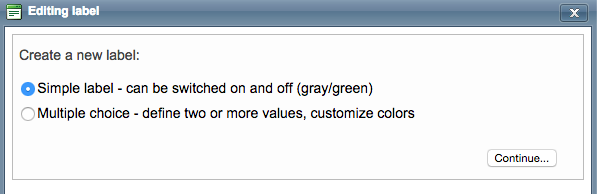
Simple (Approved/ Delivered which can be either switched on (green color) or switched off (grey).
-
Multiple choice ones (Complexity/ Action which have different statuses and colors).
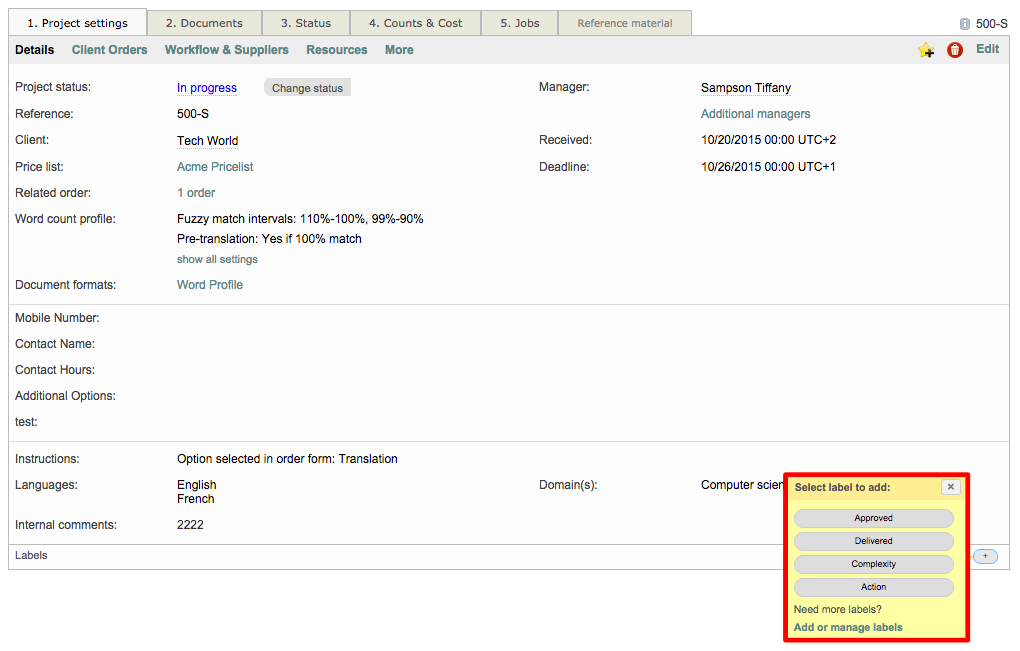
Click on to add a label to the project: there are four options: Complexity, Approved, Delivered and Action. A colored box will appear next to the + sign. Click on this box to change the color.
-
You can also click on Add or manage labels at the bottom of the pop-up window.
-
You will see this page in a new browser (which is also accessible by clicking on Settings on the menu bar: in the Customization page, click on Configure for Custom fields/ labels in the General settings sub-menu).
-
In the screenshot below, you can see different sub-menus such as Projects, Jobs, Resources, Invoices, etc. Different labels are available in each sub-menu. (eg: Projects sub-menu - Labels available):
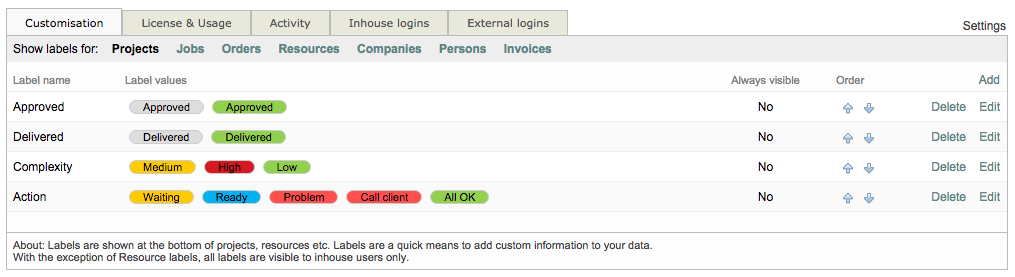
If you want to edit one in order to change the colors or the value names…, click on Edit. As already mentioned, there are two types of labels:
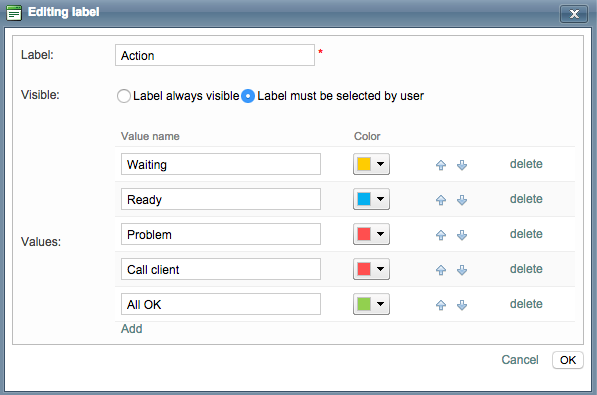
Multiple choice labels
In the Editing label dialogue, you can select one or more values, change the order and customize colors.
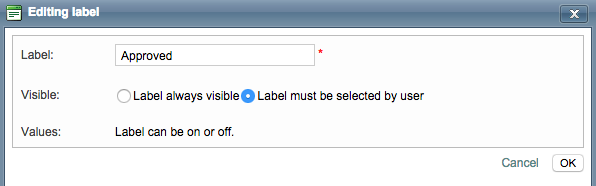
Simple labels
Labels can be switched on or off, always visible, or selected by users.
If you want to create a new label, click on Add and follow the steps.
Learn more
Use labels for proactive Resource Management