
Access rights control what actions each user within Wordbee Translator is able to perform. Within the application, you will find several predefined user profiles to make user configuration quick and easy. However, in some scenarios, you might need to tweak the profiles to meet more specific needs. User accounts may be managed in three different areas:
-
Inhouse
-
Suppliers
-
Clients
Each has their own pre-defined profiles, which may be applied to new or existing users to configure their access rights and are discussed in further detail below. This separation ensures that clients or suppliers are not able to view and access your company information. It keeps everything tightly segregated for the utmost security and ease of use.
See these How-to Articles on our Knowledge Base to learn how to customize users’ Access Rights for specific scenarios.
User profiles may be viewed at any time by clicking on Settings within the toolbar at the top of the screen.

Scroll down until you see the Accounts and Security section and then click on Configure located to the right of Access Rights within this section of the screen.

For more information about viewing and managing access rights in Wordbee Translator, please see the following pages:
Finding and Reading Rights
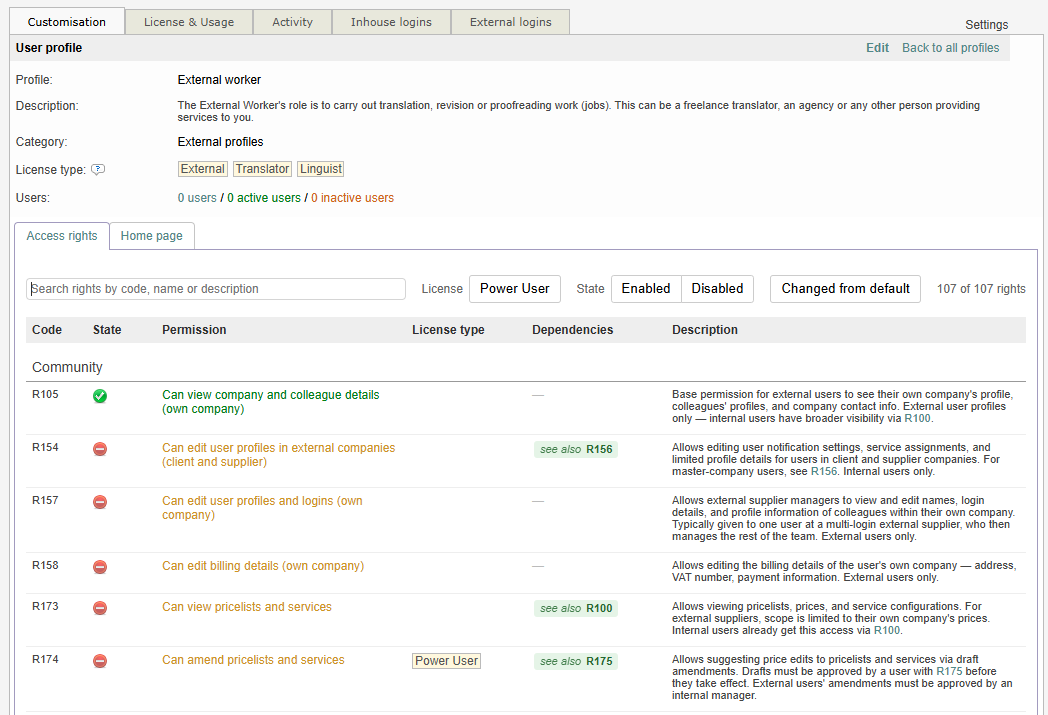
Once you open the Access Rights page for a profile, you see the full list of rights in a single table. Each right has its own row with an on/off switch, so you control exactly what the profile can do. The page shows in your interface language.
The table is built for scanning at a glance:
|
Column |
What it shows |
|---|---|
|
Code |
The short reference for the right (for example, R51). An orange dot next to the code marks a right whose value differs from the profile default. |
|
State |
A green check when the right is enabled, a red bar when it is disabled. |
|
Permission |
The name of the right. |
|
License type |
A Power User label when the right requires a Power User license. Otherwise empty. |
|
Dependencies |
Related rights shown as labeled chips: a red requires chip for a right you must also enable, and a green see also chip for a related right worth knowing about. Hover any chip to preview that right's code, state, name, and description. |
|
Description |
What the right does. Related rights appear as clickable links you can hover for details. |
Search and filter the list
A search box and a filter bar sit above the table so you can narrow a long list down to the rights you care about.
-
Search by code, name, or description. Results update as you type.
-
License filter: turn on the Power User toggle to show only rights that require a Power User license.
-
State filter: choose Enabled or Disabled to show only rights in that state. Click the active choice again to clear it.
-
Changed from default filter: turn it on to show only rights whose current value differs from the profile default. This is a quick way to review what has been tuned before you assign a profile.
Search and filters work together, so you can combine them to pinpoint a right. A count of matching rights shows next to the filter bar, and a message appears when nothing matches.
Tip: The Changed from default filter is the fastest way to audit a profile. It surfaces only the rights that have been adjusted away from the standard template, so you can confirm a profile is set up the way you intend.
Altering Rights for Existing Profiles
You do not have to use a specific user account to modify access rights; however, only the Administrator within Wordbee Translator has this capability. Besides using available pre-defined profiles for users, you also have the ability to alter the profile's access rights. For more information, see Editing Profile Access Rights.
Changing the access rights on a pre-defined (standard) profile will alter the permissions for every user currently assigned to that profile.
Creating Custom Profiles from existing ones
Additionally, you can avoid changing the permissions for every user by creating a custom profile from a pre-defined one. This will allow you to assign the custom profile to a user without affecting any other in-house or external users. For more information, see Creating Custom Profiles.
You may also view our Questions & Answers page to see how to resolve common questions regarding assigning, creating, and customizing access rights for user profiles within Wordbee Translator.
Let's take a look at the current pre-defined profiles you have available within the application:
Inhouse User Profiles
Inhouse user profiles are designed to be used for your company and can be assigned to any user you see or create within the My Company link. Whenever you create a user for your company, one of the standard profiles listed below may be assigned to that user.
|
User Profile |
Description |
|---|---|
|
Administrator |
The Administrator has access to all functionality including license and login management. |
|
Manager |
The Manager can add, delete and edit all data without limitation. This includes projects, jobs, clients, suppliers, orders, invoices, logins and translation memories |
|
Team Leader |
The Team Leader manages translation projects with inhouse or external teams. He/She has full access to all projects, jobs, orders and translation memories but cannot add/delete users or companies. |
|
Worker |
The Worker's main role is to translate or revise. The Worker can further access the jobs of all other workers and read the related project and client information. |
|
Worker (Limited) |
The Limited Worker has access to his/her own jobs only. No other information, such as project or client information, is accessible. |
|
Inhouse Client |
The Inhouse Client can submit translation requests, communicate with the team and ultimately download the finished translations. No other data is accessible. |
External User Profiles
External users can access data linked to their jobs or orders only. Whenever you create a user for a supplier or client, you attribute one of the user profiles below.
Supplier Profiles
|
User Profile |
Description |
|---|---|
|
External Manager |
The External Manager is especially useful if more than one login was given to an external company: The manager can assign jobs to individual team members and edit their names, details and logins. |
|
External Worker |
The External Worker's role is to carry out translation, revision or proofreading work (jobs). This can be a freelance translator, an agency or any other person providing services to you. |
|
External Worker (Limited) |
Contrary to the default external worker, this profile gives a very limited view of information. Users exclusively see jobs assigned to them by the manager. They cannot change job status, communicate with the client, see cost information or other team members. |
Client Profiles
|
User Profile |
Description |
|---|---|
|
External Client |
The External Client is your typical client who submits translation requests, communicates with your team and downloads deliverables, all online via your workspace (the client portal). |
|
External Client & Worker |
The External Client & Worker can both submit translation requests and work on jobs at the same time. Jobs can be useful if you plan to collaboratively work with the client during revision or approval. |