
The Filtering with AI panel lets you apply filters to the segment grid using everyday language. Instead of selecting filter fields, operators, and values one by one in the Filters panel, you can describe what you want to see in your own words, and the assistant builds the right filter configuration for you. This is especially useful when you need to combine several criteria at once: a single sentence can replace what would otherwise require configuring multiple filters manually.
Using the Filtering With AI Panel
You can open the panel in two ways:
-
Click the sparkle icon next to the search bar in the toolbar.
-
In the Filters panel, click Filter with AI next to Add a filter.
The Filtering with AI panel contains a text area for your instructions and a conversation area that shows your prompts alongside the assistant's responses.
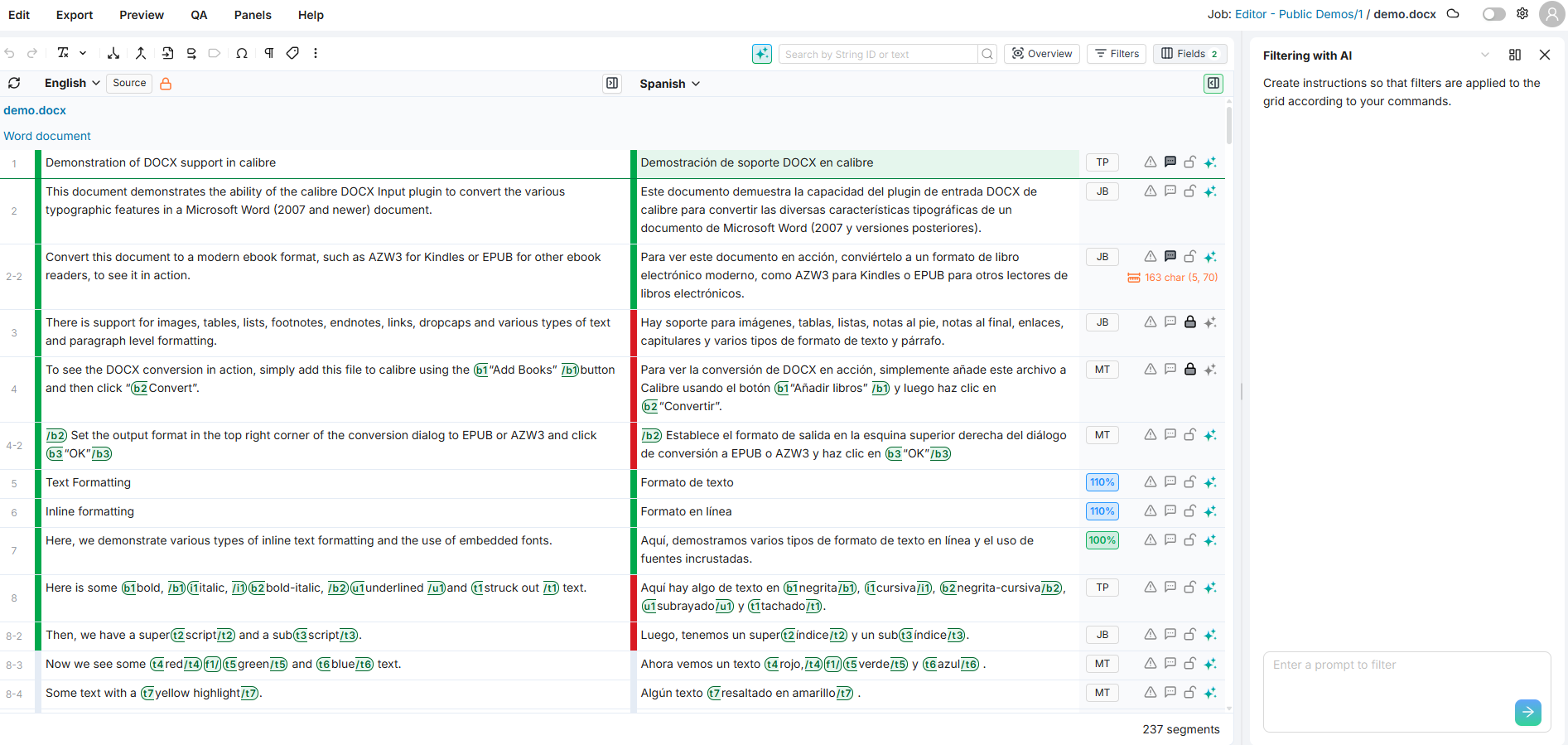
Follow these steps to filter with the AI assistant:
-
Open the Filtering with AI panel from the sparkle icon next to the search bar, or from Filter with AI in the Filters panel.
-
Type your filtering instruction in the text area using natural language. For example: "Show all empty segments for French."
-
Click the submit button (arrow icon) to send your request.
-
The assistant processes your instruction and applies the matching filters to the grid automatically. A success message confirms which filters were applied, along with a View Filters link.
-
Click View Filters to open the Filters panel and review the exact filter configuration that was set.
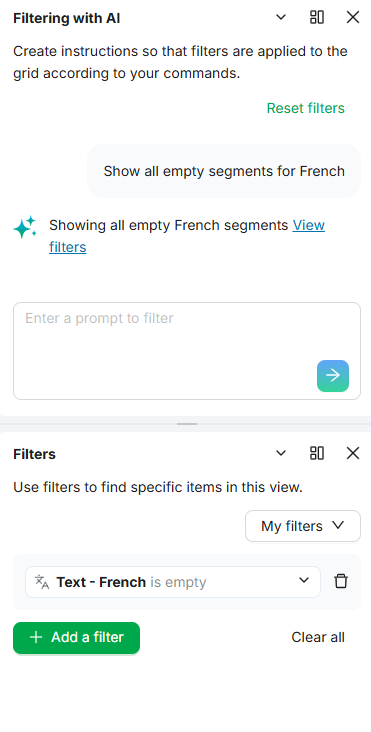
If the assistant cannot interpret your instruction, it replies with an informative message explaining what went wrong. Rephrase your request and try again.
You can write prompts in any language available in your interface. The assistant understands your input regardless of language and responds in kind.
Note
Filtering with AI replaces any filters you have already applied to the grid. If you need to combine multiple criteria, you can either include them all in a single prompt or use follow-up prompts to refine the results (see below).
Refining Filters with Follow-Up Prompts
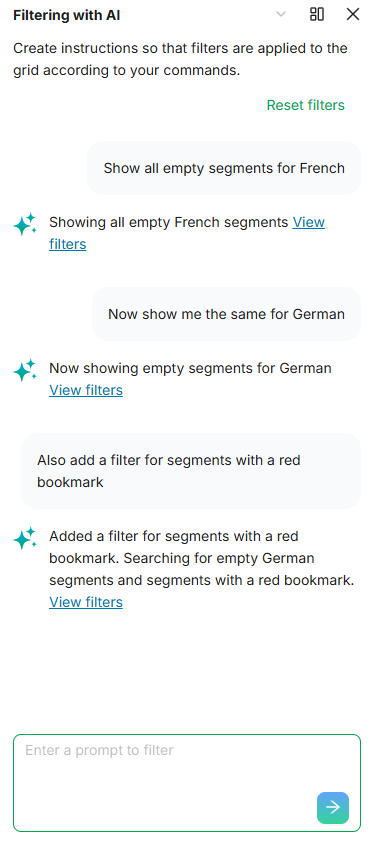
The assistant remembers your recent conversation, so you can refine or adjust your filters with follow-up prompts instead of writing everything from scratch. For example:
-
"Show all empty segments for French"
-
Then: "Now show me the same for German"
-
Then: "Also add a filter for segments with a red bookmark"
Each follow-up is interpreted in the context of the previous exchange, so the assistant understands what "the same" or "also add" refers to. For best results, keep your follow-ups clear about whether you want to replace the current filters or add a new condition on top of them.
Tip
When you need precise control over a complex filter combination, describing all criteria in a single prompt tends to produce the most reliable results. Follow-up prompts work well for quick adjustments, but for critical filtering tasks, a single detailed prompt reduces ambiguity.
Clearing Filters
Use the Reset Filters option at the top of the panel to remove the AI-applied filters and clear the conversation. This also resets the conversation history, so the next prompt starts fresh without any prior context.
Supported Filters
The assistant can build filters for all the major filter types available in the Editor. Using terms close to the actual filter names produces the most reliable results.
|
Filter type |
Suggested terms |
Example prompt |
|---|---|---|
|
Status (Language) |
"confirmed", "neutral", "error", "green segments", "red segments" |
"Show all confirmed segments in French" |
|
Bookmark (Language) |
"bookmark", "blue bookmark", "red bookmark", "pin" |
"Find segments with a red bookmark in Spanish" |
|
Wordbee Labels |
Use the label name, such as "Recording" |
"Show segments where Recording is ON for Spanish" |
|
Text - Language |
"contains", "empty", "not empty" |
"Find segments where English contains 'welcome'" |
|
Comments (Language) |
"has comments", "comments contain" |
"Show segments with comments in French" |
|
QA Issues |
"QA errors", "QA warnings", "has issues" |
"Show segments with QA errors" |
|
Last Edit |
"edited today", "edited after [date]", "last week" |
"Show segments edited in the last 3 days" |
|
Last Editor |
"last edited by [user or type]" |
"Find segments last edited by Machine Translation" |
|
Last Change |
"changed after [date]", "changed recently" |
"Show segments changed after January 15" |
|
Last Change by |
"last changed by [user or type]" |
"Find segments last changed by a human editor" |
|
Previously Edited By |
"text origin", "previously edited by" |
"Show segments with text origin Perfect Match" |
|
Lock |
"locked", "unlocked" |
"Show only locked segments" |
|
String ID |
"string ID starts with", "string ID contains" |
"Find segments where string ID starts with 'menu.'" |
|
Text Length |
"longer than", "shorter than", "X characters" |
"Show segments longer than 100 characters in English" |
|
Text Revisions |
"has revisions", "no revisions" |
"Show segments that have been revised" |
|
Transaction ID |
"transaction", "import" |
"Show segments from the latest import" |
|
Custom fields |
Use the field name, such as "Content Type" |
"Show segments where Content Type is 'Title'" |
For the complete list of filter fields and their operators, see Filters Panel.
Tips for Effective Prompts
Always specify the language. Prompts that include a target language produce more accurate results. Instead of "Show empty segments", write "Show empty segments in French."
Use filter-friendly terminology. The assistant maps your words to filter field names. When your terms closely match the actual filter names, the results are more reliable. For example, say "text origin" rather than "previously edited" when you want to filter by translation origin, since the word "edited" can also match the "Last Editor" filter.
Be explicit about replacing vs. adding. When sending a follow-up prompt, make it clear whether you want to replace the current filters or add a new condition. Phrases like "also filter for..." or "add a condition for..." signal that you want to build on the current filters, while starting with a fresh description signals a replacement.
Current Limitations
Segment row numbers are not filterable. Use string IDs instead.
Combining QA severity with specific QA rules in a single prompt may produce inconsistent results. It is better to filter for severity or for a specific rule separately.
Example Scenarios
|
Use case |
Prompt |
|---|---|
|
Find untranslated content for a specific language |
"Show all segments where Spanish is empty" |
|
Narrow down segments by a custom field value and language |
"Show Spanish segments where the custom field Content Type is Title" |
|
Review machine-translated segments still pending confirmation |
"Find segments in French with text origin Machine Translation and neutral status" |
|
Locate content flagged for a specific workflow label |
"Show segments where Recording is ON for Spanish and the text is not empty" |
|
Check what changed recently in a specific language |
"Show German segments that were edited in the last 7 days by a human editor" |
|
Find long segments that may need shortening |
"Show segments in English longer than 200 characters with confirmed status" |
|
Identify segments with quality issues in a delivery language |
"Find French segments with QA errors that have a red bookmark" |
|
Spot segments still pending after an import |
"Show segments from the latest import that are still empty in Italian" |
|
Refine a previous filter for another language (follow-up) |
First: "Show empty segments in French" then: "Now the same for German" |
|
Add a condition to your current view (follow-up) |
"Also add a filter for segments with a blue bookmark" |
Learn More
-
Filters Panel: Learn how to use the manual Filters panel to find specific segments.