
The Editor is a web-based workspace for managing multilingual content. It gives translators, reviewers, and project managers a centralized environment to view, edit, filter, and manage content across all languages from a single interface.
The Editor is designed for speed and clarity: pages load quickly, scrolling is continuous, and the interface responds instantly even with large datasets. You can customize your workspace by choosing which fields and panels to display, and your preferences are saved per session so you pick up exactly where you left off.
Accessing the Editor
How you open the Editor depends on the type of content you are working with.
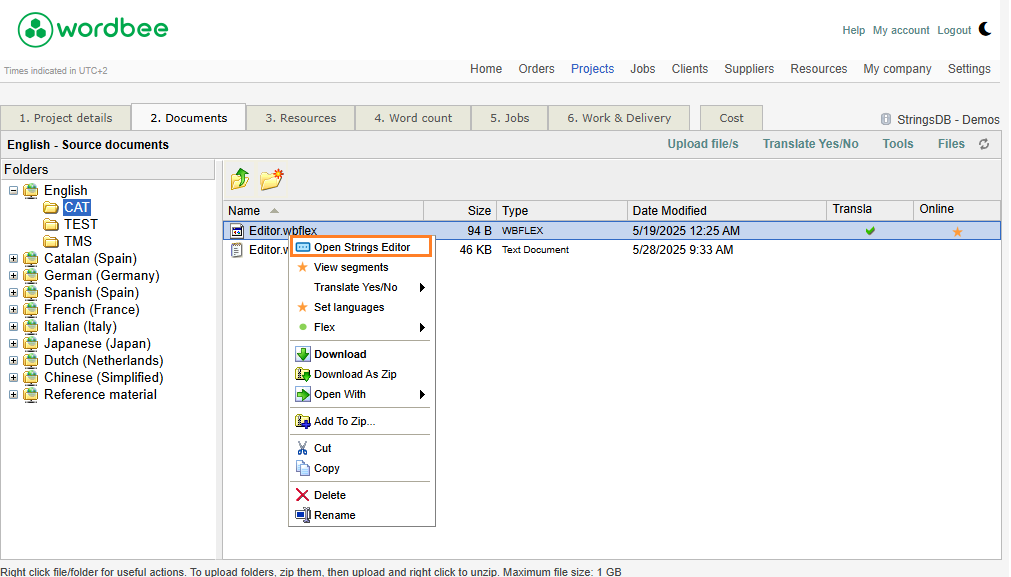
For Flex documents (string management):
-
Open a project that contains a Flex container (or create one).
-
Navigate to the Documents tab and right-click on the Flex file (*.wbflex).
-
Select Open Strings Editor.
For jobs or for documents inside the project:
Use the existing access points available throughout Wordbee Translator. You can open the Editor from many places: job lists, job detail pages, work & delivery tab or even the status popup in Codyt, depending on where you are in your workflow.
The Editor automatically adjusts its interface based on your context: job, project, or translation memory. Each workspace shows only the relevant tools and menus, and your layout is saved between sessions.
See Workspaces for details.
Switching Between Editor Versions
Wordbee offers two current editor versions, and a switch next to your avatar in the Editor header moves you between them. In Editor v1 the button reads Try editor v2, and in Editor v2 it reads To editor v1. You choose when to move, your choice is remembered, and you can go back at any time in one selection.
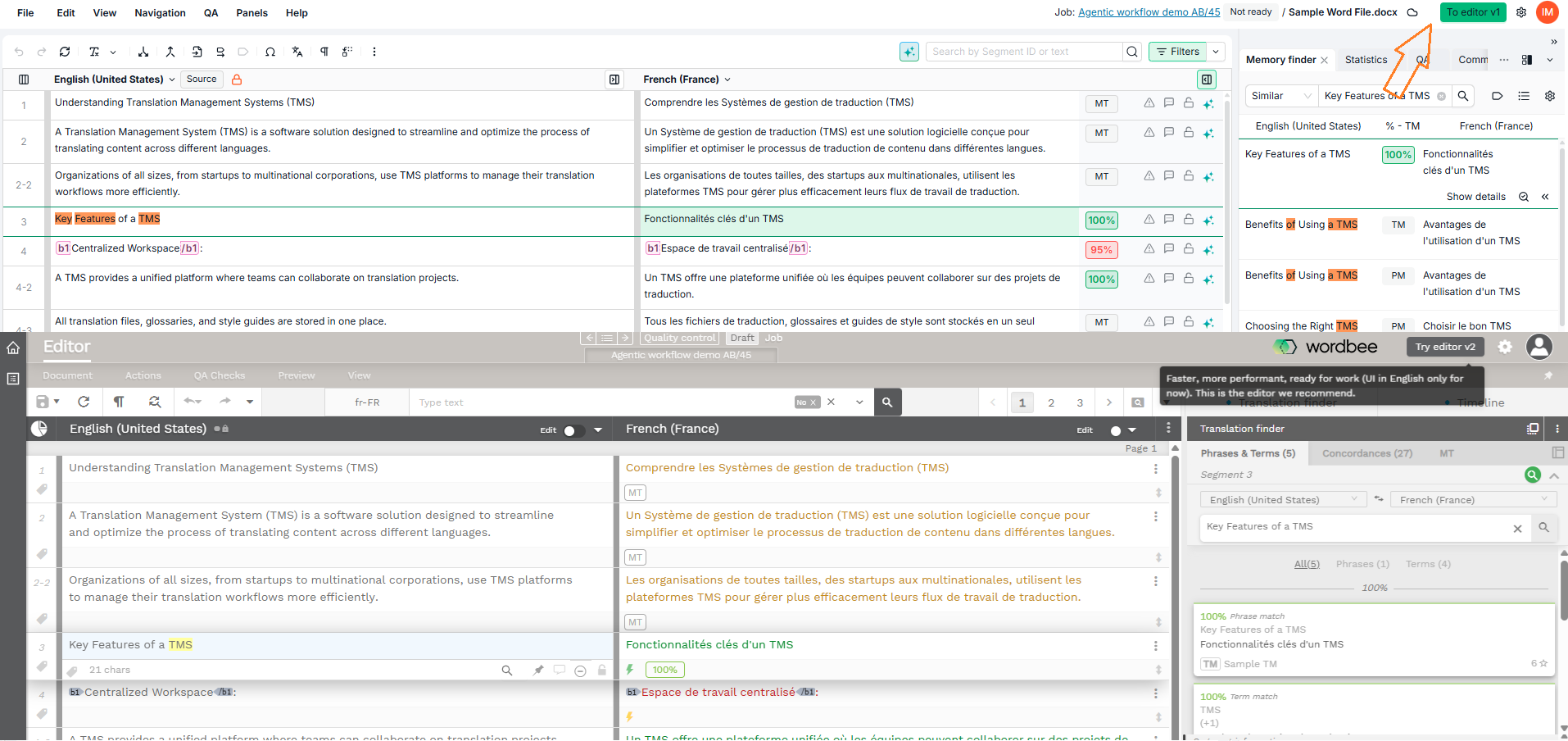
See Switching Between Editor Versions for what travels with you when you move, how to keep both versions open side by side, and how administrators move users off Editor v0.
Interface and Navigation
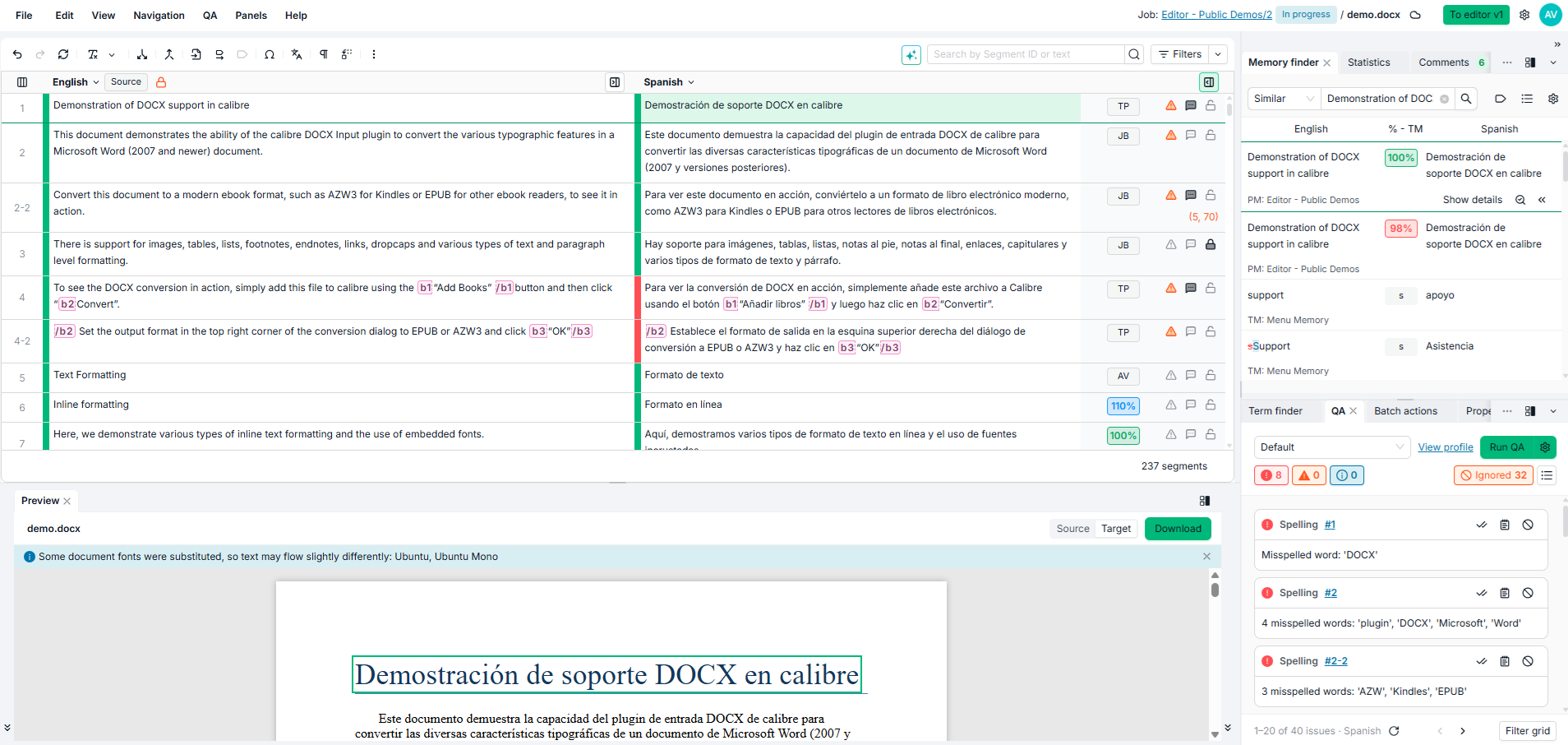
The Editor displays your content in a multi-column grid where source text, translations, and metadata appear side by side. You can scroll continuously through segments without pagination interruptions, and sort the grid by any column.
-
Fields: Choose which columns are visible in the grid and how they are ordered. Beyond languages and source text, you can add columns for metadata, comments, and other properties directly to the grid. Having this information inline alongside your translations means you can review context at a glance without opening a separate panel.
-
Panels: The Editor provides a set of modules that surround the grid and give you additional context for the segment you are working on. Panels can be stacked, rearranged, or detached to a second screen. Available panels include: Fields, Statistics, Filters, Memory Finder, Term Finder, QA, Filtering with AI, Batch Actions, Preview, Assets, Comments, Properties, Revision History, and Timeline.
-
Document Selector: Switch between documents within your project or job.
-
Statistics Panel: See where a job, project, or translation memory stands for a chosen language, and jump straight to the segments behind any number.
-
Preferences: Configure your Editor settings, including display options, keyboard shortcuts, and theme (light or dark mode). The Editor comes with sensible defaults, so you can start working right away and adjust as needed.
Editing Content
The Editor provides toolbars and controls for working with segment content directly in the grid.
-
Segment Toolbar: Access editing actions, status controls, bookmarks, and contextual information for the active segment. The toolbar appears next to the text you are editing and shows pretranslation details, recent edits, issues, and comments at a glance.
-
Quick Toolbar: Use the toolbar above the grid for fast access to common formatting and editing actions.
-
Edit Menu: Find every editing command, with its shortcut, including tag actions, text formatting, and segment status.
-
Editing Metadata: Edit segment-level metadata fields such as labels, categories, and custom properties.
Searching and Filtering
Narrow down your content to focus on exactly the segments you need.
You can filter segments across all columns, including status, comments, QA flags, labels, and text content. Combine multiple filters or use the Search Bar for quick lookups. The Filtering with AI panel also supports sending filter queries in natural language for a more user-friendly experience.
Translation Resources
Look up translations and terminology from your organization's memories and term bases while editing. Memory and terminology results appear in separate, dedicated panels so you can review each resource independently.
-
Memory Finder Panel: Search your translation memories for matching or similar segments and apply them to your translations.
-
Term Finder Panel: Look up terms in your term bases and enforce consistent terminology across translations.
AI Assistance
AI is integrated throughout the Editor to help you work faster and with more confidence. Today it covers filtering and editing, with more capabilities planned as we expand where AI adds the most value.
-
Filtering With AI Panel: Filter the segment grid using natural language. Instead of configuring filter fields one by one, describe what you want to see in your own words and the assistant builds the right filter for you. Follow up with additional prompts to refine your results.
-
AI Editing Assistant: Improve translations directly within segments. Choose from editing modes such as Rephrase, Correct errors, Fix fuzzy, Make formal, Shorten, and more. Pin the assistant to keep it visible as you work through multiple segments.
Quality Assurance
Catch issues before delivery with built-in quality checks.
-
QA Panel: Run QA checks against configurable profiles to detect errors, inconsistencies, and formatting issues. QA can run across multiple documents in your project at once, so you can ensure coherent results before delivery. You can also use AI for advanced checks and to act on flagged issues, so you resolve problems faster.
Review
Track changes, access metadata, and manage feedback for each segment, or check how your translations look in the original document layout.
-
Properties Panel: View language-level and segment-level metadata.
-
Comments Panel: Read and manage translation comments and discussion threads.
-
Revision History Panel: Track changes to segment content over time, including who made each change and when.
-
Timeline Panel: View a chronological log of all activity on the segment.
-
Preview Panel: Check how changes look in the original document layout without leaving your workspace. Detach the panel to a second screen to keep the preview visible while you edit.
Batch Operations and Reports
Apply bulk changes and generate reports for auditing and tracking.
-
Batch Actions Panel: Apply changes to multiple segments at once with a step-by-step configuration workflow. Update statuses, copy content, apply labels, and more in bulk.
-
Reports: Generate reports from preconfigured templates covering Revisions, QA results, and Labels. These reports are available from the Export menu under Create Report and are designed for teams with specific auditing and traceability needs.