
The multilingual Excel filter lets you reuse the same configuration across projects with different language pairs. Instead of creating one configuration per source-target combination, you can pick Any Source Language or Any Target Language in the language dropdown, and Wordbee Translator resolves the real languages at processing time from the project. With Any Target Language, a single uploaded file produces one bilingual deliverable per target language.
Setting up the configuration
You configure Excel filters from Settings > Document Formats > Excel. Open an existing multilingual filter or click Add New to create one, then select Multilingual in the General tab.
Follow these steps to add a generic language entry to a multilingual filter:
-
In the column configuration, open the language dropdown above the column rows.
-
At the top of the dropdown, pick Any Source Language or Any Target Language.
-
Type the column letter for that language and click + to add another row.
-
Add a second language row for the other side of the pair: another generic entry or an explicit language.
-
Configure the remaining options (rows, sheets, comments, custom fields) as you would for any multilingual filter, then click Save.
Valid combinations
You can mix generic and explicit entries in four ways:
|
Source column |
Target column(s) |
Use case |
Output |
|---|---|---|---|
|
Any Source Language |
Any Target Language |
Universal template that works for any language pair |
One bilingual file per project target language |
|
Explicit language |
Any Target Language |
Source is always the same; target varies |
One bilingual file per project target language |
|
Any Source Language |
Explicit language(s) |
Source varies across projects; targets are fixed |
One multilingual file (standard behavior) |
|
Explicit language |
Explicit language(s) |
Existing behavior, unchanged |
One multilingual file |
The key rule: when Any Target Language is present, the system produces one deliverable per target language. Otherwise, the filter behaves like a standard multilingual configuration.
Limits and validation
When Any Target Language is configured:
-
The filter accepts exactly two language rows: one source (explicit or generic) plus the generic target.
-
The + button to add another language is disabled, with a tooltip that explains the limit.
-
If three or more language rows already exist and you select Any Target Language, the system prompts you to remove the extra rows before continuing.
When only Any Source Language is configured (no generic target), standard multilingual rules apply: a minimum of two language rows is required, and you can add as many explicit target columns as your file needs.
A single configuration can include at most one Any Source Language row and at most one Any Target Language row.
Comments and custom fields
Comments columns and custom fields work on generic-language rows the same way they do on explicit-language rows:
-
Comments: every language row has a Columns containing comments (optional) field. Use it on a generic row to capture per-language comments at the same column position.
-
Custom fields: when Extract custom fields from columns is enabled, the language dropdown for each custom field lists generic entries alongside explicit languages and All languages. At processing time, the generic entry resolves to the actual project locale.
Confirming the behavior in the UI
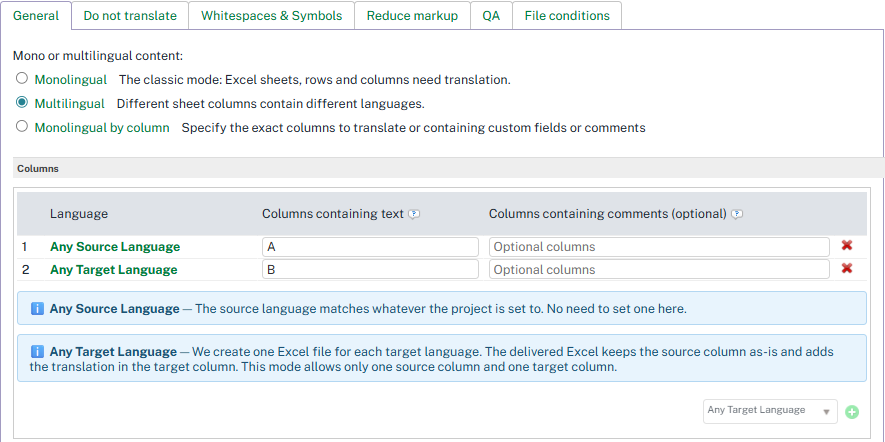
After you add a generic entry, an info banner appears below the column table.
-
The Any Source Language line confirms the source language is taken from the project.
-
The Any Target Language line explains that one deliverable is produced per target language and reminds you of the two-row limit.
When both options are configured, both lines are shown stacked.
Processing a file with the configuration
When you process a file with a filter that uses Any Target Language:
-
You upload a single Excel file. The source column contains text to translate; the target column is empty or contains placeholder content.
-
Wordbee Translator creates one job per target language defined in the project. Each job has its own working copy of the source content.
-
Translators or pre-translation fill the target column for each language.
-
On delivery, you receive one bilingual Excel per target language. The source column is preserved as uploaded, and the translation is written into the target column. Headers, comment columns, and custom field columns are preserved as-is in every deliverable.
When you use Any Source Language without a generic target, the file is processed as a standard multilingual Excel: one document with multiple language columns. The configuration adapts to the project's source language at processing time, so the same filter can be reused across projects with different sources.
Example Scenarios
|
Use Case |
How To |
|---|---|
|
You want a single filter that works for every project, regardless of source-target combination |
Configure two language rows: Any Source Language and Any Target Language. Both resolve at processing time from the project. |
|
Your source is always English, but target languages change project to project |
Set the source row to an explicit language (English) and the target row to Any Target Language. Reuse the same filter across all projects. |
|
Your target languages are fixed (for example, FR + DE), but the source language varies across projects |
Set the source row to Any Source Language and add explicit target rows for FR and DE. The output is a standard multilingual Excel that adapts to each project's source. |
|
You want to convert an existing multilingual filter with several language rows into a universal template |
Open the filter, remove extra language rows until only one source row remains, then change the target row to Any Target Language. The + button disables once Any Target Language is set. |
|
You need translator comments captured alongside a generic language column |
On the generic-language row, fill the Columns containing comments (optional) field with the comment column letter. Comments are preserved in each deliverable. |
|
You extract context, key, or other metadata columns and want them to follow the generic language |
Enable Extract custom fields from columns, then assign each custom field to Any Source Language, Any Target Language, or All languages in the language dropdown. |
|
Your project has only one target language, but you still want to use a universal filter |
Any Target Language resolves to that single target and produces one bilingual deliverable. No special configuration needed. |
Learn More
-
Microsoft Excel Files: Overview of Excel file format support and the default configuration.
-
Excel Configuration Options: Reference for every Excel configuration tab and option.
-
How to translate multilingual Excel files: Set up a multilingual Excel format configuration and run a project end-to-end.
-
Translating Excel files with existing translations: Step-by-step setup for multilingual filters and word count profiles.
-
Translating Multilingual Excel Files with Column Name Detection: Use regex-based dynamic header detection to map columns by name.