
The View menu lets you change how the Editor displays your segments. The options it offers affect appearance only: they do not change your translations or any segment data. Adjusting them is a per-user preference saved in your browser, so the Editor opens the next time exactly the way you left it.
Whitespace
The Whitespace option shows or hides whitespace marks in the segment text: spaces appear as small dots, tabs as arrows, and line breaks as a return symbol. Use it when you need to verify that whitespace is correctly preserved between source and target, or to spot accidental double spaces.
This is a simple on/off toggle. Click View > Whitespace to switch it.
Labels
The Labels option shows or hides the colored segment labels in the grid rows. Labels are used to categorize segments (for example: "approved", "needs review", "client query"). Hiding them reduces visual noise when you want to focus on the text alone.
This is a simple on/off toggle, with the keyboard shortcut Alt+Shift+L assigned by default. Click View > Labels or press the shortcut to switch it.
Reset column widths
The Reset column widths action restores all grid columns to their default sizes after manual resizing. Useful after experimenting with column widths or when content changes have made the layout uneven.
Click View > Reset column widths to apply. The action is disabled when columns are already at their defaults.
Tags
Translation files often carry tags: placeholder variables, formatting tags, or structural markers from the source document. By default, the Editor shows each tag as a short label that hides its content, and you hover to see what it represents. The Tags submenu lets you change this so the most useful information is visible at a glance.
Choosing a tag display mode
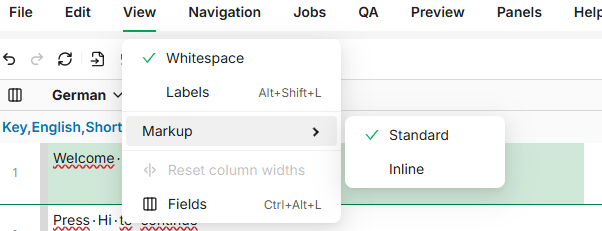
Open View > Tags to switch between the two modes. Hover either entry to read a short description.
|
Mode |
What it does |
Tooltip on hover |
|---|---|---|
|
Standard (default) |
Shows each tag as a small label with a short identifier (for example |
Show tags as a small label. Hover to view the content. |
|
Inline |
Shows the actual tag content directly inside the label (for example |
Show the tag content directly inside the label. Useful for files with placeholders such as variable names. In some formats, structural tags stay collapsed. |
Your selection is saved in your browser and applies the next time you open the Editor.
You can also assign a keyboard shortcut to the Tags mode menu in Preferences > Shortcuts. Once set, the shortcut appears next to Tags in the View menu and opens the picker with one keystroke. This is handy when you switch modes often, for example to check tag details while revising a translation.

Tag categories
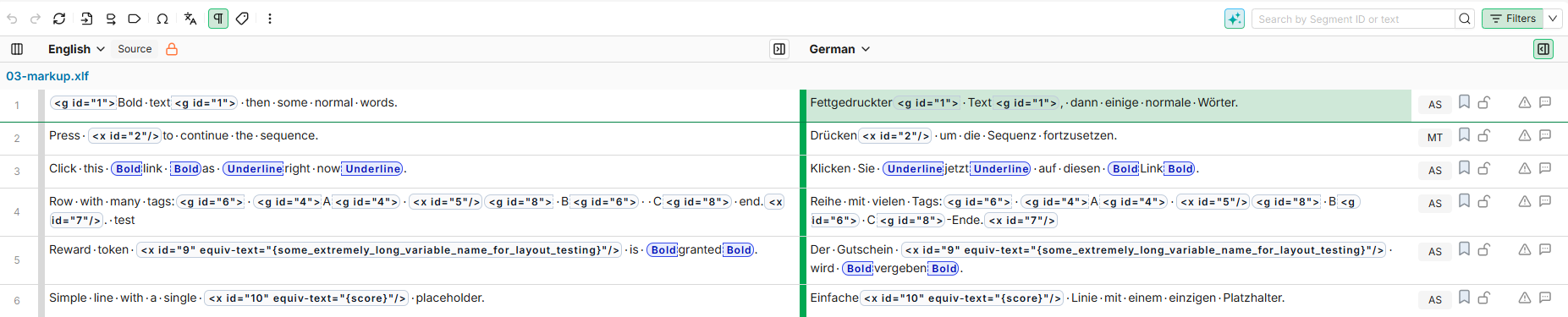
The Editor distinguishes two kinds of tag using different colors. Both colors apply in both modes.
|
Category |
Color |
Source |
Example |
|---|---|---|---|
|
Document tags |
Gray |
Generated from your source file by the import parser, or inserted from the Edit > Tags submenu. Includes XLIFF placeholders, gaming variables, HTML elements, and custom markup defined in your parser configuration. |
|
|
Font styling |
Blue |
Inserted by the translator using Edit > Text format (Bold, Italic, Underline, Subscript, Superscript) or the formatting toolbar. |
|
For font styling tags, Standard shows the short code (b, i, u, sub, sup) and Inline shows the full name (Bold, Italic, Underline, Subscript, Superscript). The blue color tells you it is a styling tag and not a placeholder in either mode. In the formats listed under Formats where Inline expands protected text only, font styling stays as a short code, because it is formatting markup rather than protected text.
Supported file formats
Inline mode is most valuable for files where each tag represents a small, readable piece of content (a variable name, a placeholder, an HTML attribute). Office, DTP, and binary formats also carry a great deal of formatting markup, so in those formats Inline expands only the tags that protect do-not-translate text, and leaves formatting tags as short labels.
Where Inline works best
|
File type |
Typical Inline content |
Common use case |
|---|---|---|
|
JSON |
|
Gaming, mobile, and web app localization. |
|
iOS Strings |
|
Mobile app localization. |
|
Java properties |
|
Software localization. |
|
YAML |
|
Configuration files, software i18n. |
|
CSV |
Custom regex placeholders |
Marketing copy, retail catalogs. |
|
XLIFF 1.x and 2.0 |
|
Industry-standard translation exchange format. |
|
XML |
Element and attribute content, embedded HTML, regex captures |
Documentation, structured content, custom industry formats. |
|
HTML |
|
Web content, marketing emails, retail product descriptions. |
|
DITA |
HTML element content |
Technical documentation. |
|
Wordbee Localization Container (.wbloc) |
Tags carried from the original source format |
Beebox round-trip workflow. |
If your project uses regex-based markup capture in Do not translate > Words or terms, Inline shows whatever each regex was configured to expose: either the captured text, or the description if one was set.
Formats where Inline expands protected text only
In these formats Inline expands only the tags that protect text set as do not translate: text captured by a Words or terms rule, and text excluded by color. A manager sets both in the file format configuration, under Do not translate.
Tags that come from the file's own formatting (bold, text boxes, footnotes) stay as a short label, so rows do not become unreadable.
|
File type |
Extensions |
|---|---|
|
Microsoft Office |
|
|
OpenDocument |
|
|
|
|
|
Adobe InDesign |
|
|
Adobe FrameMaker |
|
|
Adobe InCopy |
|
|
Adobe Photoshop |
|
|
Microsoft Visio |
|
|
Trados / Transit legacy formats |
|
This matters most for pattern-based rules. Words or terms sets the tag name per rule rather than per match, so a rule protecting everything in curly brackets turns {burn}, {firebird}, and {Nintendo} into identical x1/, x2/, x3/ labels. Color-based exclusion always names its tag hidden. Inline prints the captured content into the row instead, so you can read it without hovering each label.
If a manager typed an optional description on a Words or terms rule, Inline shows that description rather than the captured text, so the original stays hidden. Color-excluded text is truncated to 100 characters before it reaches the Editor.
In a view that mixes formats, such as a project view containing both a Word file and an XML file, the rule of the format you have open applies to every row. Memory Finder matches follow the open document's rule too, so a match and the grid row beside it always render the same way.
Learn More
-
Edit Menu: Add, copy, or clear tags in a segment.
-
Quick Toolbar: Insert formatting tags (Bold, Italic, Underline, Subscript, Superscript) and other quick actions while editing.
-
Memory Finder Panel: Search translation memories. Memory hits follow the tag display mode you choose in View > Tags, so in Inline mode they show the real tag content.
-
Preferences: Configure your Editor settings including keyboard shortcuts, display options, and theme.