
The Editor includes a quick toolbar positioned above the grid that gives you fast access to common editing actions. Instead of navigating through menus, you can perform frequent tasks, for example copying source text, inserting tags or toggling whitespace visibility with a single click. The available actions depend on the scope you are working in: some are always visible, while others appear only when editing job documents.
Hover over any toolbar button to see its name and keyboard shortcut.
Common Actions
The following actions are available in all scopes. They appear as icon buttons on the left side of the toolbar.
|
Action |
Description |
|---|---|
|
Undo |
Reverses the last editing action in the active segment. |
|
Redo |
Reapplies the last undone action in the active segment. |
|
Copy source to target |
Replaces the current target text with the source text. Use this as a starting point for translation or when source and target should be identical. |
|
Copy tags to target |
Copies only the tags from the source into the target, without copying the text content. |
|
Add missing tags |
Inserts the next missing source tag into the target at the cursor position. Tags are inserted one at a time in the same order they appear in the source. Click repeatedly to insert each subsequent tag. |
|
Insert symbol |
Opens a menu of special characters to insert at the cursor position. You can add frequently used symbols to a personal favorites list for quicker access. |
|
Machine translate |
Fills the current target with a machine translation of the segment, using your preferred engine for the language pair (or the first available engine). Keeps the source's inline tags and replaces the existing target text; you can undo it. Appears only when the project has a machine translation engine and you have machine translation rights. |
|
Toggle whitespace |
Shows or hides whitespace characters and other non-printing characters (spaces, tabs, line breaks) in source and target text. This helps you spot formatting issues that are not visible otherwise. |
|
Find and replace |
Opens the Find and Replace tool to search the current scope and replace text across segments. It sits at the end of the visible strip, next to the more actions button. |
You can also run it from the Edit menu (Machine translate) or with the Ctrl+Alt+M shortcut. To choose which engine is used, open Preferences from the menu and go to the Machine translation tab: pick a preferred engine for each source-to-target language pair, or choose Project default to let the Editor pick automatically. Use Restore defaults to clear your choices. Your selections are saved for this project.
The Machine translate button, the Edit menu option, and the Ctrl+Alt+M shortcut appear only when your project has a machine translation engine and you have machine translation rights. Otherwise they are hidden.
Tag Actions in the Edit Menu
The tag-related toolbar actions (Add missing tags and Copy tags to target) are also accessible from the Edit > Tags submenu in the top menu bar. The submenu includes one additional action not available in the toolbar:
-
Clear tags: Removes all tags from the focused target segment. Use this when you need to start fresh with a clean target before re-inserting tags selectively.
|
Action |
Shortcut |
|---|---|
|
Add missing tags |
Alt+Shift+T |
|
Copy tags to target |
Alt+Shift+M |
|
Clear tags |
Alt+Shift+X |
Text Formatting and Segment Structure
When working with job documents, the toolbar displays additional actions for text formatting and segment manipulation. These buttons appear between the common actions and the more actions menu.
Text Formatting
Select text in the target segment, then apply formatting from the Text format dropdown:
-
Bold
-
Italic
-
Underline
-
Subscript
-
Superscript
Split and Merge
These actions let you restructure segments directly from the toolbar:
-
Split: Place your cursor at the desired split point in the source segment, then click the Split button. The segment is divided into two at that position. If the cursor is not in the source, a message will prompt you: "Place the cursor at the split point in the source segment."
-
Merge: Combines the current segment with the segment below it. The cursor must be in the source segment. The same prompt appears if the cursor is elsewhere.
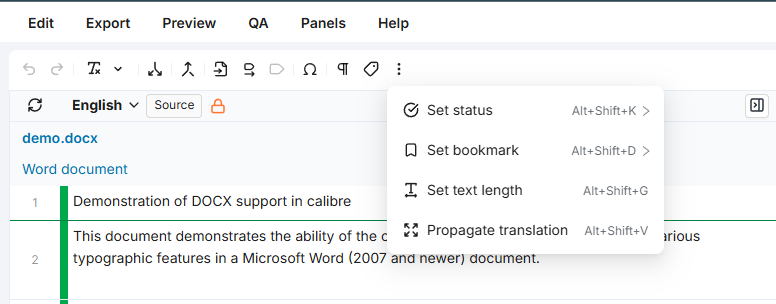
Additional Actions Menu
Click the more actions button (three vertical dots) on the right side of the toolbar to access less frequent operations. These actions apply to the currently selected segment. Propagate translation is the first entry in the menu.
|
Action |
Description |
|---|---|
|
Propagate translation |
Copy the current segment's translation to all matching repeated segments. This action is only available when the cursor is in a target column. For more information on propagation options check Propagation Preferences. |
|
Set status |
Change the translation status of the selected segment. Options: Neutral, Confirmed, or Error. Setting a segment to Confirmed may require specific permissions. |
|
Set bookmark |
Assign a color-coded bookmark to the segment for easy identification and filtering. Options: Reset bookmark (remove), Blue bookmark, or Red bookmark. |
|
Set text length |
Define minimum and/or maximum character limits for the target text. Once set, a character count indicator appears in the segment toolbar. |
|
Show/hide labels |
Shows or hides labels on the selected segment. Its keyboard shortcut still works from the grid. |
Learn More
-
Filters Panel: Narrow down the grid to specific segments using filters.
-
Fields Panel: Customize which columns and metadata fields appear in the grid.
-
Batch Actions Panel: Apply changes to multiple segments at once using batch operations.
-
Find and Replace: Search and replace text across the segments in your current scope.
-
Preferences: Set a preferred machine translation engine per language pair.