
The Editor includes a built-in AI editing assistant that helps you quickly improve your translations. Instead of manually rewriting text to fix a fuzzy match, adjust the tone, or shorten a translation, you can select an editing mode and let the assistant generate a revised version. You then review the suggestion and apply it with a single click.
Using the AI Editing Assistant
The assistant is available for any segment that is not locked. It works on the target text of the currently selected segment, using context from the source text and available translation memory matches to produce relevant suggestions.
Follow these steps to use the AI editing assistant:
-
Click on a segment to select it, then click the AI assistant button (sparkle icon) in the target column toolbar. The assistant opens as a popover attached to the segment.
-
Select an editing mode from the list on the left side of the popover (for example, Rephrase or Fix fuzzy). The assistant processes the segment and displays the suggested text on the right side.
-
Review the suggestion. If you are not satisfied with the result, click Retry to generate a new suggestion for the same mode. The assistant avoids repeating previous attempts.
-
Click Apply to insert the suggested text into the segment, replacing the current target text.
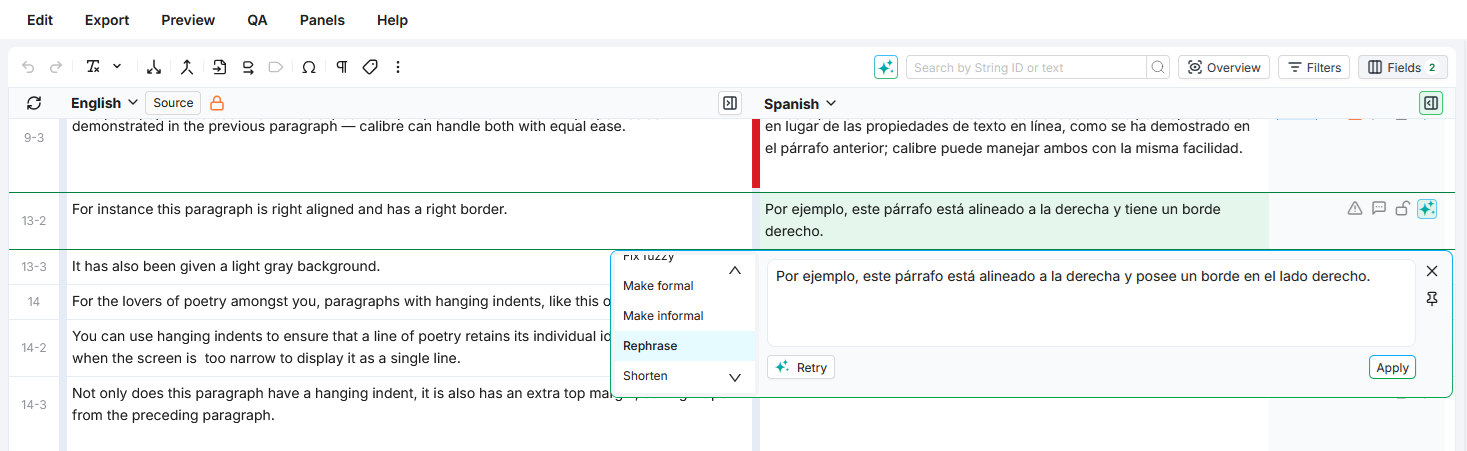
To switch between modes, click a different mode in the list. You can compare results from multiple modes before applying one.
To close the assistant without applying changes, click the close button on the popover.
Tip
Pin the assistant to keep it visible on screen. When pinned, it follows your focus and attaches to each segment you select, so you can work through multiple segments without reopening it.
Editing Modes
The assistant offers 9 editing modes. Each mode processes the target text differently based on the source text, the current translation, and available translation memory matches.
|
Mode |
When to use it |
|---|---|
|
Original |
Reset the text box to the current target text after reviewing suggestions. |
|
Correct errors |
Fix grammar, spelling, and other errors in the translation without changing the meaning. |
|
Fix fuzzy |
Adjust a fuzzy translation memory match to fit the source text. Useful for high-percentage matches (for example, 90%+) that need minor corrections. |
|
Make formal |
Rewrite the translation in a more formal register, suitable for professional or official content. |
|
Make informal |
Rewrite the translation in a more casual register, suitable for marketing copy or conversational UI text. |
|
Rephrase |
Reword the translation while keeping the same meaning. Helpful when the current phrasing does not flow well or when you need an alternative. |
|
Shorten |
Make the translation more concise without losing essential meaning. Useful when the target text must fit a character limit. |
|
Suggestion |
Generate a fresh translation suggestion for the segment, independent of the current target text. |
|
Fix terminology |
Correct terminology in the translation based on available translation memory and term base matches. |
Learn More
-
Filtering With AI Panel: Use natural language to filter the segment grid with the AI-powered filtering assistant.