
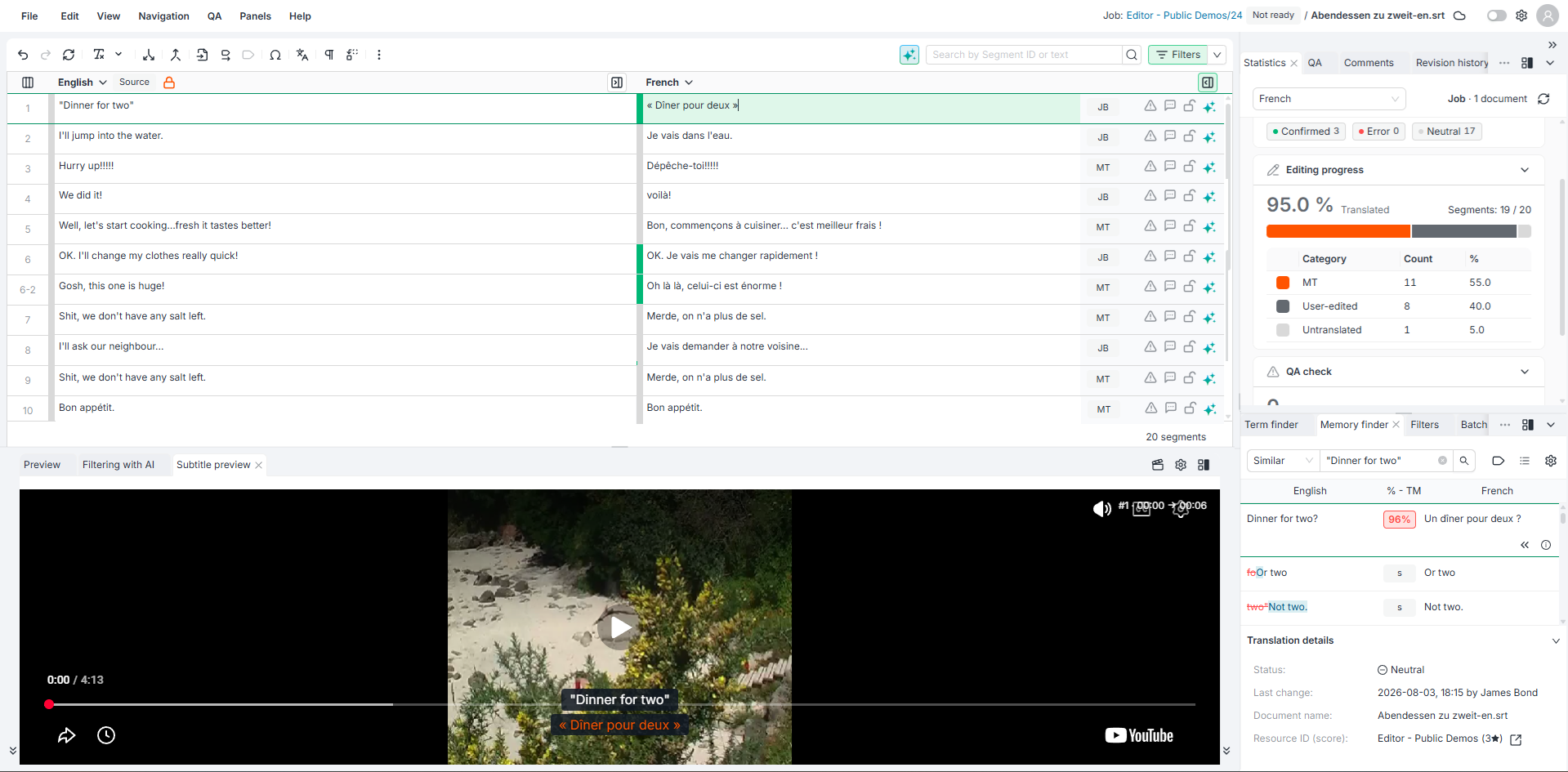
The Editor can play your video alongside the subtitles you are translating, so you see each line in the moment it appears on screen. The player follows the segment you are working on and jumps to its timecode, which makes it easier to judge reading speed, on-screen context, and whether a translation fits the shot.
Opening the Subtitle Preview
The Subtitle preview panel is offered only where it is useful, so it does not clutter work that has nothing to do with subtitles. What you see in the Panels menu depends on the documents in your current scope:
|
State |
When it applies |
What you see |
|---|---|---|
|
Not listed |
No document in the current scope is a subtitle file. |
The entry does not appear at all. |
|
Unavailable |
The scope contains a subtitle file, but the document you are on is not one. |
The entry is listed but cannot be selected, with a hint to switch to a subtitle document. |
|
Available |
The document you are on is a subtitle file. |
Selecting it opens the player. |
Subtitle files are .srt, .stl, and .vtt documents.
Availability follows your scope: in a project, the entry is listed when the project library holds at least one subtitle document; in a job, when the job's own documents do. A project that contains subtitle files will still not offer the panel inside a job that has none.
Follow these steps to open the preview:
-
Open a subtitle document in the Editor.
-
Select Panels in the top toolbar, then select Subtitle preview. The player opens in the bottom zone below the grid.
-
Select a segment in the grid. The video seeks to that segment's timecode.
You can move the panel to the sidebar with Dock to sidebar, or open it in a separate window, exactly as with any other panel.
Providing the Video
The system reads the timecodes from your subtitle document, and you supply the video that goes with it. The video is attached to one subtitle document at a time.
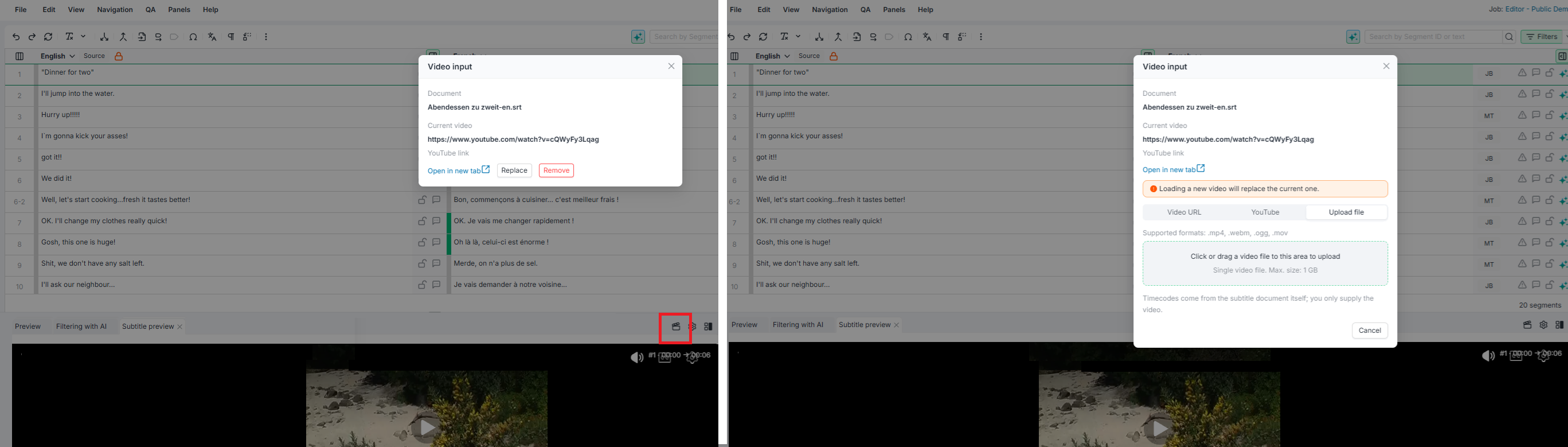
Open the Video input popup from either place:
-
The video icon in the Subtitle preview panel header, which acts on the document you are currently on.
-
The video icon next to a subtitle document in the Document Selector, which also shows at a glance whether that document already has a video.
The popup always names the document it applies to, so it is clear which subtitle file you are attaching the video to. To work on a different document, open the Document Selector and use that document's own icon.
Follow these steps to add a video:
-
Open the Video input popup from either entry point.
-
Choose how to supply the video: paste a Video URL, paste a YouTube link, or select Upload file and choose a local file.
-
Select Load video.
When a video is already attached, the popup shows it as Current video with three actions:
|
Action |
What it does |
|---|---|
|
Open in new tab |
Opens the video in your browser so you can check it outside the player. |
|
Replace |
Swaps in a different video. The current one stays visible with a warning that it will be overwritten. |
|
Remove |
Clears the video from the document. |
A video supplied as a URL or a YouTube link is remembered on the subtitle document and is there again the next time you open it. An uploaded file is only available for the current session, so you need to supply it again next time.
Adjusting Playback
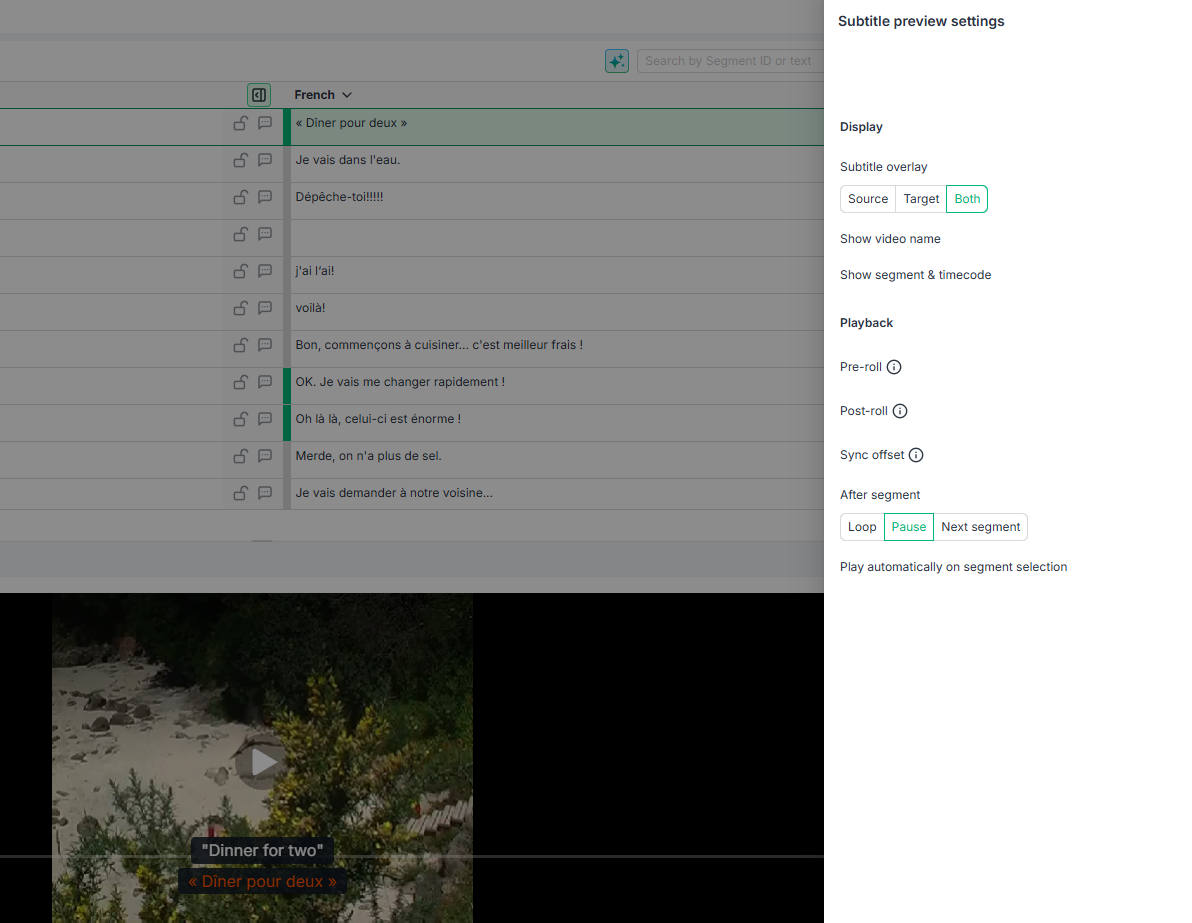
Select the settings icon in the panel header to open the Subtitle preview settings. Select Restore defaults at any time to return to the original values.
|
Setting |
What it does |
|---|---|
|
Subtitle overlay |
Whether the video shows the Source text, the Target text, or Both. |
|
Always show video name during playback |
Keeps the video name visible while it plays. |
|
Always show current segment and timecode |
Keeps the segment number and its timecode visible while it plays. |
|
Pre-roll |
How long the video starts before the segment's timecode, so you catch the run-up. |
|
Post-roll |
How long the video keeps playing after the segment ends. |
|
Sync offset |
Shifts playback when the video and the subtitle timecodes do not line up. |
|
After segment |
What happens when a segment finishes playing. |
|
Autoplay on segment select |
Whether the video starts playing as soon as you select a segment. |
Learn More
-
Subtitle files: The subtitle formats the system supports and how to configure them.
-
How to prepare your files for online subtitling: Preparing subtitle files for a subtitling workflow.
-
Panels: How Editor panels are arranged, docked, and detached.