
When working with jobs or projects that contain multiple documents, the Editor displays a document selector in the top bar. It lets you choose which documents to load in the grid: a single document, multiple specific documents, or all of them at once. This helps you focus on the content you need while keeping the full scope accessible.
Selecting Documents
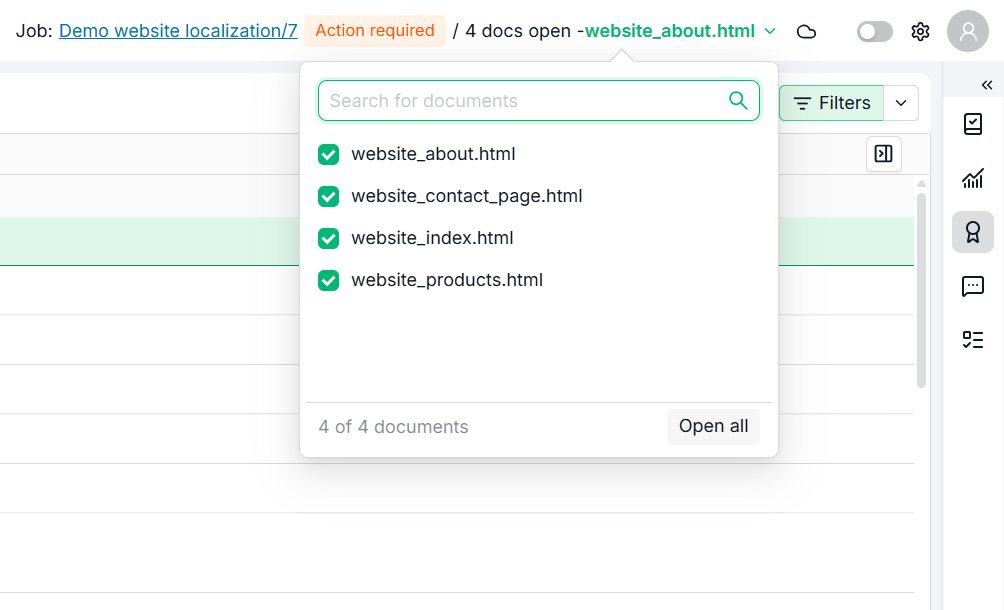
The document selector appears in the top bar, to the right of the scope label. It displays the name of the currently active document or the number of documents loaded.
Click the document name to open the dropdown. The dropdown contains:
-
A search field at the top to find documents by name anywhere in the project.
-
A scrollable list of the documents in the current scope.
-
A footer showing how many documents are listed out of the project total, a Show more button when more remain, and an Open all button.
Documents load 100 at a time. When more remain, select Show more to add the next 100 to the list, keeping the ones already listed. The footer count always refers to the whole project, so it matches the total in the Statistics panel: it reads 100 of 250 documents while you browse, and N matches in 250 documents while you search.
Opening a single document
To open a single document:
-
Click the document name in the top bar to open the dropdown.
-
Browse the list, or type in the search field to search by name across the whole project, including documents that are not listed yet.
-
Click a document to load it in the grid.
The grid updates immediately to show only segments from that document.
Opening all documents
To open all documents at once:
-
Open the dropdown.
-
Click Open all at the bottom of the list.
The grid loads segments from every document in the scope. Open all covers the whole project, including documents that are not listed yet.
Selecting multiple documents
To select a specific group of documents:
-
Open the dropdown.
-
Use the checkboxes next to each document name to select or deselect individual files. You can also click the document name area to toggle the selection.
-
The grid updates to show segments from all selected documents combined.
Selected documents are highlighted in the dropdown. To deselect all and return to a single document, click on just that document. Your selection is kept when you select Show more or search, so nothing you ticked is lost.
If the scope contains only one document, the document selector is not displayed. The Editor loads the single document automatically.
Viewing Multiple Documents
When more than one document is loaded, the grid displays document header rows to separate them visually. Each header shows the document name in a distinct style, making it easy to see where one document ends and the next begins.

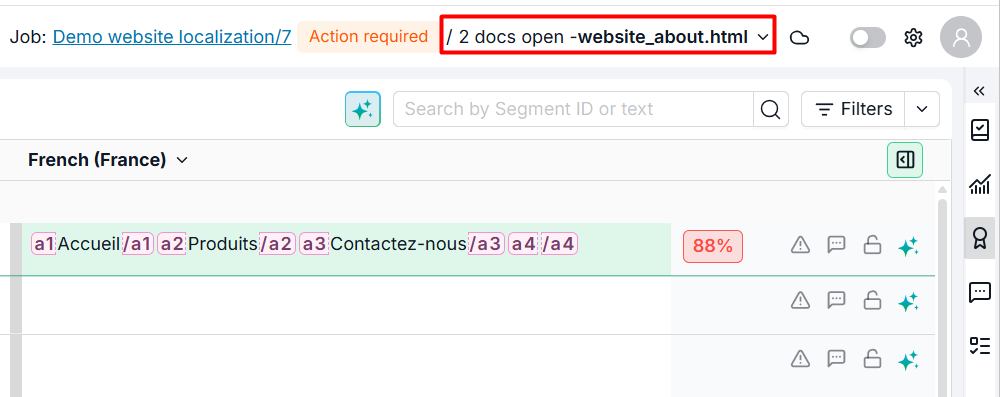
The top bar updates to reflect how many documents are open (for example, "2 docs open"). The scope label also includes a clickable link to the job or project: click it to navigate directly to the corresponding page in the TMS.
Learn More
-
Filters Panel: Narrow down the segments displayed in the grid using filters.
-
Fields Panel: Customize which columns appear in the grid for the selected documents.