
Opening a concept from the Term Finder shows everything that concept holds on a single page: its properties on one side, the source and target terms side by side on the other. The page opens in its own browser tab, so the document you were translating stays exactly where you left it.
Opening a Concept
In the Term Finder panel, hover over a term entry and select Show details. In the details card, select the resource name shown against Resource ID (score), or the open-resource icon next to it. The page opens in a new browser tab, scoped to that concept, its term base, and the source and target languages shown in the panel.
If you work with plain glossaries and do not have access to the terminology tool, this link continues to open the simple term base view at that concept's row, as it does today.
What the Page Shows
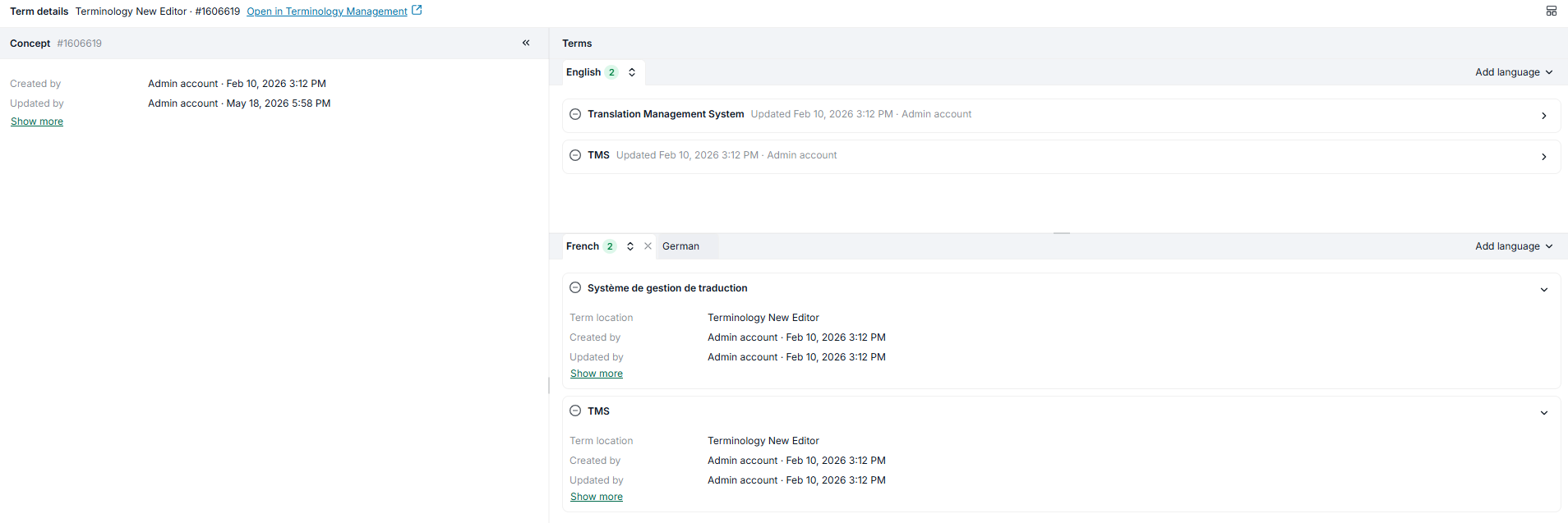
Everything is exposed when the page opens, so you can read a concept without expanding anything. The concept section carries the concept's own fields, grouped as the standard fields followed by Custom fields. Each term section carries one card per term in that language.
Each term card shows, on its first line, the language status icon, the term, and when it last changed and who changed it. A second line appears only when the term carries a TBX status or a label; without either, the card is simply shorter.
|
Status |
Meaning |
|---|---|
|
Confirmed |
This term is correct for this language. |
|
Error |
This term has a problem. |
|
Neutral |
No status set. |
Which fields appear follows your platform's Terminology Management field configuration, so the page exposes no information that was not already available to you. Expanding a term reveals its fields and its provenance. Where a record has fields with no value, a Show more control at the end of the list reveals them as rows with a blank value; it is absent when there are none.
The concept section can be collapsed to a narrow rail. Its header keeps the concept number, the last change, and the concept's labels visible as chips, so the key classification stays readable when collapsed. The two term sections do not collapse, but you can resize them independently.
Adding Languages
Each term section has a tab strip with one tab per loaded language, and every tab shows that language's term count. Use the Add language picklist at the right end of the strip to load another of the term base's languages. The picklist offers only languages that are not already loaded and is hidden when there are none left to add.
To remove a language, use the remove control on its tab. The fold and unfold control sits on the active tab and folds or unfolds every term card in that language, switching to that language first so you never fold a language you cannot see.
Changing the Layout
A layout menu offers two arrangements: the concept on top with the two term sections side by side, which is the default, or the concept beside the terms with the two sections stacked.
Your choices apply to the page you have open. Reloading the same concept in the same tab keeps the arrangement, the concept collapse, the section sizes and the languages you loaded, which is how you pull fresh data from the term base. Opening the page again from the Term Finder, or opening a different concept, starts from the defaults.
Editing a Concept
The page is read-only. If you are allowed to edit terminology, an Open in Terminology Management link at the top of the page, next to the segment ID, takes you to the tool where you can make changes.
Learn More
-
Term Finder Panel: Look up approved terminology while you translate.
-
Getting started with the Terminology Management tool: Create and edit concepts and terms.