
The Term Finder panel shows the terms from your termbases that match the segment you are working on, so you can use the approved translation.
Viewing Term Matches
Open the Term Finder from Panels > Term finder, or press Ctrl+Alt+T. As you move between segments, the panel lists the matching terms, ranked by match percentage.
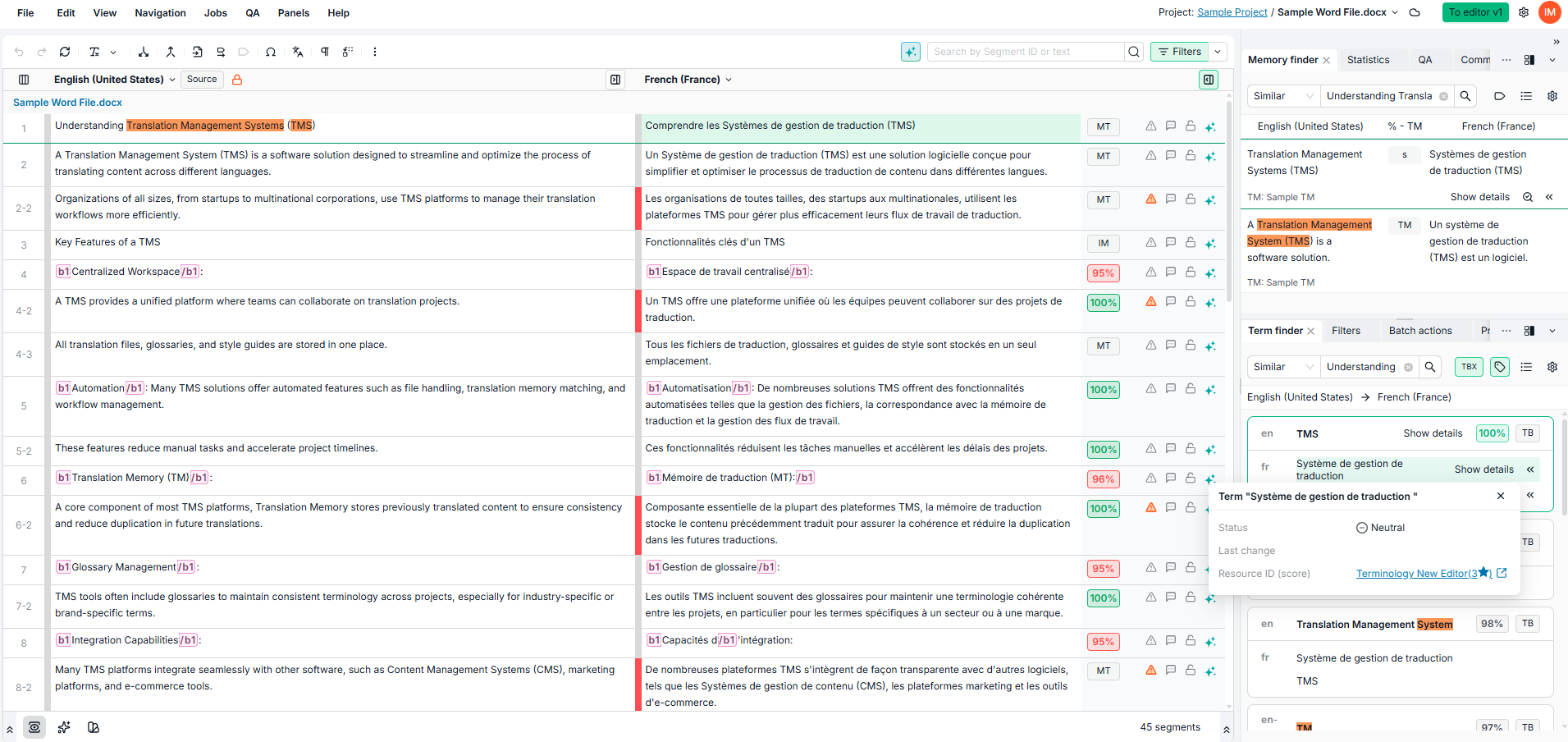
Understanding the Results
|
Element |
Description |
|---|---|
|
Source term |
The term in the source language, as matched in your segment. |
|
Target term |
Its translation, with any alternatives. A term with no translation shows only the source. |
|
Percentage |
How closely the term matches your text. |
|
TB tag |
The term comes from a termbase. Hover to see its name. |
|
Warning icon |
The term has a red status and is unreliable. |
|
Status and type tags |
The term's usage status and type, shown when TBX fields are on. |
|
Labels |
Custom labels, shown when labels are on. |
Within a hit, confirmed terms come first, then neutral, then red-status terms. The TBX button and the labels button (tag icon) in the panel header show or hide TBX fields and labels.
Viewing a Term's Details
Point at a term and select Show details. The details show the term's status, last change, usage status, term type, labels, custom fields, and Resource ID (score).
Click the termbase name to open the term in a new tab. You see the Term Details Page if you have access to terminology management, or the termbase otherwise.
Inserting Terms
Point at a term and click Insert term to insert it at the cursor in the target cell.
Searching Manually
To search for specific text, click the search field, type your query, and press Enter. Choose Source or Target below the field to search that language. To return to the automatic results, click a segment in the grid.
Choosing How Your Query Is Matched
The Term Finder offers three of the Memory Finder's search modes:
|
Mode |
What it finds |
Tips |
|---|---|---|
|
Similar (default) |
Terms close to your text, ordered by similarity. |
To find an exact term, put quotation marks around it, for example "constitution". This finds the word itself and not longer words that contain it, such as "reconstitution", for that search only. Straight ("…") and curly (“…”) quotation marks both work. |
|
Contains |
Terms that contain your text as a substring. |
As in Similar, put quotation marks around a term to find it exactly. |
|
Whole term |
Only exact, whole-term matches. |
|
In Chinese, Japanese, and Thai, which do not separate words with spaces, a quoted search finds the text as typed, also inside longer words.
The text you searched is highlighted in the results in Similar and Contains mode.
Regional Language Variants
Searches also find terms stored under a regional variant of your job's language, for example English (United States) in an English job. If a termbase is set to Strict - Do not leverage across language variants in its search settings, only the exact language is searched.
Choosing Termbases and Hit Types
Click the Resources button (list icon) in the panel header. It has two tabs:
-
Resources: select the termbases to search. All are selected by default.
-
Hit type: show or hide Whole segment and Terms in segment hits.
Your choices are remembered.
Settings
Click the gear icon in the panel header. Restore defaults resets all settings.
|
Setting |
What it does |
|---|---|
|
Min. % term threshold |
The lowest match percentage shown (80% by default). |
|
Show matches below threshold |
In Similar mode, also shows lower-scoring matches. |
|
Include red-status terms (translation only) |
Also shows red-status translations, with a warning icon (off by default). While it is off, a term whose translations are all red-status does not appear. Red-status source terms always appear, with a warning icon. |
|
Enable active terminology recognition |
Highlights recognized terms in the source cell of the active segment. |
|
Show term labels in results |
Shows custom labels. |
|
Show term TBX fields in results |
Shows TBX metadata fields. |
|
Highlight grid on hover |
Highlights the matching text in the grid when you point at a term. |
|
Highlight partial matches |
Highlights the text that matches your segment. |
|
Show resource name |
Shows the termbase name under each hit. |
|
Automatically copy top term hit to editor |
Inserts the highest-ranked term into the target cell when you select a segment. |
|
Automatically translate terms detected |
Translates recognized terms in the source text automatically. |
Example Scenarios
|
Use Case |
How To |
|---|---|
|
Check the approved terminology for a segment |
Select the segment: the panel updates automatically. |
|
Insert a term into your translation |
Point at the term and click Insert term. |
|
Find a term the automatic results do not show |
Type it in the search field and press Enter. |
|
Find an exact term, not longer words that contain it |
Put quotation marks around it, for example "constitution". |
|
Check a term's red-status translations |
Turn on Include red-status terms (translation only) in Settings. |
|
Search one termbase only |
In Resources, clear the other termbases. |
Learn More
-
Term Details Page: See everything a concept holds, with the source and target terms side by side.
-
Memory Finder Panel: Reuse translations from your translation memories.
-
Adding Terms and Segments While Translating: Add a term to a termbase from inside a job.
-
Filters Panel: Narrow down which segments appear in the grid.