
When translating or reviewing content, having visual context can make the difference between a good translation and a great one. The Assets Panel gives you direct access to reference files (images, videos, documents, and more) attached to each segment, so you can understand the visual or contextual meaning without leaving the Editor.
Opening the Assets Panel
To open the Assets Panel:
-
Click Panels in the top navigation bar.
-
Select Assets from the dropdown menu.
The panel appears on the right side of the Editor. Like other panels, it can be stacked with other open panels or detached into its own window.
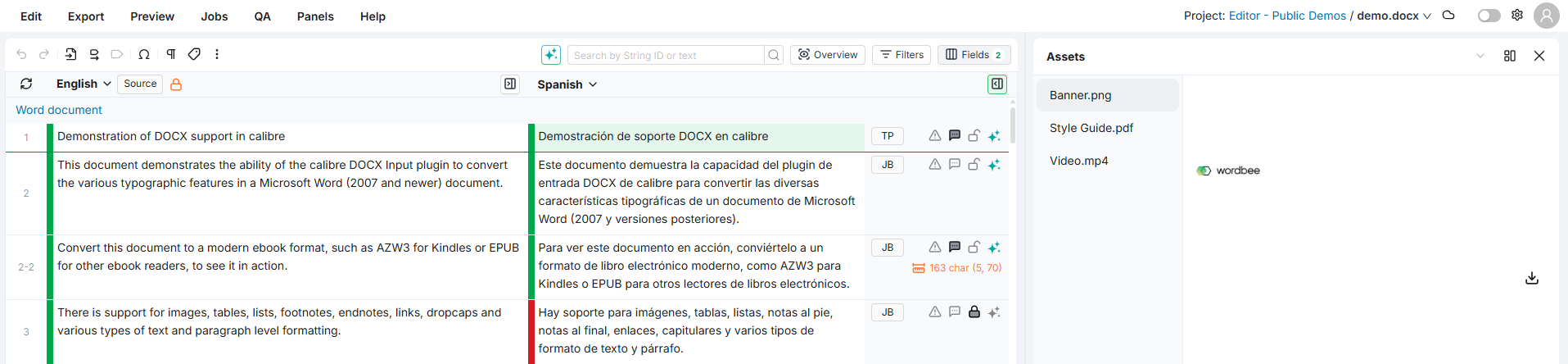
Assets are loaded from the project's reference material folder. You need access to this folder to view and download assets in the panel.
Browsing Assets
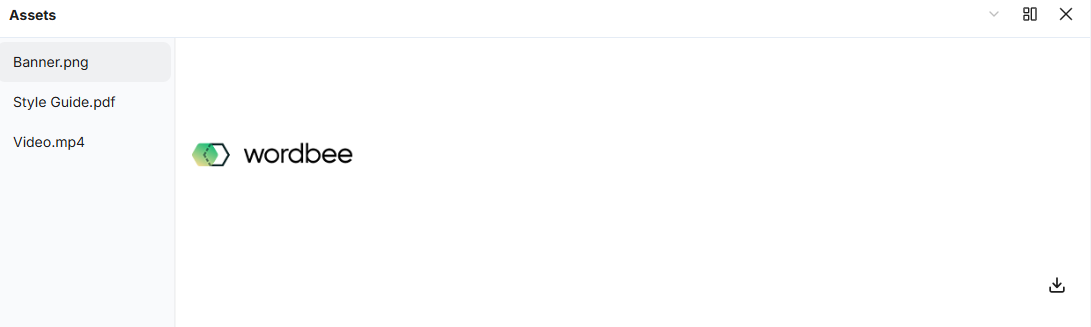
The Assets Panel is divided into two areas:
-
File list (left side): Shows all assets attached to the currently selected segment. Each file displays an icon based on its type, the file name, and the file size.
-
Preview area (right side): Displays a preview of the selected asset.
To browse assets for a segment:
-
Select a segment in the Editor grid. The panel automatically loads any assets associated with that segment.
-
Click on a file in the file list to select it. Its preview appears on the right.
When you navigate to a different segment, the panel updates automatically to show the new segment's assets. If the selected segment has no attached assets, the panel displays a "No available assets" message.
If a file name is too long to display in full, hover over it to see the complete name in a tooltip.
Supported Preview Types
The panel can preview the following file types directly:
|
File type |
Preview behavior |
|---|---|
|
Images (PNG, JPG, GIF, etc.) |
Displayed as a visual preview. Click the image to open a full-size view. |
|
Videos (MP4, WebM, etc.) |
Embedded video player with playback controls. |
|
Audio (MP3, WAV, etc.) |
Embedded audio player with playback controls. |
|
Other files (PDF, DOCX, XLSX, etc.) |
A "Preview not available" message is shown. You can still download the file. |

Downloading Assets
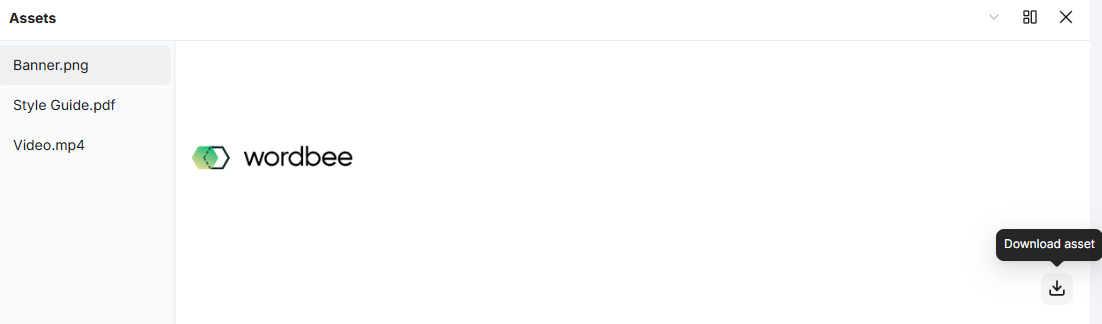
You can download assets for offline reference by clicking the Download asset button below the preview of the selected file.
Supported File Types
The panel recognizes a wide range of file formats and displays a type-specific icon for each:
|
Category |
Formats |
|---|---|
|
Documents |
DOC, DOCX, PDF, PPT, PPTX, XLS, XLSX |
|
Images |
PNG, JPG, GIF, SVG, and other common image formats |
|
Video |
MP4, WebM, and other common video formats |
|
Audio |
MP3, WAV, and other common audio formats |
|
Archives |
ZIP, RAR, 7z, TAR, GZIP, BZIP2 |
|
Data |
JSON, XML, CSV, HTML |
|
Other |
Plain text, CSS, JavaScript, InDesign, Visio, and more |
Files that do not match a known type are shown with a generic file icon.
Learn More
-
Filters Panel: Narrow down segments using filters across all columns.