
When you work on translations, it helps to know what changed, when, and by whom. The Revision History panel shows every text change made to a segment, and lets you restore an earlier version when needed.
To open the Revision History panel, click the Panels menu and select Revision history, or press Alt+Shift+R. The panel automatically displays revisions for the segment and language cell you last clicked in the grid.
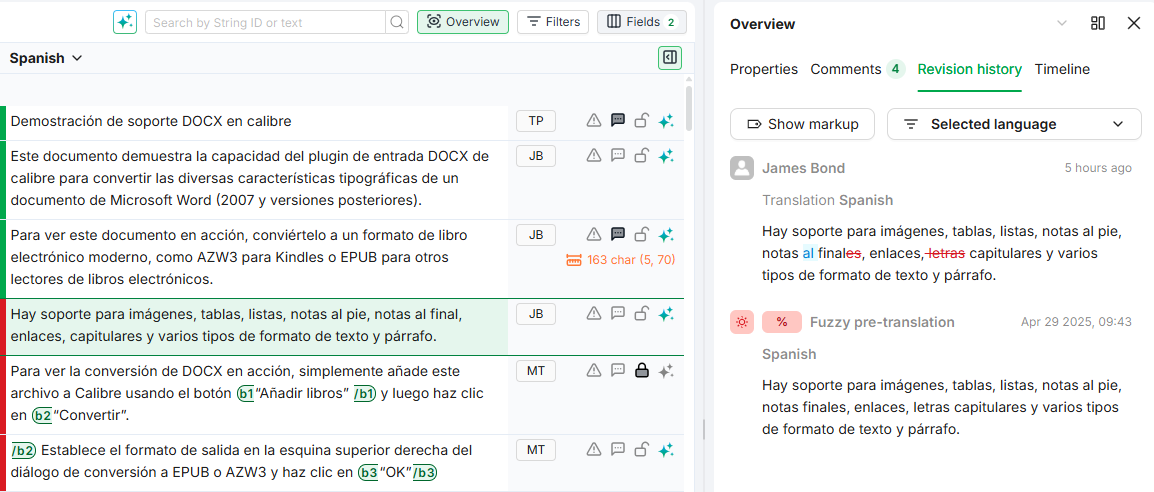
Understanding Revision Entries
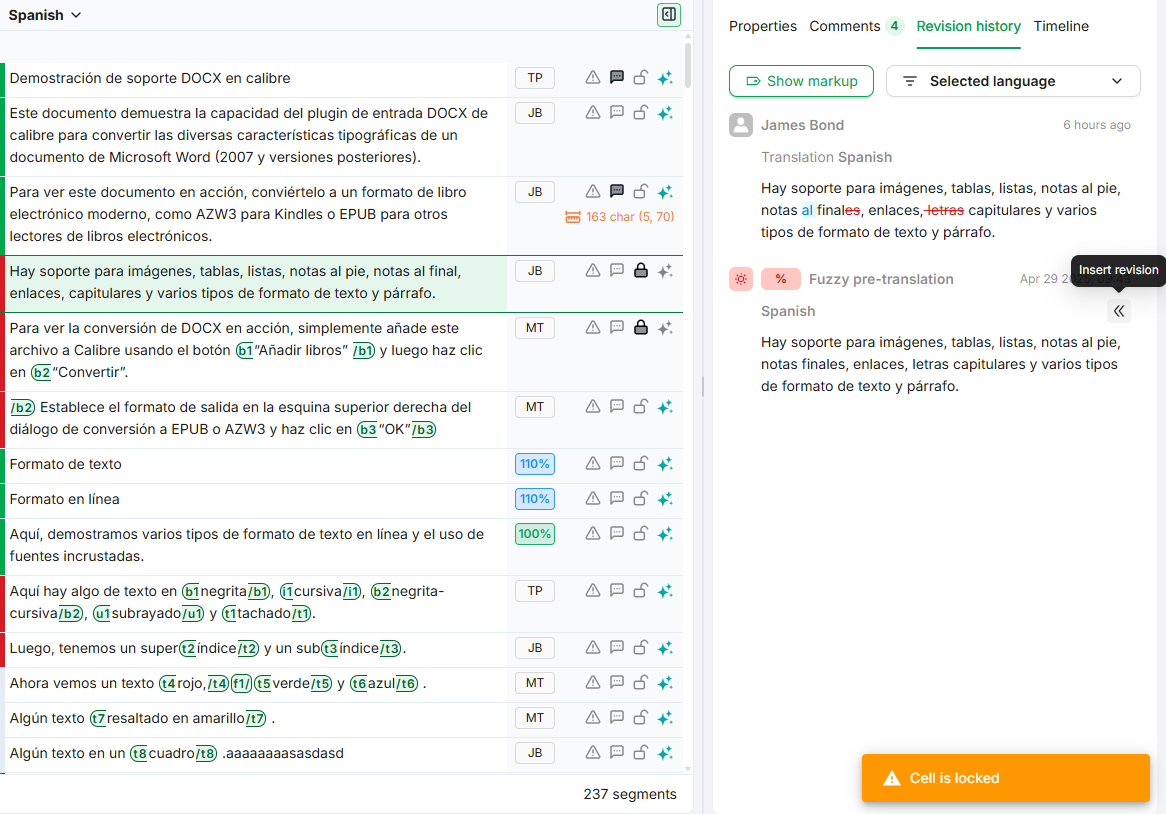
Each revision card represents a single change to the segment text. Entries are sorted with the most recent change at the top.
A revision card includes the following information:
-
Origin: How the change was made. Manual edits display the user name and avatar. Automated changes show the operation type (e.g., Exact pre-translation, Fuzzy pre-translation, or the MT job name).
-
Timestamp: When the change occurred. Very recent changes use relative timestamps such as "a few seconds ago". Older entries show the full date and time.
-
Language: The language that was modified. For manual edits, this includes the task type (e.g., "Translation Spanish").
-
Match percentage: For pre-translation entries, a badge shows the match quality (e.g., 100%).
-
Text: The segment text as it existed after the change.
When differences between consecutive revisions are available, they are highlighted with track-changes formatting. Removed text appears in red with strikethrough, and added text appears inline.
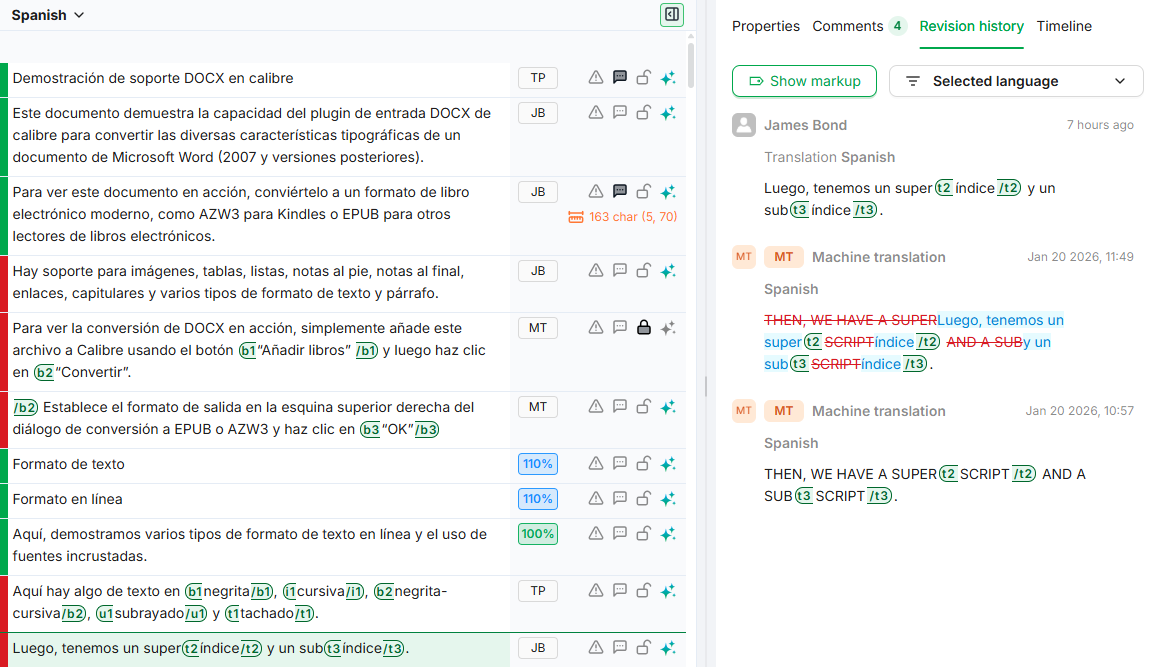
Toggle Show tags at the top of the panel to display or hide the formatting tags within the revision text. This is helpful when you need to check whether formatting changed between versions.
Filtering Revisions
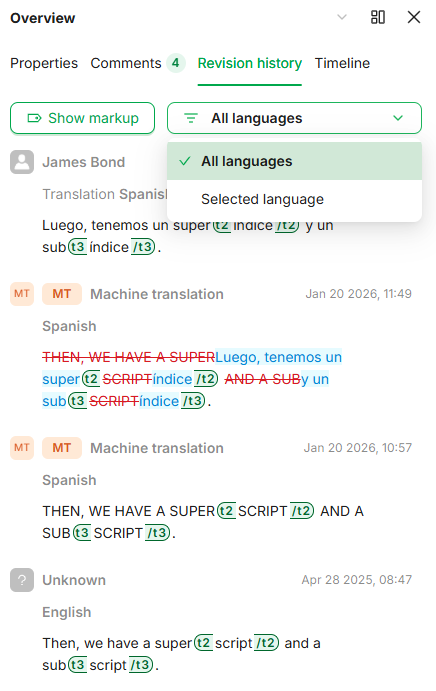
Use the filter dropdown at the top of the panel to control which revisions are displayed:
-
Selected language: Shows only revisions for the language cell you last clicked in the grid.
-
All languages: Shows revisions across all languages visible in the grid. Each entry indicates which language it belongs to.
Inserting a Previous Version
If an earlier version of a translation was better, you can restore it directly from the Revision History panel.
Follow these steps to insert a previous version:
-
Select the segment you want to update in the grid.
-
Open the Revision History panel and locate the revision you want to restore.
-
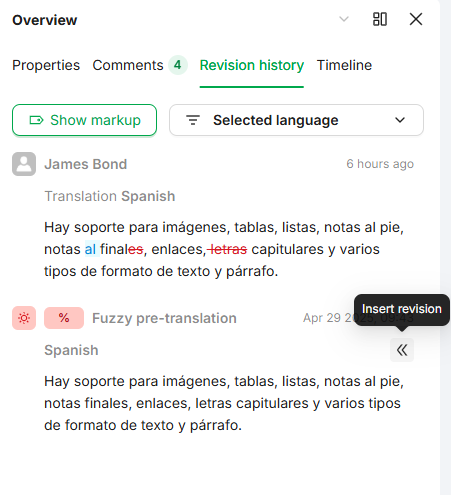
Hover over the revision card to reveal the Insert revision button (a double-chevron icon).
-
Click Insert revision. The text in the segment is replaced with the revision text, and the segment status changes to unsaved.
-
The focus moves to the updated segment in the grid so you can review and save.
The insert action requires edit permissions on the segment. If the segment is locked, a Cell is locked! warning appears and the revision cannot be inserted.
Learn More
-
Filters Panel: Narrow down the segments shown in the grid before reviewing revision history.