
The QA panel helps you catch issues before you deliver your work. Run a check, review every issue it finds next to the grid, and fix, clear, or ignore each one.
Running a QA Check
You can run QA from the QA panel or from the QA menu:
-
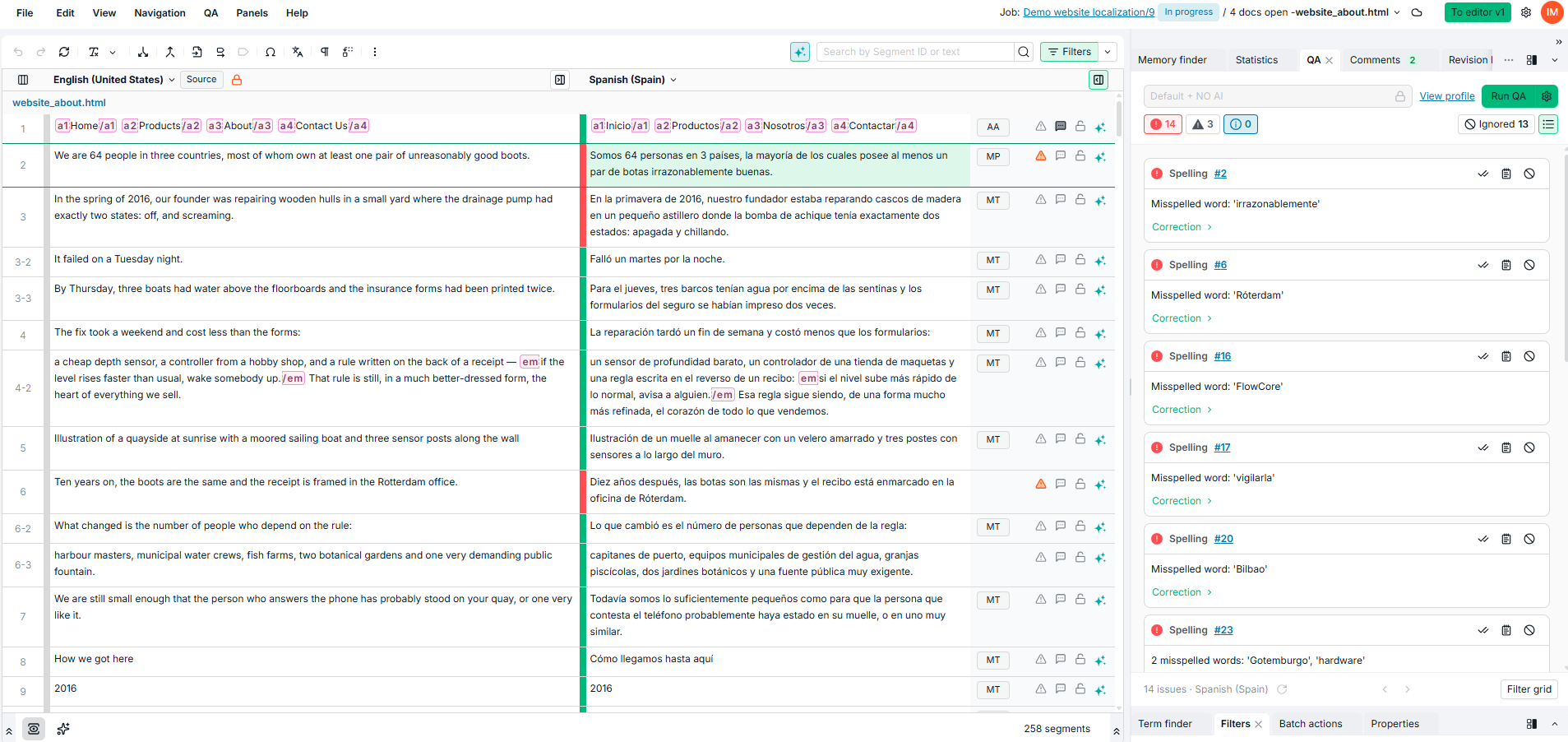
From the QA panel: click Run QA at the top of the panel. The check starts straight away, using the profile shown next to it and your QA settings. It checks the language of the target cell you are in, or the first target language on display. A progress box lets you cancel, and the panel refreshes when the check ends.
-
From the QA menu: select QA > Run QA to open the Run QA dialog, where you choose the languages, profile, and options before you run.
If no QA profile is available for the language pair, Run QA in the panel opens the Run QA dialog instead, which explains why.
If you filter the grid first, only the filtered segments are checked, up to 10,000 segments per run.
Follow these steps to run a QA check from the QA menu:
-
Open the QA menu and select Run QA.
-
Under Languages, select the source and target languages to check.
-
Under QA profiles, choose the profile that best matches your task. Profiles define which rules are checked, such as spelling, consistency, or terminology. The dialog remembers your choice for next time.
-
Choose whether to check confirmed and locked segments. Skip confirmed segments and Skip locked segments are on by default.
-
Click Run QA.
If the project manager set the QA profile in the job's workflow, you cannot choose another profile. If your platform requires every segment to be checked, the skip options are unavailable.
QA Results Summary
When you run QA from the QA menu, the QA analysis complete screen shows the number of segments analyzed and the Errors, Warnings, Info, and Total issues per language. Click a count to filter the grid to those segments, or click Open QA panel to review the issues one by one.
The screen shows only what that run found. To keep track of all open issues, use the QA panel.
Reviewing Issues
Open the QA panel from Panels > QA or with Ctrl+Alt+Q, or click the QA issues icon in a segment's toolbar.
QA Panel Header
The top of the panel holds the QA profile drop-down list, the View profile link, and the Run QA button. The gear icon (Configure) on the right of Run QA opens QA settings:
-
Mode, under Display: All segments lists every issue across the segments in the grid (the default), and Current segment lists only the issues on the segment you are on. Your choice is remembered.
-
Skip confirmed segments and Skip locked segments, under Filtering: switches that decide which segments a check from the panel skips. If your platform requires every segment to be checked, they are unavailable.
Choosing Which Issues to Show
Below Run QA, a row of controls filters the list:
|
Control |
What it does |
|---|---|
|
Severity badges |
Show or hide errors (red), warnings (orange), and information issues (blue). Each badge shows its issue count. |
|
Ignored button |
Shows or hides the issues that have been ignored. |
|
QA rules and severities menu |
Opens from the list icon. Lists the rules in the current results by severity, each with its issue count. Select only the rules you want to work on. |
Filtering the list does not clear or ignore any issue.
Issue List
Each issue is a card. Its first line shows the severity icon, the rule name, and, in All segments mode, the segment number: click the number to go to that segment. A gray number means the segment is not in the grid. The action buttons sit at the right end of that line (see Managing Issues), and the description is below.
Issues from the AI quality check have names that start with AI, such as AI Omission or AI Terminology. See AI Quality Assurance for what each AI check looks for.
Some issues come with a proposed correction under the description:
-
Suggested fix: a correction proposed by the AI quality check. Tags appear as chips, and the text follows the reading direction of the target language.
-
Correction: for spelling issues, the misspelled word and the spellchecker's suggestions. Click Correction to expand it.
Both are read-only: select and copy the text to apply it yourself. They also appear on the issue in the grid's QA column.
Managing Issues
You find the same actions on each issue in the QA panel and in the grid's QA column.
|
Action |
What it does |
On the next QA run |
|---|---|---|
|
Clear |
Removes the issue from the list. Fix the problem in the translation first. |
The issue comes back if the problem is still in the translation. |
|
Ignore with note |
Ignores the issue and opens a note where you record the reason, for example "Client-approved spelling", so colleagues understand the decision. |
The issue stays ignored, with its note, as long as the run finds the same issue. If the issue changes, for example after you edit the translation, it comes back as a new issue. |
|
Ignore |
Ignores the issue without a note. |
The issue stays ignored as long as the run finds the same issue. |
Once ignored, the issue moves to the Ignored counter, and its buttons change to Note and Undo, so you can revisit or reverse the decision.
Translations - Consistency issues also offer Apply filter, below the description in the QA panel. It shows every segment with that source text in the grid, so you can compare the translations and correct them. Select Clear filter to remove it. If you already had a text filter on that language, Apply filter sets it aside and Clear filter restores it. If another feature set the text filter, such as Find and Replace, Apply filter is unavailable until you clear it there.
QA results are cumulative: a new run adds newly detected issues and removes resolved ones. Issues you ignored stay ignored, with their notes. An issue you cleared is reported again only if the problem is still in the translation.
Automatically Update Status When the Last Issue Is Resolved
You can have a segment's status change on its own once its last QA issue is cleared or ignored: to Neutral (clears the red error state) or Confirmed (marks it final, respecting your rights). This per-user setting is off by default. Turn it on in Preferences > QA, under Automatic status updates, or from the Advanced QA settings link at the bottom of QA settings. See Preferences for details.
Filtering the Grid to the Listed Issues
The bottom of the QA panel shows the issue count, a refresh icon, the page arrows, and the Filter grid button on the right.
In All segments mode, follow these steps to work through the issues in a filtered grid:
-
Filter the list using the severity badges.
-
Select Filter grid. The grid now shows only the segments in your list.
-
Work down the list, clearing or ignoring issues. While Filter grid is on, the grid follows your changes: a segment leaves the grid as soon as none of its issues is left in the list.
-
Select the refresh icon to bring the list up to date.
-
Select Filter grid again to remove the filter and see the surrounding segments.
If you filter the list again after selecting Filter grid, the grid does not follow. Select Filter grid again so the grid matches the new list.
To filter the grid by QA issues without the panel, use the QA filter in the Filters Panel.
QA Scores
Besides its QA issues, a segment can carry a QA score (0-100) assigned by automated quality estimation. The score helps you prioritize your review, starting with the lowest scores.
The score appears at the top of the segment's cell in the grid's QA column, and in the QA panel in Current segment mode. Add the QA column to the grid from the Fields Panel. To narrow the grid to segments below a threshold, use the QA Score filter in the Filters Panel.
Exporting QA Results
You can export QA results as an Excel report. The QA Issues Report has one row per QA issue, with the rule, severity, source and target text, and segment details. AI issues use the same names as in the Editor.
To create it, select File > Create report and choose QA Issues Report. For full details, see Create Report.
QA Profile Configuration
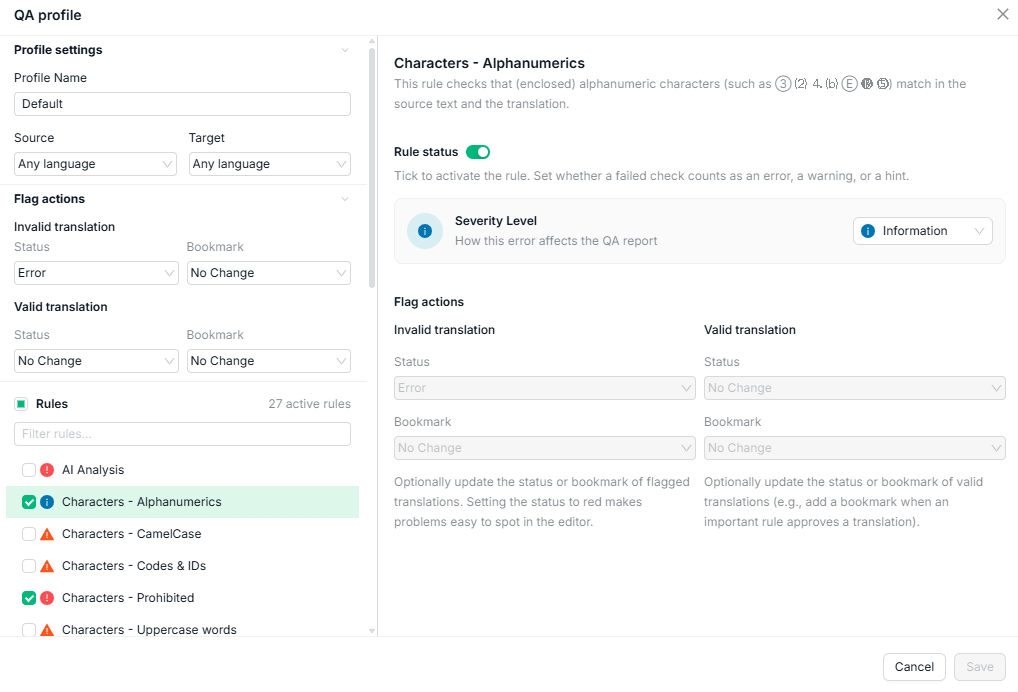
You can view and adjust the rules of a QA profile directly from the Editor.
To open the profile configuration:
-
In the Run QA dialog, click View details above the QA profiles list.
-
In the QA panel, click View profile next to the profile name.
The QA profile window has two areas. On the left are Profile settings (name, source, and target language), Flag actions (status and bookmark changes for invalid and valid translations), and the Rules list with a search box and the number of active rules. On the right are the details of the selected rule: Rule status (on or off), Severity Level (Error, Warning, or Information), and the rule's Options.
When you click Save, the changes can apply in two ways:
-
Save for this session: the changes apply to your QA runs until you close the Editor. Anyone can save this way. The panel then shows that the profile was modified for this session, with Restore to go back to the saved profile.
-
Save permanently: the changes are saved to the profile for everyone. This requires the right to edit QA profiles (R377).
If the project manager set the QA profile in the job's workflow, the profile is read-only.
Example Scenarios
|
Use Case |
How To |
|---|---|
|
Run a full QA check before delivering a job |
Open QA > Run QA, keep the default settings, and click Run QA. |
|
Rerun QA with the settings you already use |
Click Run QA in the QA panel. The check starts straight away, without the Run QA dialog. |
|
Include confirmed segments in a check |
Turn off Skip confirmed segments in the Run QA dialog, or in QA settings in the panel. |
|
Review only errors |
Turn off the warning and information badges in the QA panel. |
|
Work through one rule at a time, such as the AI findings |
In QA rules and severities, select only that rule (AI issues are under AI Analysis), then select Filter grid. |
|
Compare all translations of a repeated sentence |
On a Translations - Consistency issue, click Apply filter. |
|
Keep validated segments and their issues out of future runs |
Confirm the segment, then keep Skip confirmed segments on. |
|
Prioritize segments with the lowest quality scores |
Add the QA column from the Fields Panel to see each score, and use the QA Score filter to show only scores below a threshold. |
Learn More
-
QA Profiles: Learn how QA profiles are configured and what rules they include.
-
QA Categories: What each built-in QA rule checks.
-
AI Quality Assurance: The AI checks and how to run them.
-
Report S720 - QA report: Export a detailed report of QA activity, including issue types, severity, and resolution status across your project.
-
Create Report: Generate formatted business reports, including the QA Issues Report, directly from the Editor.
-
Quality Assurance: Overview of QA in the Editor, including profiles, running checks, and exporting results.
-
Filters Panel: Narrow down the segments to QA using filters.