
The Editor lets you preview what your translated documents will look like before delivery. This is especially useful for reviewing translations in context: you can see how the final document will appear, catch layout or formatting issues, and verify that the translated content reads naturally in its intended format. Generate a preview for any available language, then view it directly in a side panel alongside your segments or open it in a separate browser tab.
Live Preview for Word Documents
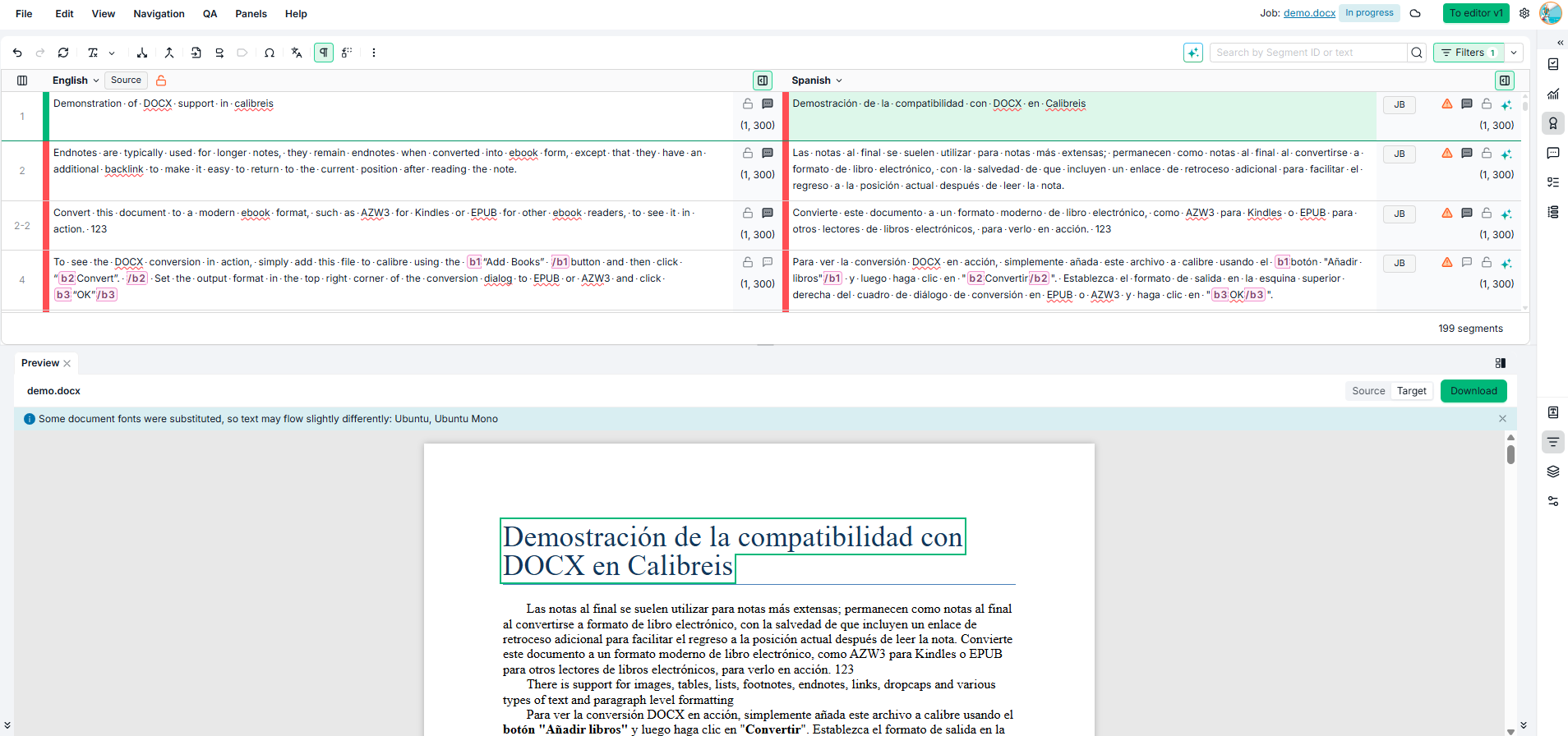
For Word (.docx) documents, the panel can show the document itself beside the grid, laid out as it will be delivered and updating as you type. It gives you the context to judge whether a translation fits and reads correctly in place.
-
The preview follows the grid. Select a segment and the preview scrolls to it and outlines it.
-
The grid follows the preview. Select a paragraph in the preview and the grid scrolls to it, with the cursor at the start of the target.
-
Your typing appears immediately, with no waiting.
-
Untranslated segments still appear, in light gray, using the source text, so you always see the whole document.
-
A switch flips between the target and the source preview in the same panel.
Dock the panel to the sidebar or along the bottom, whichever gives the document more room.
The first time you open a document, the preview takes from a few seconds to a few minutes while the server rebuilds and converts it. The panel shows progress and loads the preview by itself when it is ready. Every later open of the same document is immediate.
The live preview is a working view rather than a print-ready render. It is accurate enough to judge layout, position and formatting in context, and it does not review your translation or flag formatting mistakes. A few limits are worth knowing: a sentence split across two table cells appears entirely in the first cell, Word form controls such as checkboxes appear as inert symbols, content the document pulls from the internet is not loaded, and unusual formatting may be dropped rather than approximated.
Other file formats continue to use the existing preview, which also stays available for Word whenever you need an exact rendering. Live preview appears only on platforms where the required preview services are deployed.
Creating a Preview
The Preview option in the top toolbar opens a dialog where you configure and generate your preview. Preview is available when working with Job or Project scopes. For other scopes (Flex containers, TMs, termbases, document sets), the Preview menu is hidden.
Follow these steps to generate a preview:
-
Click Preview in the top toolbar. The Preview dialog opens.
-
Select the Document you want to preview. If the scope contains multiple documents, use the dropdown to search for and select one.
-
Select the Language for the preview. All languages available to you are listed, with the source language labeled as such.
-
Optionally, enable Show source text if translation is missing to use the original source text as a fallback for untranslated segments.
-
Optionally, enable Highlight segments with a red status to make those segments visually stand out in the preview. This option is only shown for file types that support highlighting.
-
Click Preview to generate a browser-viewable preview, or click Download to download the reconstructed translated file directly.
After clicking Preview, the system generates the file in the background. A progress indicator appears while the preview is being created. Once ready, the result opens in the Preview panel.
The Preview button is disabled for file types that do not support browser rendering. In that case, use the Download button to get the translated file.
The Preview Panel
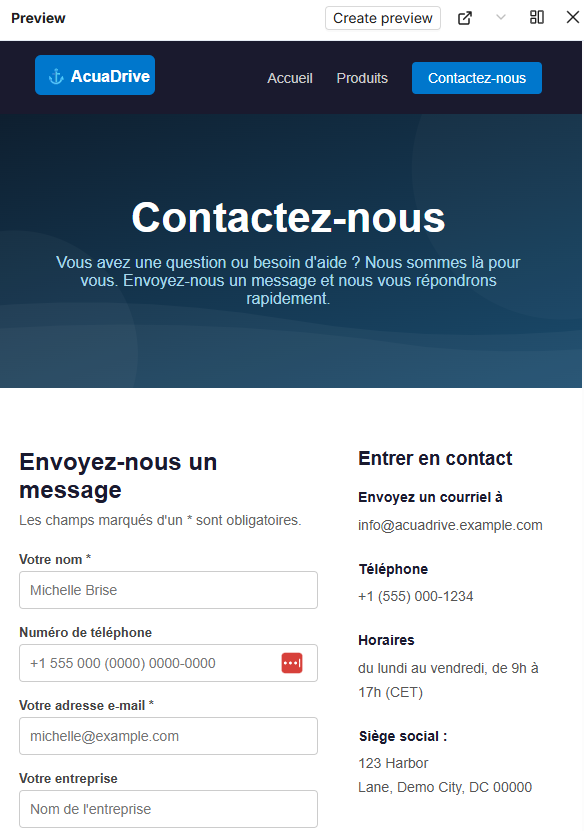
The Preview panel displays the generated preview in a side panel alongside the segment grid. You can keep working on your translations while the preview is visible.
You can also open the Preview panel directly (without generating a new preview) from Panels > Preview in the top toolbar.
The panel header includes two actions:
|
Button |
Description |
|---|---|
|
Create preview |
Opens the Preview dialog to generate a new preview or update the current one. |
|
Open in new tab |
Opens the current preview in a separate browser tab for a larger view. Only available when a preview has been generated. |
Apart from the live preview for Word documents described above, the preview is static: it reflects the state of your translations at the time it was generated. To see your latest changes, click Create preview to generate a fresh preview.
You can assign a keyboard shortcut to open the Preview panel from Preferences > Shortcuts.
Handling Errors
If the preview cannot be generated (for example, due to a tag issue in the translated content), an error message appears in the panel with a reference number. Check the segment content for formatting problems and try again. If the issue persists, contact support and provide the error reference number shown in the panel.
Learn More
-
Export: Download string data and metadata as an Excel file for offline editing.