
Wordbee offers two current editor versions, and a switch in the Editor header moves you between them. You choose when to move, your choice is remembered, and you can go back at any time in one selection.
Using the Switch
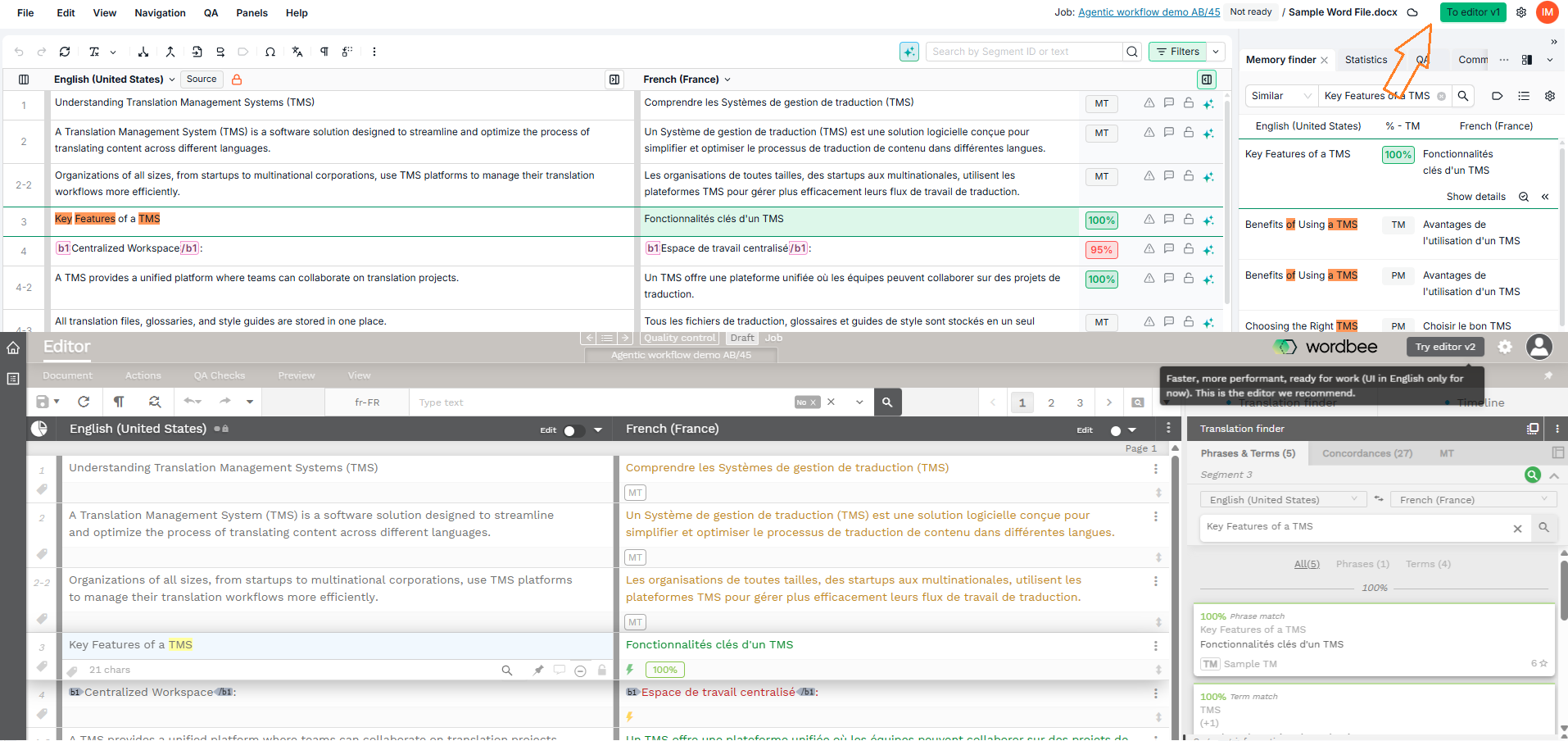
The switch sits in the Editor header and is named after the version it takes you to. In Editor v1 the button reads Try editor v2, and in Editor v2 it reads To editor v1.
Selecting the switch reopens your work in the other version. Your filters, the columns you had in view and the segment you were on come with you. If something you had set has no equivalent in the version you are moving to, a short notice tells you what was left behind, with a Don't show this again checkbox so you are only told once.
What the Switch Remembers
Your editor does not change until you use the switch. Once you do, that version becomes the one you open from then on, for you alone: your account's default version and your colleagues' editors are unaffected. Select the switch again to go back.
Links that open the Editor from a word count report or an offline package take you to the version you actually use.
For Administrators
The access right Use multicolumn editor by default is how you move users off Editor v0. Granting it on a profile moves every qualifying user assigned to that profile, so to move a single user, assign that user a dedicated custom profile and grant the right on it. Users moved this way get the version switch and can reach Editor v2 themselves.
Nobody's editor changes on its own. Users keep the version they use today until they choose to switch.
Learn More
-
The Editor: Overview of the Editor, its panels, and its workspaces.
-
Access Rights: Configure what each user profile can do, including the multicolumn editor right.
-
Workspaces: How the Editor adapts to a job, a project, or a memory.
-
The Grid: Sort, scroll continuously, and choose the columns you work with.