
The Editor supports string management workflows for teams working with Flex containers in integration and localization scenarios. From the Editor you can manage reference files, exchange data with external teams or tools, and create translation jobs for your content.
-
Assets Panel: Access reference files and assets attached to the Flex container.
-
Import: Bring external content into the Editor to create new segments or update existing ones. Supports Excel, CSV, JSON, XML, and other formats. Each import is traceable via transaction IDs and detailed logs.
-
Export: Download content as an Excel file or synchronize it into an external file format. Exported files can be shared with stakeholders, edited offline, and reimported to update your data.
-
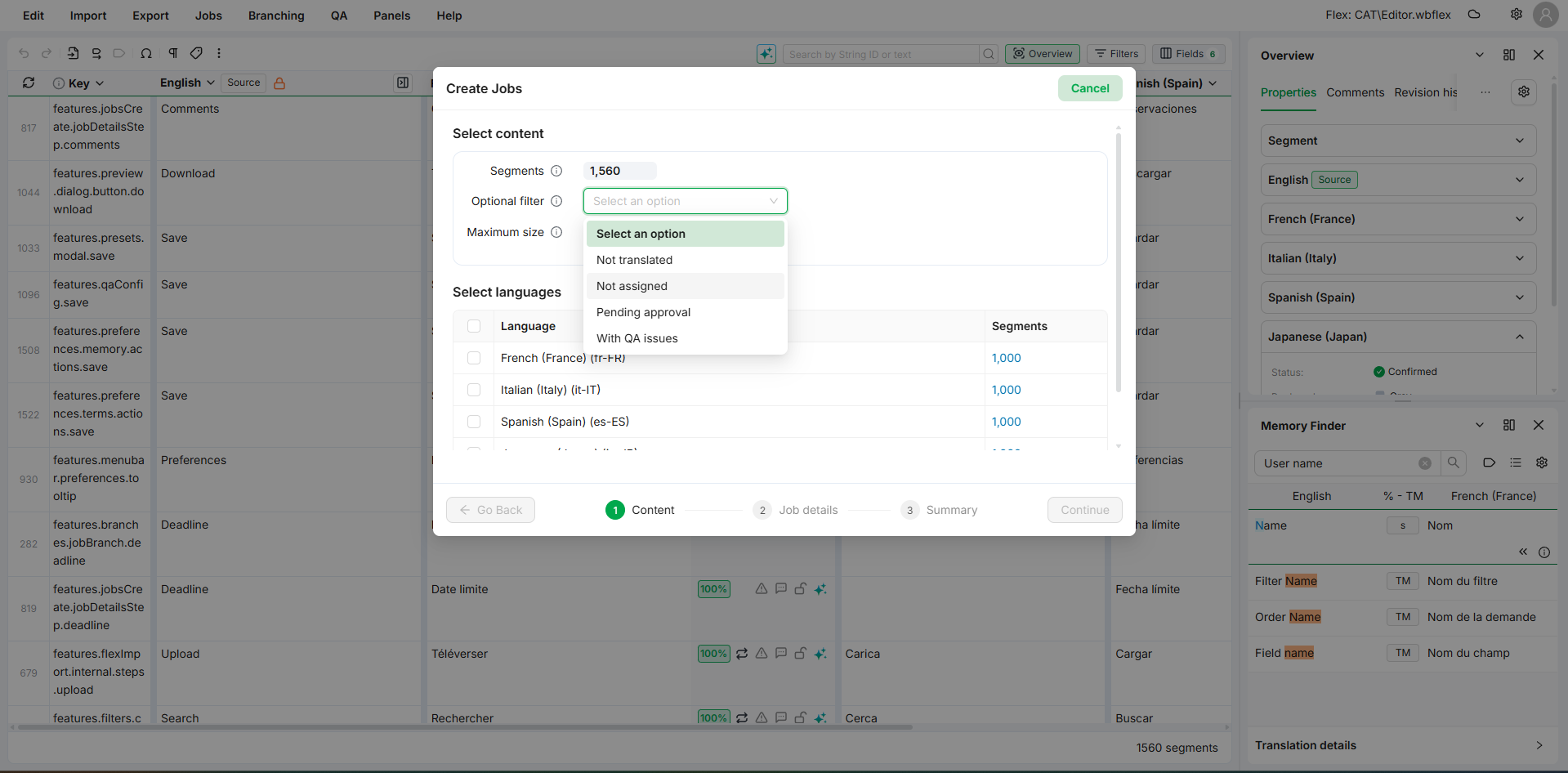
Job Creation Wizard: Create translation jobs directly from the Editor, including scope selection and language assignment.
File menu
Most of the actions above are reachable from the Editor's top menu. The File menu gives access to reporting and management tools:
-
generate audit and traceability reports (Revisions, QA, Labels) via Create Report.
-
rollback text and metadata changes with the Undo feature. It offers two methods: by date (always available when change history is enabled) and by transaction ID (covered in detail below).
Undo by Transaction ID
Every import or sync into a Flex container generates a transaction ID and a timestamp. When you need to reverse the effects of a particular operation — for example, after pushing content from a connector or running an automated import — you can use the transaction ID to identify exactly what to roll back.
Undo by Transaction ID is a targeted form of Undo by date: instead of picking a date manually, the transaction ID points to the exact moment the operation ran, so the rollback uses that timestamp as its cutoff. Later, unrelated work is left untouched.
Follow these steps:
-
Open the File menu and select Undo by Transaction ID.
-
Enter the transaction ID of the import or sync you want to reverse.
-
Confirm the operation.
The Editor rolls back all changes introduced by that transaction in a single operation.