
When you open the Editor, you want to find the right tools for your task without distractions. The Editor automatically adjusts its interface based on the context you are working in. Whether you are translating a job assignment, managing a project, or maintaining a translation memory, you see only the tools and menus that are relevant. Any changes you make to the layout are saved automatically, so you can pick up right where you left off.
Workspace Types
The Editor provides three workspace types: Job, Project, and Memory. Each workspace determines which panels open by default and which menus are available. The workspace is selected automatically based on how you open the Editor.
Job Workspace
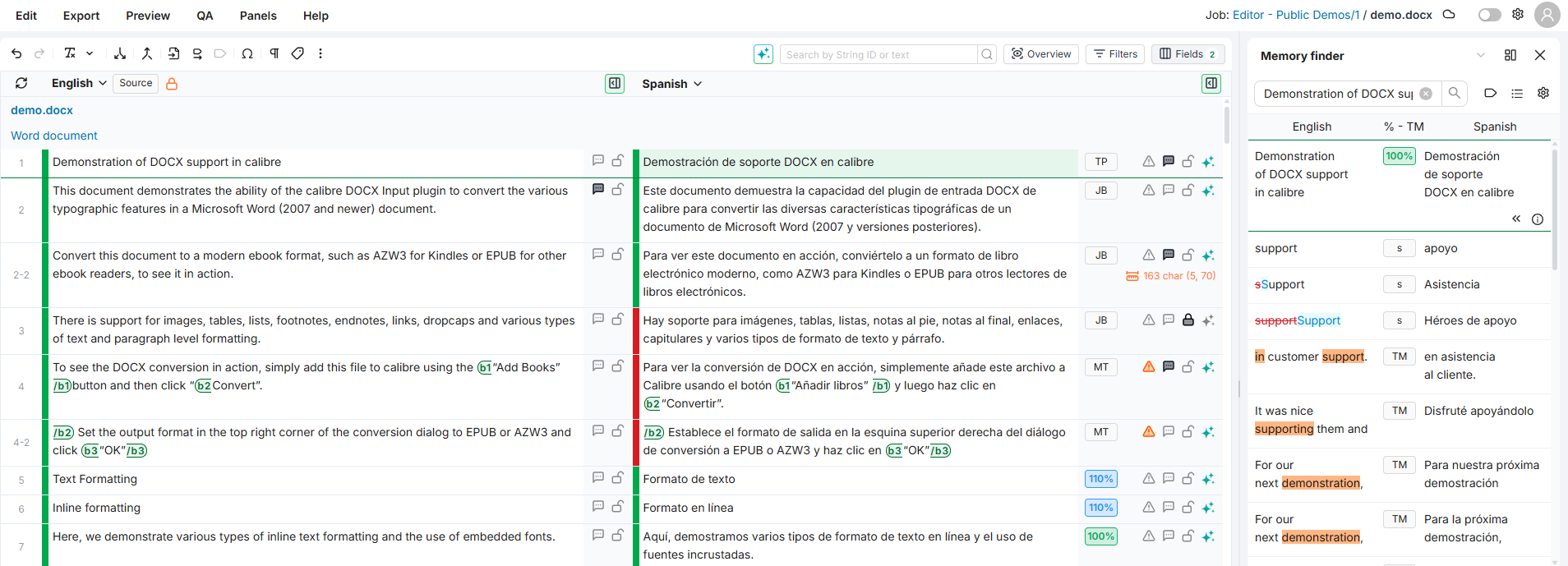
When you open the Editor from a job assignment, the interface is focused on translation and review. The default layout includes the Memory Finder panel and the Segment Toolbar (displayed for the target language).
The top menu provides access to Export, QA, and Panels. A quick actions bar below the menu gives direct access to common actions. In the top-right area, you can find a link back to the job in the TMS, a document selector (if the job contains multiple documents), and your user settings.
Features that do not apply to individual job assignments are hidden:
-
The Import menu is not available.
-
Filters for Jobs (filter by job assignment) and Transaction (filter by import batch) are hidden in the Filters panel, since you are already working within a single job.
-
The export options Sync file and Export with external file are hidden.
Project Workspace
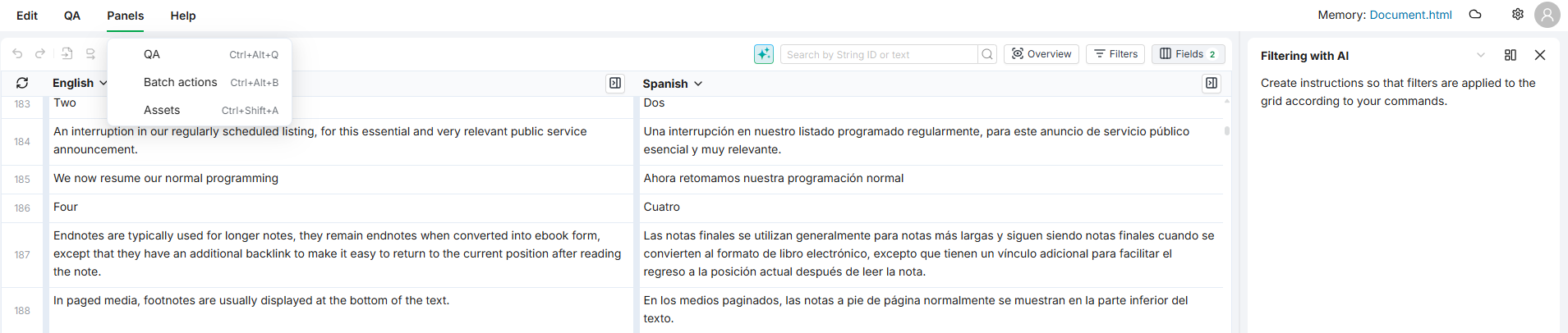
When you open the Editor from a project, the default layout includes the Memory Finder panel and the Filtering with AI panel.
The project workspace extends the job workspace with a Jobs menu (limited to viewing jobs) and a link back to the project settings in the TMS. The same restrictions as the job workspace apply: the Import menu, Jobs and Transaction filters, and certain export options are hidden.

Memory Workspace
When you open the Editor to browse or maintain a translation memory, the interface is streamlined to focus on content review. The default layout includes the Filtering with AI panel.
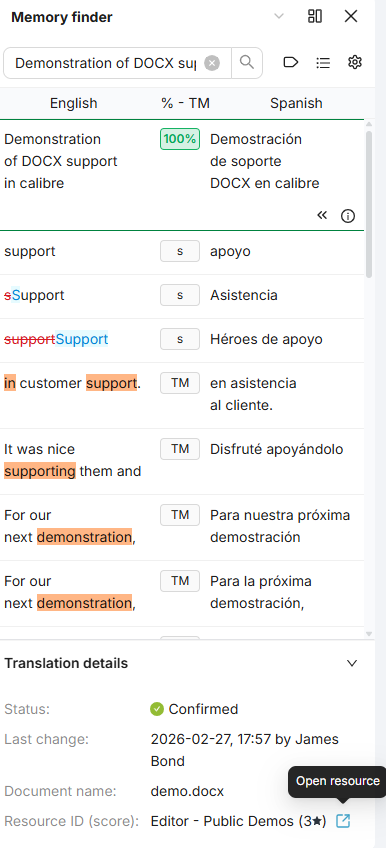
You can reach this workspace by opening a translation memory resource directly. For example, when the Memory Finder panel shows a match, you can click the Open resource link next to the resource name to open the memory in its own Editor workspace.
The following features are hidden because they do not apply to standalone memory browsing:
-
The Import, Export, and Jobs menus are not available.
-
The Memory Finder and Term Finder panels are hidden.
Quick Reference
|
Feature |
Job |
Project |
Memory |
|---|---|---|---|
|
Default panels |
Memory Finder, Segment Toolbar |
Memory Finder, Filtering with AI |
Filtering with AI |
|
Export menu |
Available |
Available |
Hidden |
|
Import menu |
Hidden |
Hidden |
Hidden |
|
Jobs menu |
Hidden |
View jobs only |
Hidden |
|
QA |
Available |
Available |
Available |
|
Memory Finder panel |
Available |
Available |
Hidden |
|
Term Finder panel |
Available |
Available |
Hidden |
|
Filter: Jobs (by job assignment) |
Hidden |
Hidden |
Hidden |
|
Filter: Transaction (by import batch) |
Hidden |
Hidden |
Hidden |
|
Export: Sync file |
Hidden |
Hidden |
Hidden |
|
Export: Export with external file |
Hidden |
Hidden |
Hidden |
Layout Memory
The Editor saves your workspace configuration automatically as you make changes. The next time you open the Editor in the same workspace type, your last layout is restored.
The following settings are preserved:
-
Which panels are open and where they are positioned
-
Panel sizes
-
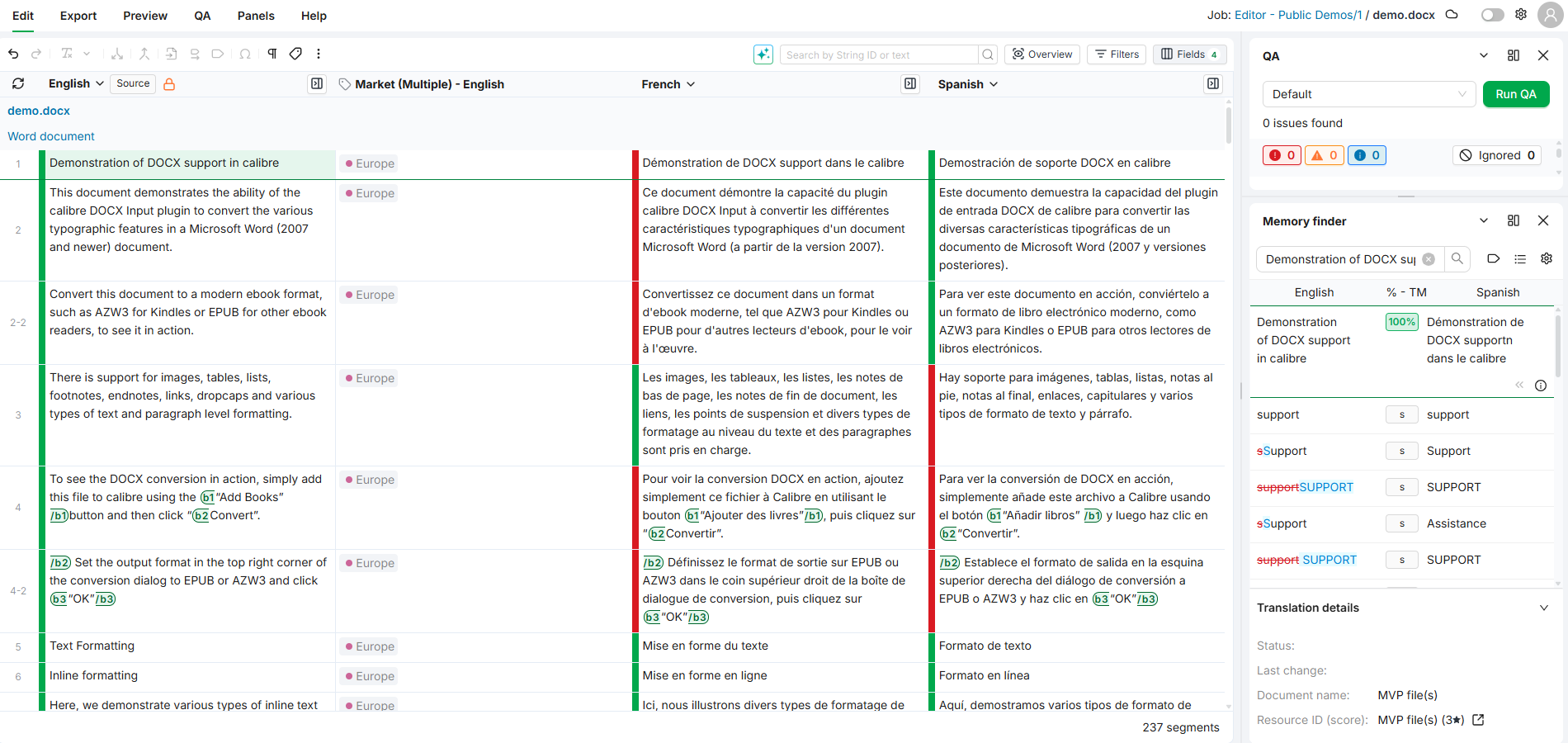
Grid column visibility and order
Your layout is saved separately for each workspace type, so your job workspace and project workspace can look different.
Note
Your layout is stored in your browser's local storage and is tied to the specific browser you use. If you switch to a different browser or device, the Editor loads the default layout for that workspace. Private or incognito browsing windows do not preserve layout settings.
Learn More
-
Fields Panel: Customize which columns are visible in the grid and how they are ordered.
-
Filters Panel: Narrow down segments using filters.