
Some clients require that no AI or large language model technology is applied to their content. You can turn the Editor's AI assistants off for a single project, so everyone working on it sees a standard Editor with no AI features, while the rest of your platform keeps using them. The setting can also be applied automatically to every project created from an order form template or a project template.
Turning AI Assistants Off for a Project
The setting is a single checkbox on the project itself, so you can change it at any point in the project's life. It is available for both Standard and Codyt projects, and it is unchecked by default: existing projects keep AI assistants available until you change them.
Follow these steps to disable AI assistants for a project:
-
Open the project and select the Details sub-tab.
-
Tick Disable AI assistants for project. The checkbox sits with the other project properties, next to settings such as the word count profile.
-
Save the project.
The change applies the next time a user opens a document from that project in the Editor.
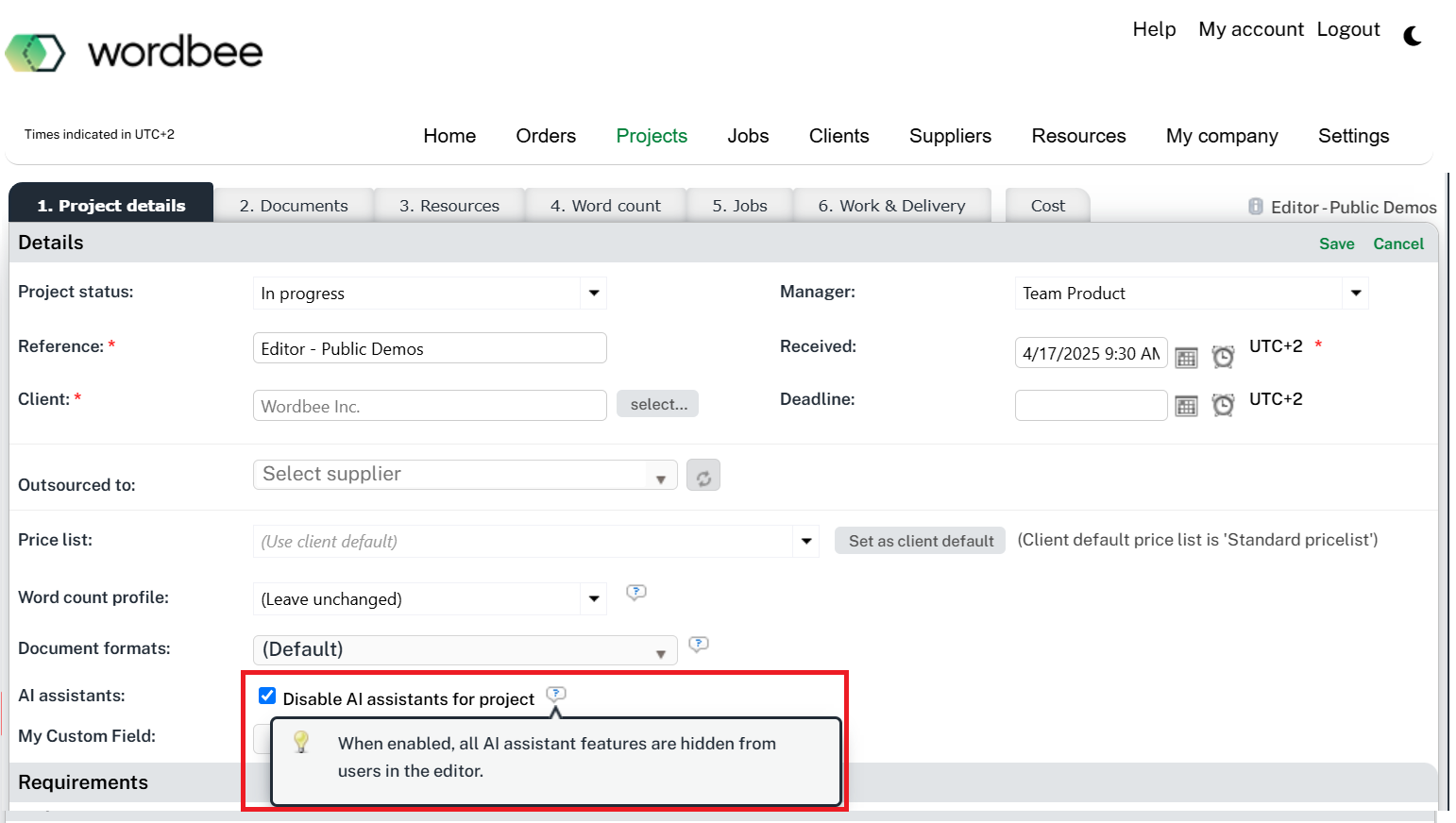
Unticking the checkbox restores the AI features for everyone working on the project. This is also how you correct a project that inherited the restriction from the wrong template.
AI assistants are enabled or disabled platform-wide by Wordbee. When they are turned off for your platform, this checkbox is still visible but greyed out, and its tooltip reads: "AI Assistants are disabled at the platform level." Your saved value is preserved and takes effect again once AI assistants are enabled for the platform. Contact Wordbee if you need this changed.
Applying the Setting to New Projects Automatically
Rather than ticking the checkbox on every new project, you can have projects inherit it. Two paths do this, and both are useful for client-level control: assign a restricted order form template to a client, or keep a restricted project template for manual project creation.
From an order form template
-
Go to Settings > Client Portal > New Order Form and click Configure, then select the order form you want to change.
-
Open the General settings tab and find the Settings group.
-
Tick Disable AI assistants for project, directly below the Machine translation dropdown.
-
Save the order form.
Every project created through that order form (Standard or Codyt) starts with AI assistants disabled, and the project manager can see the value in the project's Details sub-tab.
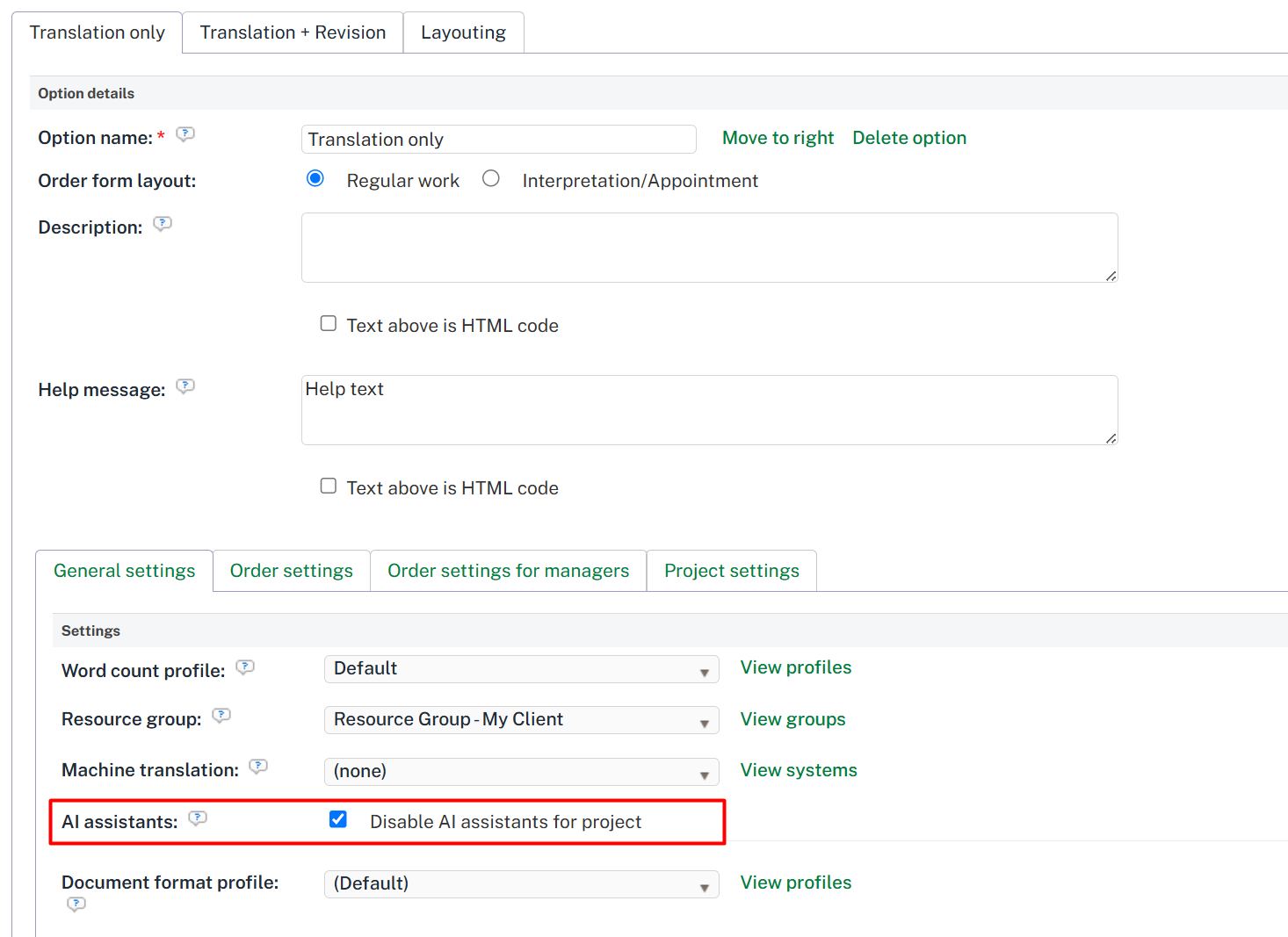
The order form template, General settings tab, Settings group, with the "Disable AI assistants for project" checkbox directly below the Machine translation dropdown.
The field is not shown on the order submission form that clients fill in, in the same way as the word count profile, machine translation, and document format profile settings. The value always comes from the template configuration.
From a project template
A project template is created by saving an existing project's configuration, so there is no separate place to edit this setting on the template: it is captured with the other properties the template copies (custom fields, languages, domains, resources, word count settings, document format profile, workflow, labels, and more).
To apply it, open the new project's Details sub-tab, click Preset from template, and select the template. The new project takes the value the source project has at that moment, so if the source project's setting changes later, projects created afterwards reflect the new value. The Copies ... caption below the template picker lists the AI assistants setting among the properties that are copied.
The same inheritance applies when you select a project template in the Attach to new project window while creating a project from an order.
What Users See on a Restricted Project
When AI assistants are disabled for a project, the Editor hides every AI surface for everyone working on it, including project managers:
-
The AI assistant button (sparkle icon) is not shown in the segment toolbar, so the AI editing assistant cannot be opened.
-
The Filtering with AI panel is not listed in the sidebar, its toggle is not shown in the Editor header, and Filter with AI is not offered in the Filters panel.
The Editor also stops issuing AI requests for that project, and AI requests made on the project's behalf are refused.
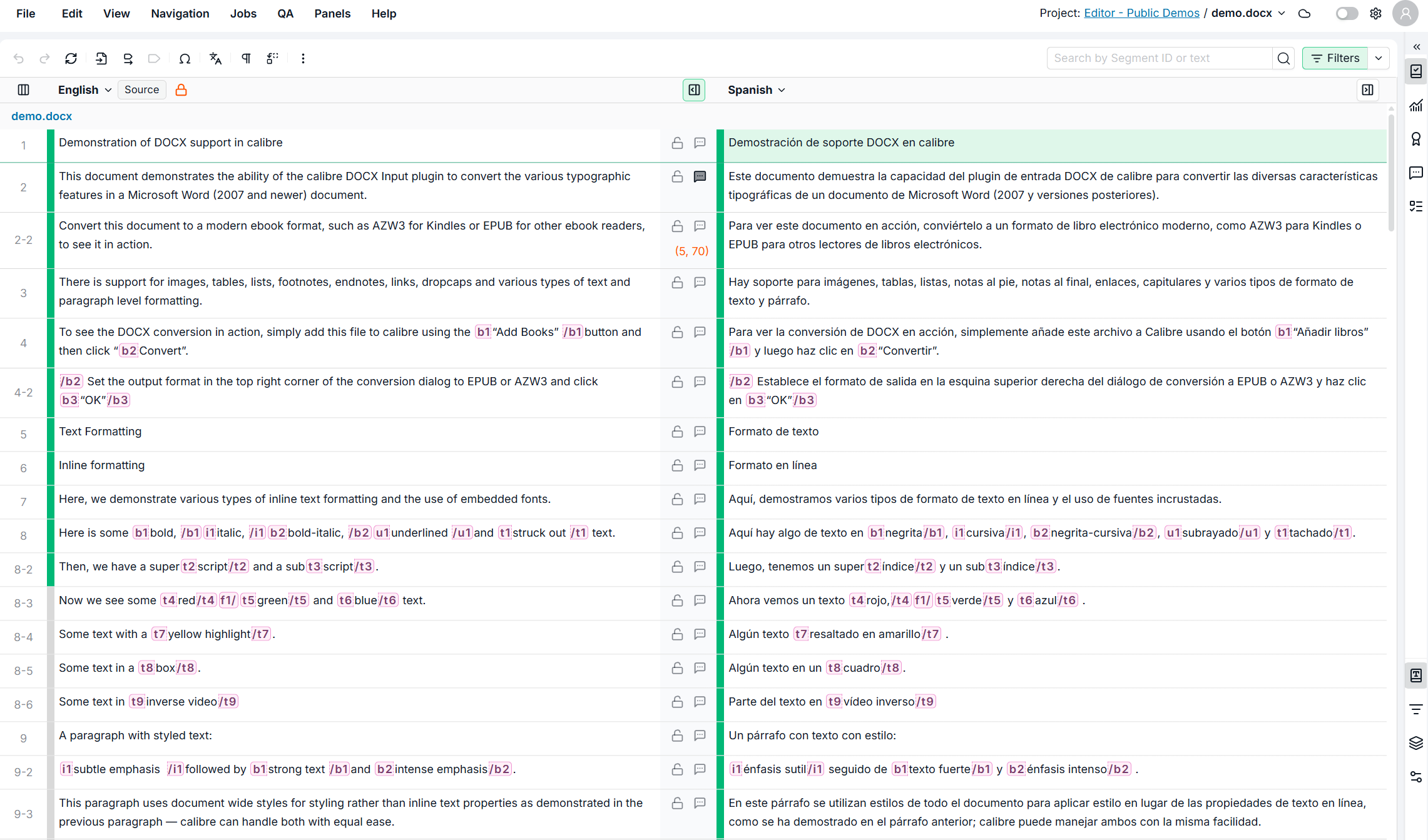
The restriction is deliberately a single switch: it covers AI-powered filtering as well as AI text suggestions and rephrasing, so there is no ambiguity about whether AI was involved in the work. Users on a restricted project build their filters in the Filters panel instead.
Everything else in the Editor is unchanged: translation memory and terminology lookup, machine translation, quality assurance, comments, and batch actions all work as usual.
Learn More
-
AI Editing Assistant: Improve a translation with AI editing modes such as Rephrase, Shorten, and Fix fuzzy.
-
Filtering With AI Panel: Filter the segment grid by describing what you want to see in everyday language.
-
Project Templates: Create a project template and apply it to new projects.
-
General Settings: Configure the General settings tab of an order form template, including word count profile and machine translation.