
The Editor has two toolbars that keep your most frequent actions one click away: the quick toolbar above the grid, with editing tools for the active segment, and the segment toolbar next to each language column, with indicators and actions for each segment. You set up both in Preferences > Toolbars. See Segment Toolbars and Quick Toolbar in Jobs.
Quick Toolbar
The quick toolbar sits above the grid and gives you fast access to common editing actions. Instead of navigating through menus, you can perform frequent tasks, for example copying source text, inserting tags, or showing whitespace, with a single click. The available tools depend on the scope you are working in. Hover over any button to see its name and keyboard shortcut.
When you work in a job, you can choose which tools appear on the toolbar and which go into the More tools menu. Go to Edit > Customize toolbars, or open Preferences and go to the Toolbars tab. See Quick Toolbar in Jobs.
Default Layout
By default, the tools are arranged as follows. For what each tool does, its shortcut, and where it appears, see Edit Menu.
-
Toolbar, from left to right: Undo, Redo, Refresh, Add to TB/TM, Delete segment, Text format, Split segment, Join segment, Copy source to target, Copy tags to target, Add missing tags, Insert symbol, Machine translate, Show/hide whitespace, and Find and replace.
-
More tools menu (⋮): Propagate translation, Set status, Set bookmark, Set text length, and Show/hide labels.
A tool appears only where it applies. For example, Delete segment appears only in memories and termbases, and Machine translate only when the project has a machine translation engine. In a translation memory, the + tool is Add segment.
Segment Toolbar
The Editor grid includes a segment toolbar: a compact, collapsible column displayed alongside each language column. It surfaces key information about each segment (such as its translation origin, repetition status, and QA issues) and provides quick access to frequent actions like locking, commenting, and requesting AI assistance, all without leaving the grid.
Showing and Hiding the Toolbar
The segment toolbar appears as a separate column next to each language column. You can show or hide it independently for each language.
To toggle the toolbar:
-
Locate the column header for the language you want to adjust.
-
Click the toolbar toggle button in the header to show or hide the toolbar column.
The toolbar state is remembered per language, so you can keep it visible for one target language while hiding it for another.

Note
The source toolbar is only visible if you have the necessary access rights for the source language. If the toolbar column does not appear next to the source, contact your administrator.
Customizing the Toolbar
Beyond showing or hiding the toolbar per language, you can choose exactly which actions and indicators each toolbar displays, and in what order. Open Preferences > Toolbars to turn items on or off separately for the source and target sides. For example, a translator who splits segments often can add Split segment and Join segment to the source toolbar, while a reviewer who does not use AI can hide the AI assistant icon. Your configuration is saved to your account and applies across all jobs, projects, and scopes, including the per-language show/hide state.
Two actions you can add are not shown by default:
-
Bookmark: Flags the segment with a colored bookmark. The icon reflects the current state, and each click cycles through the states: no bookmark (gray), blue, and red. The tooltip shows the current state.
-
Copy source to target (target side only): Copies the source text into the target cell, overwriting any existing content. Disabled with the tooltip "Segment is locked" when the segment is locked.
See Preferences for the full list of available items and how to configure them.
Source Toolbar
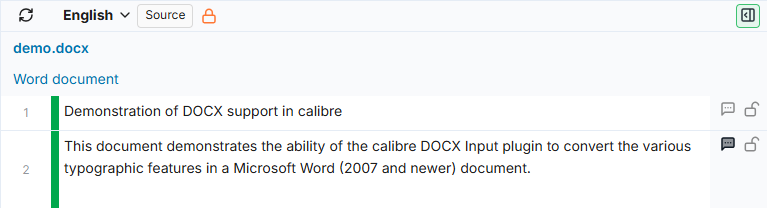
The source toolbar is a narrow column next to the source language. By default it displays two icons per segment:
|
Icon |
Description |
Action |
|---|---|---|
|
Comments |
Shows whether the segment has comments. A filled icon indicates existing comments; an outline icon means none. |
Click to open the segment's comments. If no comments exist, clicking starts a new comment. |
|
Lock/Unlock |
Shows the current lock state. A closed lock means the segment is locked; an open lock means it is unlocked. |
Click to toggle the lock state. Disabled if you do not have permission to lock or unlock segments. |
You can add more actions to the source toolbar, such as Bookmark, Split segment, and Join segment. See Customizing the Toolbar.
Target Toolbar
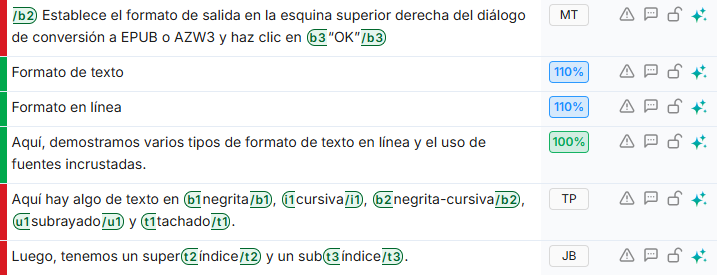
The target toolbar appears next to each target language column. It is wider than the source toolbar and organized into distinct sections.
Translation Origin
On the left side of the toolbar, an indicator shows how the segment's current translation was produced:
|
Indicator |
Meaning |
|---|---|
|
User initials (for example, "JB") |
The segment was last edited by a human translator. The initials identify that person. |
|
PM with a percentage badge |
A Perfect Match from translation memory. The percentage indicates the match score. |
|
TM with a percentage badge |
A fuzzy match from translation memory. The percentage shows the similarity score. |
|
MT |
The segment was translated by a machine translation engine. |
Hover over the indicator to see additional details, such as the translation memory name, the MT engine used, or the date of the last edit.
Repetition and Propagation
Next to the origin indicator, the toolbar may display one of the following status icons:
|
Icon |
Meaning |
|---|---|
|
Propagation |
This segment's translation has been auto-propagated to other identical segments in the container. |
|
Repetition |
This segment is a repetition of another segment. |
|
Repetition - First occurrence |
This segment is the first occurrence of a repeated text. The icon is the repeat icon with a 1. |
These indicators are informational only and not clickable. Only one appears at a time: the propagation indicator takes precedence over the repetition indicator.
Quick Actions
The remaining icons in the top row provide direct access to common actions:
|
Icon |
Description |
Action |
|---|---|---|
|
QA Issues |
A warning icon. Filled when QA issues exist; outline when none. |
Click to open the QA panel. Hover to see a summary of the issues, including any character length restrictions. |
|
Comments |
Same behavior as in the source toolbar. |
Click to open the segment's comments or start a new comment. |
|
Lock/Unlock |
Same behavior as in the source toolbar. |
Click to toggle the lock state. |
|
AI Assistant |
A sparkle icon. |
Click to open the AI segment assistant, which provides AI-powered suggestions for the selected segment. Disabled when the segment is locked. |
You can add more actions to the target toolbar, such as Bookmark and Copy source to target. See Customizing the Toolbar.

Character Limits
When a segment has a text length constraint defined, the toolbar displays a character count below the action icons. This includes:
-
The current character count
-
The allowed range: minimum and maximum values shown in parentheses (for example, "41 char (5, 70)")
-
A color warning: the count turns orange when the current length falls outside the allowed range

Choosing Where Tools Go
Some tools can sit on either toolbar, so you can choose where you prefer to have them:
-
Split segment and Join segment: on the quick toolbar, or on the source segment toolbar.
-
Copy source to target: on the quick toolbar, or on the target segment toolbar.
-
Set bookmark: in the quick toolbar's More tools menu, or on the source and target segment toolbars as Bookmark.
To put them on the segment toolbar, open Preferences > Toolbars and turn them on under Segment toolbars. In a job, you can then move them into More tools so the quick toolbar does not show them twice.
Learn More
-
Edit Menu: What each quick toolbar tool does, its shortcut, and where it appears.
-
Preferences: Customize both toolbars, and set a preferred machine translation engine per language pair.
-
View Menu: Change how segments and tags are displayed in the grid.
-
QA Panel: Run quality checks and review flagged issues.
-
Filters Panel: Filter segments by QA issues, lock state, comments, and more.
-
AI Segment Assistant: Edit translations with AI-powered suggestions.
-
Find and Replace: Search and replace text across the segments in your current scope.