
Configure how Wordbee Translator extracts and handles content from web page files. These settings control encoding, HTML tag behavior, attribute translation, content exclusion, and more.
The web page configuration applies to the following file extensions: .htm, .html, .xhtml, .htmls, .php, .php2, .php3, .php4, .php5, .php6, .phtml, .csm, .jsp, .ahtm, .ahtml.
To access web page configurations:
-
Go to Settings > Customization > Document Formats.
-
Select Web Pages from the format drop-down menu.
-
Click on a configuration profile to view it, or click Edit to modify it.
To learn more about working with file format configurations, see:
General Tab
The General tab controls encoding, HTML code handling, HTML attribute display, content exclusion, and text segmentation.
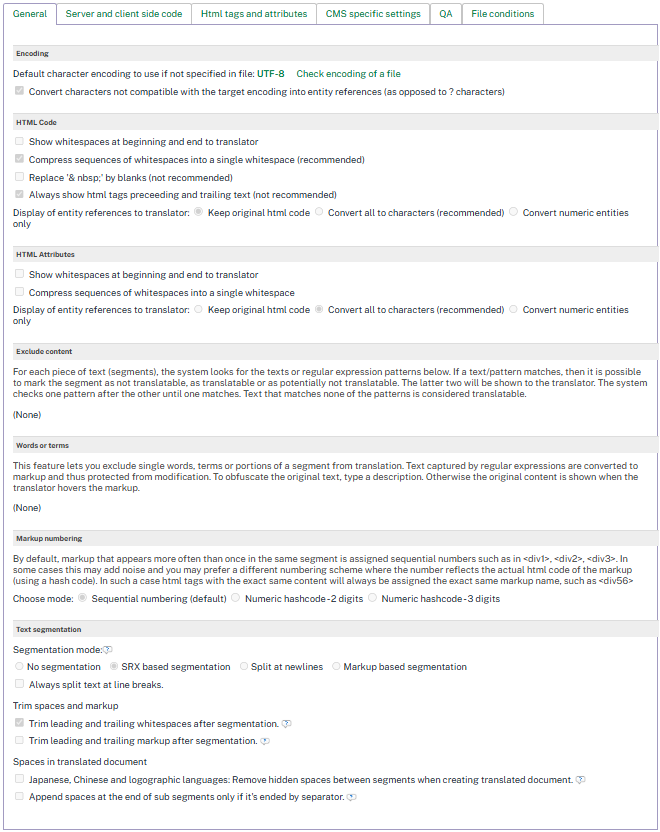
Encoding
|
Setting |
Description |
|---|---|
|
Default encoding |
The character encoding used to read the file. Defaults to UTF-8. Other options include Windows, Macintosh, and ASCII encodings. |
|
Convert incompatible characters |
When enabled, characters not compatible with the target encoding are converted into entity references. |
HTML Code
These settings control how the HTML markup is presented to translators.
|
Setting |
Description |
|---|---|
|
Hide beginning/ending whitespaces |
Hides leading and trailing whitespace characters from the translator view. |
|
Compress sequences of whitespaces |
Replaces multiple consecutive whitespace characters with a single space. |
|
Replace by blanks |
Converts non-breaking space entities into regular blank spaces. |
|
Show preceding/trailing HTML tags |
Displays the HTML tags that surround the translatable text. |
|
Entity references display |
Controls how HTML entity references are shown to translators. |
HTML Attributes
These settings control how the content of HTML attributes is displayed to translators when attributes are marked as translatable.
|
Setting |
Description |
|---|---|
|
Show beginning/end whitespaces |
Shows leading and trailing whitespace in attribute values. |
|
Compress sequences of whitespaces |
Replaces multiple consecutive whitespace characters with a single space in attribute values. |
|
Entity references display |
Controls how entity references inside attribute values are shown to translators. |
Exclude Content
Use this section to exclude specific content from translation. Enter text segments or regular expressions. When a match is found, you can mark the segment as:
-
Not translatable — the segment is hidden from translators.
-
Translatable — the segment is shown for translation.
-
Potentially not translatable — the segment is shown but flagged for review.
Text Segmentation
|
Setting |
Description |
|---|---|
|
Enable SRX rules |
When enabled, text is segmented using SRX rules. |
|
Split text at line breaks |
When enabled, a new segment starts at each line break. |
Server and Client Side Code Tab
The Server and Client Side Code tab controls how the system handles code sections (JavaScript, PHP, and other server-side code) embedded in web pages.
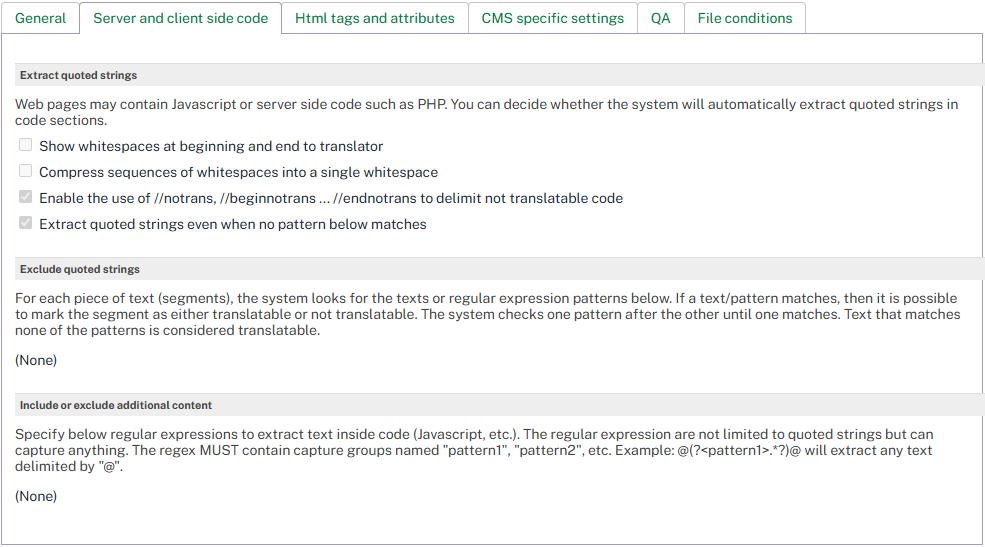
Extract Quoted Strings
Web pages often contain JavaScript or server-side code (such as PHP) with quoted strings that may need translation. Enable this option to extract those strings automatically.
|
Setting |
Description |
|---|---|
|
Extract quoted strings |
When enabled, quoted strings inside code sections are extracted for translation. |
|
Compress sequences of whitespaces |
Replaces multiple whitespace characters with a single space inside extracted strings. |
Exclude Quoted Strings
Use this section to prevent specific quoted strings from being extracted. Enter text segments or regular expressions. When a match is found, the segment can be marked as translatable or not translatable.
Include or Exclude Additional Content
Use regular expressions to extract text inside code sections that goes beyond quoted strings. The expressions can capture any content.
Note
The regex must contain capture groups named pattern1, pattern2, etc. For example: @(?<pattern1>.*?)@ extracts any text delimited by @.
HTML Tags and Attributes Tab
The HTML Tags and Attributes tab controls which HTML attributes are extracted for translation, which tags are treated as inline (non-breaking), and which tags preserve whitespace.
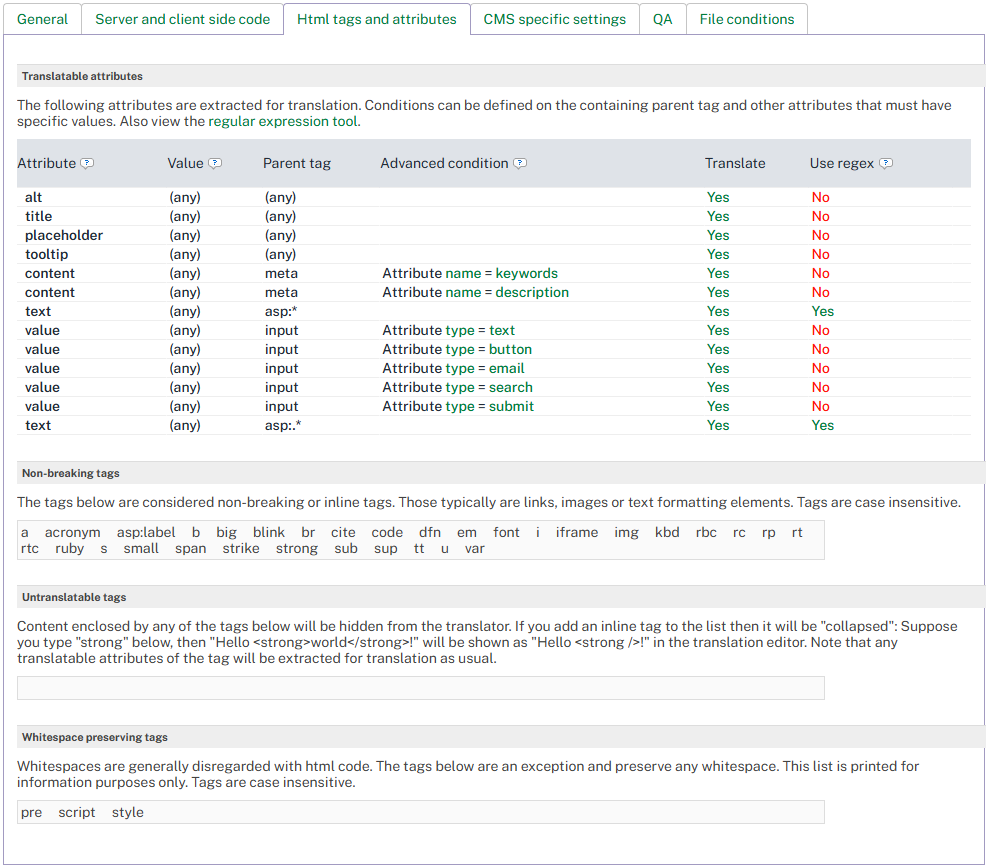
Translatable Attributes
This grid defines which HTML attribute values are extracted for translation. By default, common attributes such as alt, title, placeholder, content, and value are pre-configured.
Each row in the grid specifies a rule with the following columns:
|
Column |
Description |
|---|---|
|
Attribute |
The name of the HTML attribute (for example, content, alt, title). |
|
Value |
An optional filter for the attribute’s own value. Leave empty to match all values of the attribute. When a value is specified, the rule applies only when the attribute contains that exact value. Displays (any) when no filter is set. |
|
Parent tag |
An optional filter for the parent HTML tag. For example, setting this to meta restricts the rule to attributes within <meta> tags only. |
|
Advanced condition |
An optional condition based on a sibling attribute. For example, you can require that a sibling attribute name has the value description for the rule to apply. |
|
Translate |
Set to Yes to extract the attribute value for translation, or No to exclude it. |
|
Use regex |
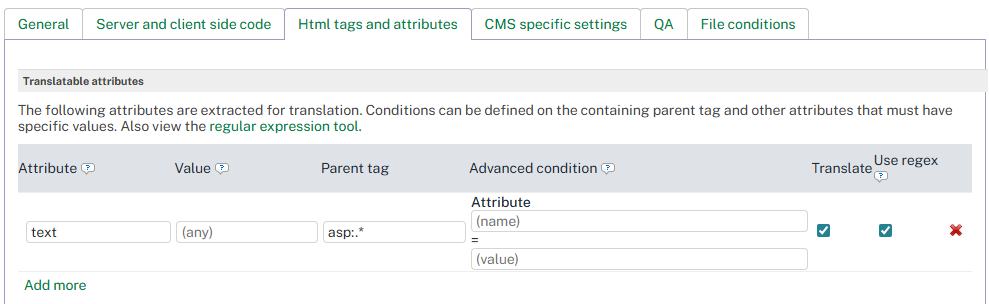
When enabled, all text fields in the row (attribute name, value, parent tag, and condition) are interpreted as regular expressions instead of exact matches. |
To add a translatable attribute rule:
-
Click Edit in the upper right corner.
-
Enter the Attribute name (for example, content).
-
Optionally enter a Value to filter by (for example, HELP).
-
Optionally enter a Parent tag (for example, meta).
-
Set Translate to Yes or No.
-
Click Save to apply the configuration.
Filtering by Attribute Value
The Value column allows you to target specific attribute values instead of applying a rule to every instance of an attribute. This is useful when your HTML contains the same attribute name with different values that require different handling.
How value matching works:
-
No value specified (empty): The rule applies to all instances of the attribute, regardless of its value. This is the default behavior.
-
Value specified: The rule applies only when the attribute’s value matches the specified text exactly. Matching is case-sensitive.
-
Regex enabled: When Use regex is enabled for the row, the value is treated as a regular expression pattern.
Example: Translating only specific meta tag content
Given the following HTML:
<meta name="description" content="About us">
<meta name="keywords" content="HELP">
To translate only the content attribute of the description meta tag and exclude keywords:
|
Attribute |
Value |
Parent tag |
Translate |
|---|---|---|---|
|
content |
(empty) |
meta |
Yes |
|
content |
HELP |
meta |
No |
The first row marks all content attributes within <meta> tags as translatable. The second row overrides this for the specific value HELP, excluding it from translation. The result: About us is extracted for translation, while HELP is not.
Value-specific rules take precedence
When both a general rule (no value filter) and a value-specific rule exist for the same attribute, the value-specific rule always wins, regardless of row order in the grid.
Example: Using regex to match a pattern
To translate only title attributes whose values start with translate:
|
Attribute |
Value |
Parent tag |
Use regex |
Translate |
|---|---|---|---|---|
|
title |
^translate.* |
(empty) |
Yes |
Yes |
This matches <p title="translate-me"> but not <p title="do-not-translate">.
Non-Breaking Tags
Non-breaking (inline) tags appear within translatable text rather than splitting it into separate segments. These are typically links, images, or text formatting elements.
The following tags are pre-configured as non-breaking: a, acronym, b, big, blink, br, cite, code, dfn, em, font, i, iframe, img, kbd, s, small, span, strike, strong, sub, sup, tt, u, var, ruby, rt, rc, rp, rbc, rtc, asp:label.
You can add additional non-breaking tags if needed for your content. Tag names are case-insensitive.
Whitespace Preserving Tags
Whitespace is generally collapsed in HTML. Tags listed in this section are exceptions: whitespace inside them is preserved during parsing.
The following tags are pre-configured: pre, script, style.
This section is read-only and cannot be modified.
CMS Specific Settings Tab
The CMS Specific Settings tab controls how the parser handles custom markup used by content management systems such as WordPress or Drupal.
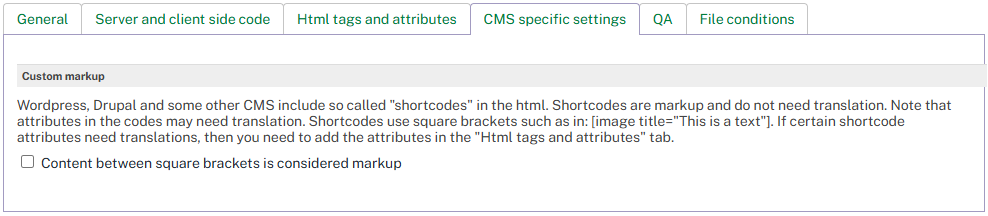
Many CMS platforms use "shortcodes" — special markup enclosed in square brackets — within HTML content. For example: [image title="This is a text"]. Shortcodes are markup and do not need translation.
|
Setting |
Description |
|---|---|
|
Content between double brackets is considered markup |
When enabled, text enclosed in square brackets (shortcodes) is treated as non-translatable markup. |
Tip
If certain shortcode attributes need translation (for example, the title attribute in [image title="..."]), add those attribute names in the Translatable Attributes grid on the HTML Tags and Attributes tab.
Post-processing Tab
The Post-processing tab defines regex-based find and replace rules that are applied to the translated output file during reconstruction. Use these rules to adjust markup, inject attributes, or rewrite CSS for specific target languages (for example, to add dir="rtl" and lang="ar" to HTML output when translating into Arabic).
Rules run every time the translated file is generated: both when previewing a download and when creating a delivery. They are applied sequentially, in the order listed.
The Post-processing tab showing five example RTL rules targeting Arabic, Hebrew, Farsi, and Urdu output.
Post-processing Rules
Each row in the grid defines one rule with the following columns:
|
Column |
Description |
|---|---|
|
On |
Enables or disables the rule. Set to Yes to apply the rule, or No to skip it without deleting it. |
|
Language pattern |
A regular expression matched against the target language code. Leave empty to apply the rule to all target languages. For example, |
|
Search regex |
The regular expression pattern to find in the output text. Use capturing groups (parentheses) to reference parts of the match in the replacement. |
|
Replacement |
The text that replaces each match. Reference capture groups from the search pattern with |
To add a post-processing rule:
-
Click Edit in the upper right corner.
-
Add a new row to the Post-processing rules grid.
-
Set On to Yes.
-
Optionally enter a Language pattern to limit the rule to specific target languages.
-
Enter the Search regex to match text in the output file.
-
Enter the Replacement text.
-
Click Save to apply the configuration.
When Rules Are Applied
Rules run on the fully reconstructed output file, so they can target any part of the document — including CSS declarations inside <style> blocks, inline attributes, or text content. They are applied both when generating a preview download and when creating a delivery.
Post-processing runs after translation and reconstruction. It does not affect the content presented to translators in the Editor, only the final output file.
Example: Right-to-Left (RTL) Output for Arabic and Hebrew
When an HTML file is translated from a left-to-right source language (such as English) into a right-to-left language, the output often needs two kinds of adjustment:
-
The
<html>tag should includedir="rtl"and a matchinglangattribute. -
Explicit
direction: ltrandtext-align: leftCSS declarations should be flipped to their RTL equivalents.
The ruleset below is a starting point for Arabic, Hebrew, Farsi, and Urdu output. It is not a ready-to-use solution: each target document has its own markup and CSS structure, and the rules may need to be adapted, extended, or removed depending on the template you are translating.
|
On |
Language pattern |
Search regex |
Replacement |
|---|---|---|---|
|
Yes |
|
|
|
|
Yes |
|
|
|
|
Yes |
|
|
|
|
Yes |
|
|
|
|
Yes |
|
|
|
Always verify the generated output against your actual source files before using post-processing rules in production. Regex replacements run against the entire document, so overly broad patterns can produce unintended changes. Treat the ruleset above as an example to adapt, not as a finished configuration.
Learn More
-
Web Pages — overview and supported file extensions
-
Web Page Questions and Answers — common configuration scenarios
-
HTML Content Configurations — configuring HTML extraction for non-HTML file formats (XLIFF, CSV)
-
Working with file formats — general guidance on file format configurations