
Wordbee Translator manages project data in stages. Completed projects are archived, archived and canceled projects are offloaded to cold storage, and projects inactive for longer than your data retention period are permanently deleted. Every deletion is announced to your platform administrators by two warning emails, and the archive stays available for download for at least 30 days.
This article explains each stage and how to manage your project data, including setting a shorter retention period for a client company and collecting archives through the API.
Purpose of project archiving
The primary purpose of project archiving is to make sure people and processes operate smoothly. This solution aims at:
-
Managing storage space efficiently.
-
Optimizing system performance.
-
Organizing project lists.
-
Ensuring transparency and compliance.
-
Supporting business analytics.
-
Facilitating training and reference for new team members.
The project lifecycle at a glance
|
Stage |
What it means |
How it happens |
Can it be undone? |
|---|---|---|---|
|
Active |
Files, translations and jobs are available. |
Default. |
— |
|
Archived |
The project status is Archived. Its data is still online. |
Manually, or automatically for completed projects. |
Yes, by changing the status. |
|
Offloaded |
The project stays in your project list, but its files and translations are stored in an archive (cold storage). |
Manually, or automatically for archived and canceled projects. |
Yes, by restoring the project. |
|
Scheduled for deletion |
Your administrators have been warned that the project will be deleted. |
After the retention period without activity. |
Yes, by using the project before the deletion date. |
|
Deleted |
The project is removed from the platform. Its archive can still be downloaded. |
On or shortly after the announced deletion date. |
No. Download the archive. |
|
Archive removed |
The archive of the deleted project is removed. |
At least 30 days after the deletion. |
No. |
Archiving and offloading projects
Best practices prior to archival
Before archiving and moving a project to cold storage, make sure any relevant information in the project is kept online for later reference:
-
Run the consolidation of the Project Memory into a master memory, so it can be further referenced in other projects. Otherwise, the translations in that project can't be reused once the memory is offloaded.
-
Make sure the files and deliverables are available in the related order. When the client portal is enabled, the translations are handed over to the end client in the respective order.
Both points above can be addressed in the existing project management processes (which can be automated or run manually). Learn more about the options available in the following articles:
Consolidation of Project Memories to Master
Workflow template (Automation options for orders)
Automatic archival
The automation in place for archival and offloading runs at regular intervals. Here is where to find the details for your platform and subscription plan:
-
Inside the License and Usage page, you will find all the details related to the File Storage.

-
Project archival and offloading can occur automatically if they meet specific conditions (see listed criteria).
Criteria for automatic archival and offloading
-
Automatic archival: a project in completed status is set to archived once it has been completed for longer than the archival period of your SLA plan (from one month to a full year).
-
Automatic offloading: a project in archived or canceled status is moved to cold storage once it has been in that status for longer than the offloading period of your SLA plan (from one week to one month).
-
Changing the status of an archived or canceled project, for example reopening it, stops the automatic offloading.
For questions about SLA plans or dormancy periods, contact the Wordbee Team for assistance.
Manual archival
Administrative users have the flexibility to manually trigger the archival and offloading of individual projects. Here's how:
-
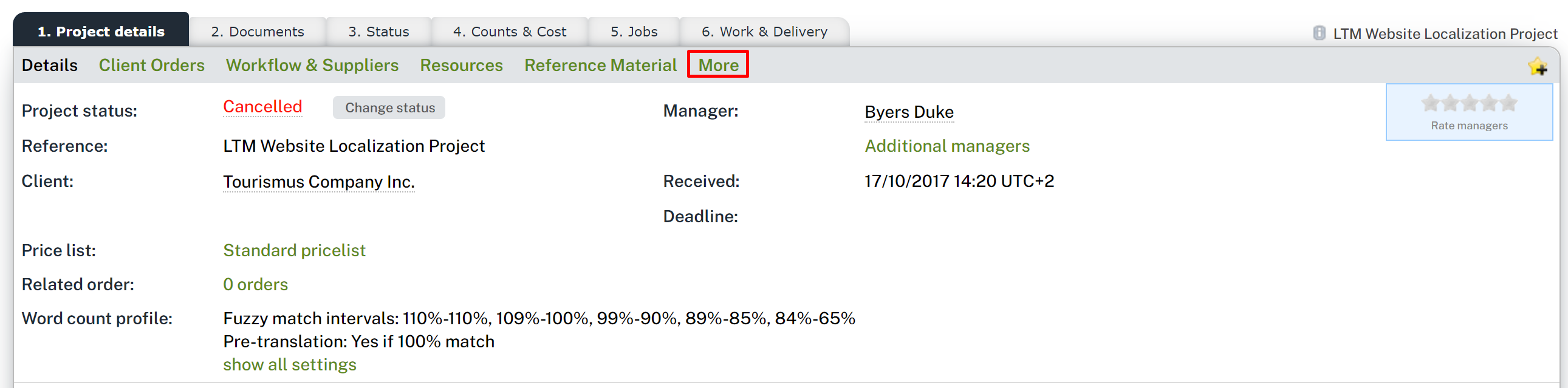
Navigate to the Project details page.
-
In the 'More' section, locate the dedicated option for 'Project archival'.
-
Click on 'Offload data' to initiate the archival process.
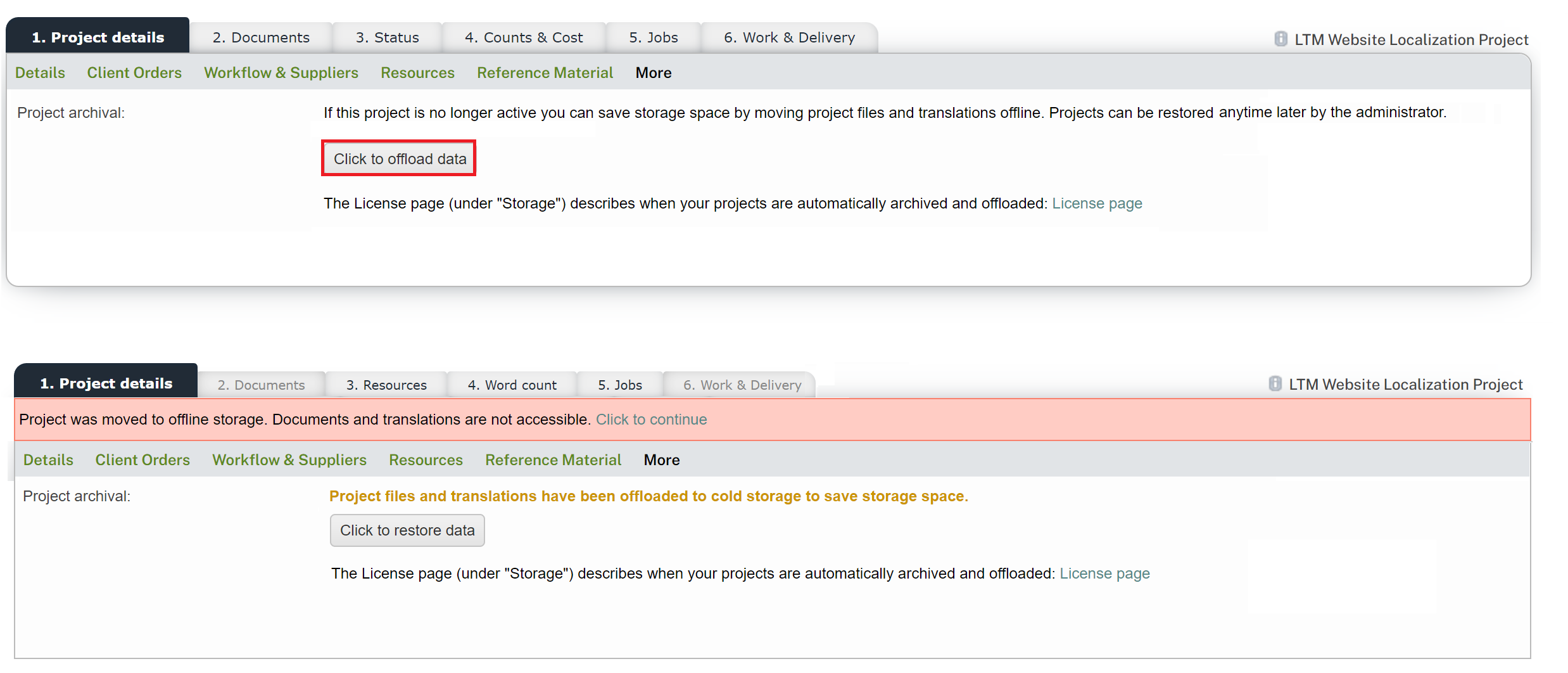
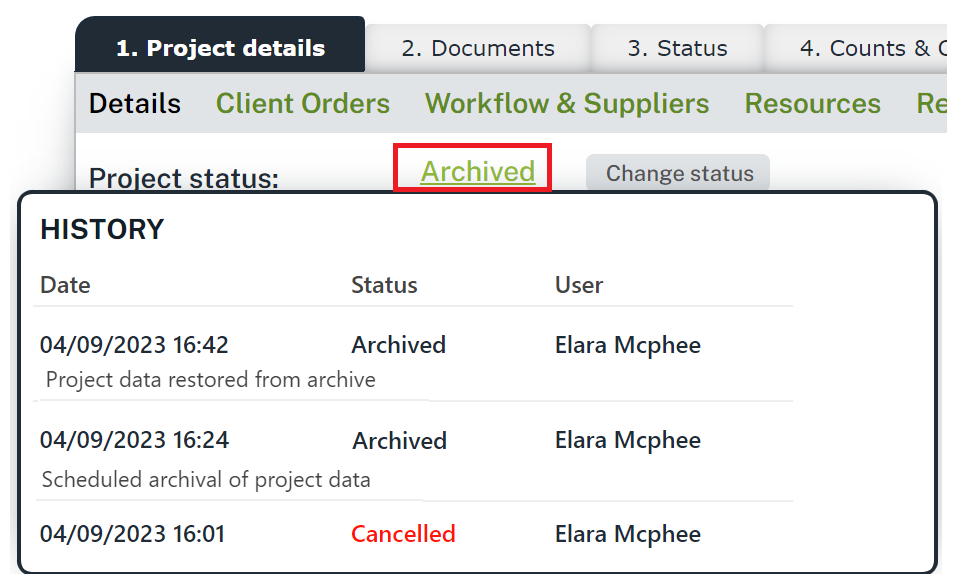
Please note that, after offloading, project files are no longer available online, but many project sections remain accessible. Archival and offloading actions are recorded in the project's status history for reference.
Managing projects
Listing offloaded projects
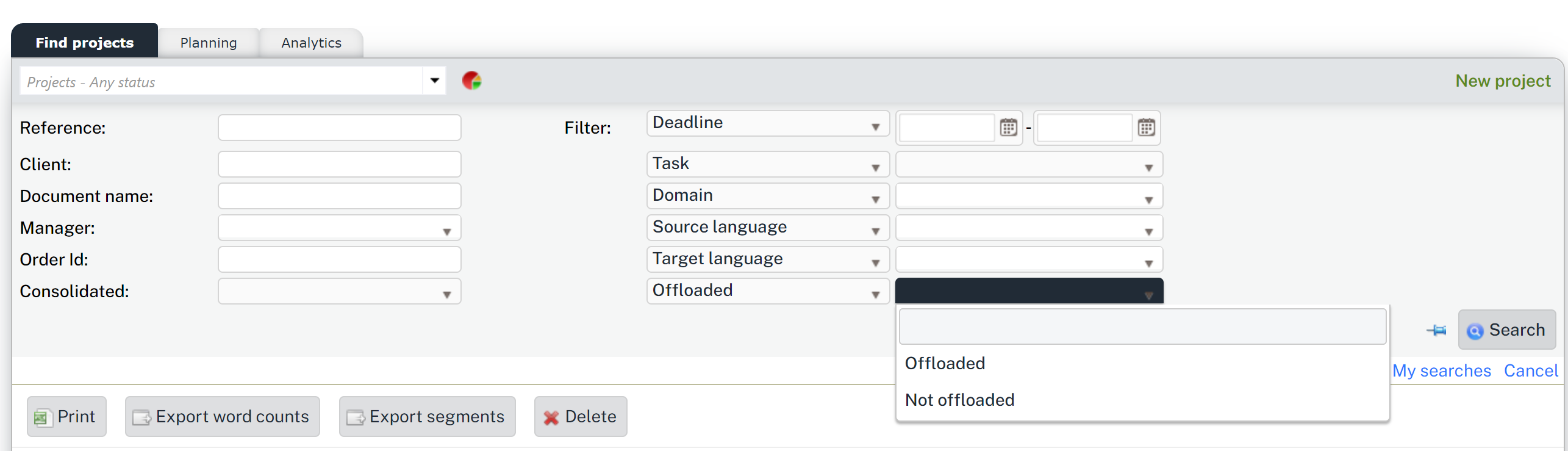
To determine which projects are offloaded and which remain online, users can utilize filters on the main Project page. These filters are also useful for locating specific files within a project, regardless of their offloaded status.
Searching files within offloaded projects
The filtering options in Wordbee Translator make it easy to search for files within offloaded projects, enhancing efficiency in retrieving essential data.
Restoring offloaded projects
To bring an offloaded project back online, follow these steps:
-
Navigate to the 'Project Details' page and open the 'More' section or click on the 'Click to continue' link in the red banner.
-
Click the option 'Click to restore data'.
-
The project will be restored entirely to the online platform, making files and deliverables accessible once again.
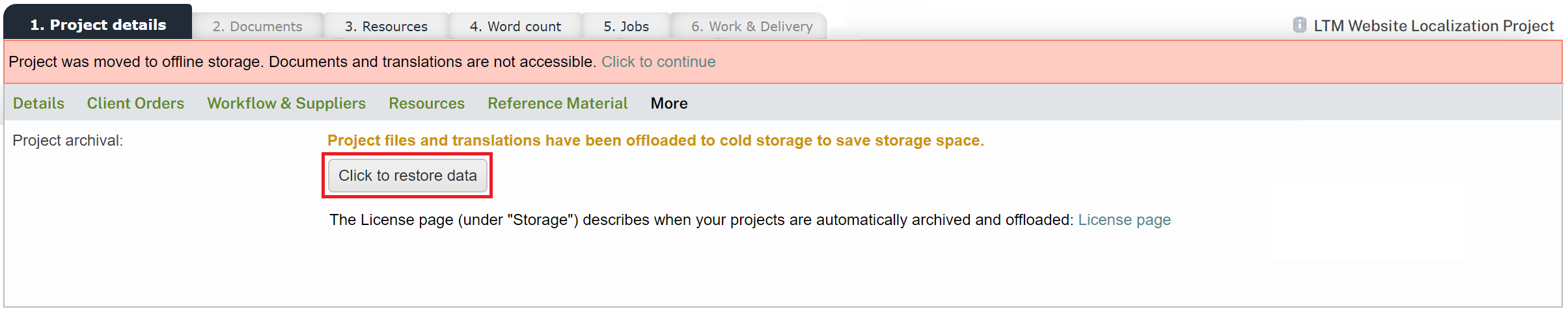
Restoring a project counts as activity: it restarts the data retention period of the project (see Data retention and deletion).
Data retention and deletion
In addition to archiving and offloading, Wordbee Translator enforces a data retention policy based on your subscription plan. After a project has been inactive beyond the allowed retention period, it is permanently deleted from the platform. This process is fully automated and irreversible once completed. Offloaded projects are included: moving a project to cold storage does not stop the retention period.
How data retention works
Each subscription plan defines a maximum retention period, measured from the project's last used date:
|
Plan |
Retention Period |
|---|---|
|
Freelance, Essential, Smart |
2 years |
|
Infinity |
3 years |
|
Enterprise |
Custom (as configured for your platform) |
A client company can have a shorter period than the one shown here, never a longer one.
When a project has been inactive longer than the allowed period, the system schedules it for deletion. The deletion process follows these steps:
-
The system identifies projects whose last used date exceeds the retention period.
-
A first warning email is sent to your platform administrators. It announces the deletion date, at least 28 days later.
-
A second warning email is sent about four weeks later, with the same deletion date.
-
On or shortly after the deletion date, each project is saved as a zip archive and then permanently deleted. A project that was used in the meantime is not deleted.
-
A deletion email is sent with the list of deleted projects and a link to the Archived Projects page, where you can download the archived data for at least 30 days.
Setting a shorter retention period for a client company
By default, every project follows the retention period of your platform. If a client needs its data deleted sooner, you can give that client company a shorter period. All other client companies keep the platform period.
Follow these steps to set a retention period for a client company:
-
Open the client company and click Edit.
-
Go to the Data retention tab.
-
In Retention period, choose a period. The list offers Platform default (the period of your platform) and whole years from 1 up to that period.
-
Click Save.
If some of the client's projects have already been inactive for longer than the new period, a message tells you how many will enter the deletion cycle before you confirm. These projects receive the usual two warning emails before deletion. To remove the shorter period, choose Platform default again.
The Data retention tab is only available to users with the Admin access right, on platforms where data retention is switched on.
What triggers the last used date
The following actions update a project's last used date and reset the retention countdown:
-
Marking a file online or offline, or adding revised files
-
Adding or changing a job
-
Adding or changing an invoice
-
Creating or changing an order linked to the project
-
Changing the project status (except changing to Archived)
-
Restoring the project from cold storage
-
Flex transactions
Opening or viewing a project, or editing its details without changing its status, does not update the last used date.
Note
Project templates are protected from automatic deletion, regardless of their last used date. If a project is used as a template, it will not be flagged for deletion.
How you are notified
Three email notifications are sent to platform administrators.
|
|
When |
Content |
|---|---|---|
|
First warning |
When the project exceeds the retention period |
All projects scheduled for deletion, with each project's ID, reference, last used date, project manager, client, the retention period applied and the scheduled deletion date. Each project has an Access Project link so you can open it and keep it active. |
|
Second warning |
About four weeks later |
The projects that are still inactive, with the same scheduled deletion date, the same details and the same Access Project links. |
|
Deletion |
After the deletion |
The deleted projects with their deletion date, and a link to the Archived Projects page under My Company, where the archived data can be downloaded for at least 30 days. |
Warnings are only counted when the email can be delivered. Make sure your platform administrators' email addresses are valid: if a warning cannot be sent, the deletion is postponed until the warnings have been sent.
Tip
To prevent a project from being deleted, open it from the warning email and perform any qualifying activity (such as adding a job or changing the project status) before the deletion date. This resets the last used date and restarts the retention period.
Downloading archived project data
When a project is deleted, it is first archived as a zip file. You can download these files from the Archived Projects tab under My Company.
-
Archives of offloaded projects are listed at the top level.
-
Archives of deleted projects are stored in a folder named after the deletion date (for example
2026-10-20).
The page lists all archived project files with their file name (using the format p-[project ID].zip), file size, and creation date. Each archive contains the project's files, translations, and project details. Use the Download all button to download all files at once, or select individual files.
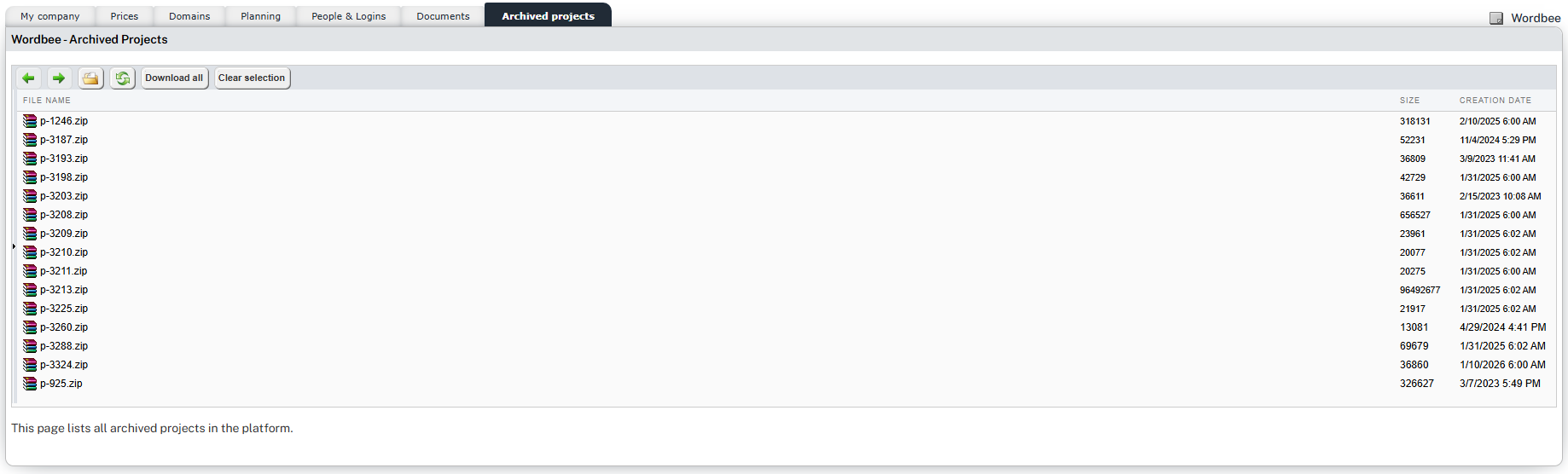
Archives of deleted projects are available for at least 30 days after the deletion. After that period, they can be removed during the scheduled clean-up. A deleted project cannot be restored to the platform.
Collecting archives of deleted projects through the API
If you want your own systems to collect the archives automatically, you can use the Wordbee Translator API instead of downloading them from the Archived Projects page. Both calls require an administrator.
Follow these steps to collect archives through the API:
-
Get the list of deleted projects from the archival events list (
admin/archival/projects/list). Filter theeventfield ondeleted(project deleted by data retention). The valueretention_warninglists the warnings. -
Download the archive of each deleted project with one call per project:
GET admin/archival/projects/{pid}/archive.
-
The download only works for projects deleted by data retention. For any other project, the call returns an error.
-
These downloads do not count toward your API usage limits, and an interrupted download can be resumed from where it stopped.
-
Archives remain available for at least 30 days after the deletion, until the scheduled clean-up removes them, so we recommend collecting them daily.
What gets deleted
When a project reaches the end of its retention period and is permanently deleted, the following data is removed:
-
Projects and jobs, including all dependent database records
-
Search index data (segments and translations)
-
All associated files
If another project uses the deleted project as a project memory, that link is removed.
This action is irreversible. Make sure to download any data you need within 30 days after the deletion.
Example
For a platform with a 2-year retention period:
|
Date |
What happens |
|---|---|
|
Last activity on the project. |
|
|
Two years without activity: the project can be scheduled for deletion. |
|
|
First warning email: deletion scheduled for 12 April 2026. |
|
|
Second warning email, then deletion on or shortly after this date, followed by the deletion email. |
|
|
The archive is still available for download at least until this date. |
If the project is used at any time before the deletion, it is not deleted and the retention period starts again.
Tracking the last used date
The Last used date column can be added to the project list to monitor when each project was last active. You can also use it as a filter to find projects approaching their retention limit.
To add the column, use the column configuration options in the project list view.

Benefits of project archiving
With project archival, offloading, and data retention, users benefit from:
-
Managing storage space
Efficiently manage available space in the platform, with the option to manually recover offloaded projects as needed. Additional storage can be purchased if required. -
Optimizing system performance
Maximize system performance for daily activities by optimizing the use of online storage resources. -
Organizing project lists
Maintain an up-to-date overview of your project list by archiving old projects and simplifying project management. -
Ensuring transparency and compliance
Comply with data retention policies and ISO standards. Access to archived files and data supports accountability for decisions made during project lifecycles. -
Supporting business analytics
Keep essential data online, enabling the business analytics module to retrieve information for long-term reporting and analysis. -
Facilitating training and reference
Utilize archived project material for training purposes or as a point of reference, aiding new projects and team members in understanding project specifics.
Learn More
-
Project Management: Learn about managing projects, including status changes and workflows.
-
Consolidation of Project Memories to Master: Consolidate project translations into a master memory before archiving.
-
Workflow template (Automation options for orders): Configure automated workflows for orders, including post-completion actions.