
Codyt projects run a continuous workflow, and you manage and translate their jobs from the Codyt jobs lists. This page shows where to find your Codyt jobs, how to read and search them, how to track progress, and how to assign and translate them.
Where to find your Codyt jobs
You can see Codyt jobs in two places:
-
Across all projects: click Jobs in the main menu, then open the Codyt jobs tab. Use All my jobs for jobs assigned to you, or All company jobs for your whole company.
-
Within one project: open the project, go to the 5. Jobs tab, and use View jobs, View documents, or View multilingual to change how items are grouped.
Reading the jobs list
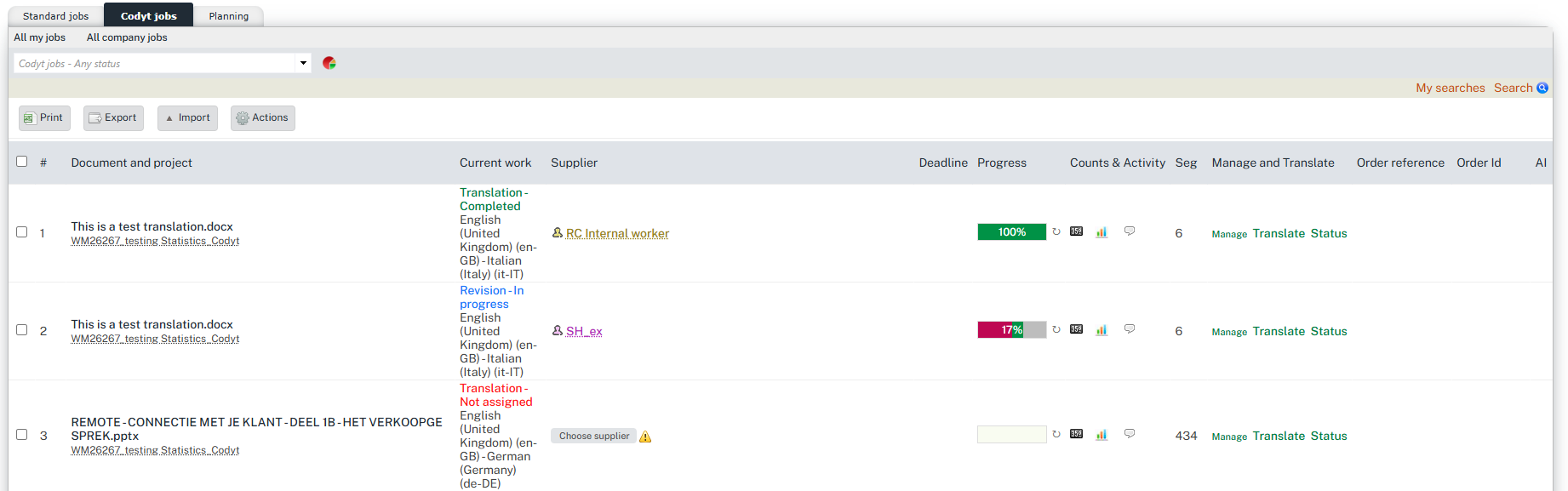
Each row is one job. The columns are:
|
Column |
What it shows |
|---|---|
|
Document and project |
The document and its project. Click the project for a summary, or go to page for project details. |
|
Current work |
The task, language pair, and the job's state (shown by the text colour). Click the status text to open that task's history (see below). |
|
Supplier |
The assigned worker or company, a Job opening link, or Crowd for crowd assignments. |
|
Deadline |
The due date (GMT). |
|
Progress |
A bar showing how far the job has progressed (see below). |
|
Seg |
The number of segments in the document. |
|
Counts & Activity |
Icons to open the word count, the work-progress view, and job messages. |
|
Order reference / Order Id |
The linked order, when applicable. |
|
AI |
AI activity on the job, when applicable. |
|
Manage and Translate |
Translate opens the document in the Editor; Status opens the job-status actions to change the status. To read a task's past statuses instead, click the status text in Current work. |
Viewing a task's status history
In the Current work cell, only the status text is clickable: the workflow step name stays plain text. Hover the status (the hint reads Click to view history) and click it. A popup titled HISTORY, followed by the task name (for example HISTORY — Translation), lists that task's status changes with Date, Status and User. It covers that task only, so on a row with several tasks each status opens its own history. The popup works in both list locations.
A status is clickable whenever a workflow task exists behind it, whatever the status reads: Inactive and Not assigned tasks open normally, including a task that was offered to suppliers and returned to the pool, which keeps its history. Only a document on the project's 5. Jobs tab for which no workflow task has been created yet has no history, and its status is not clickable.
The User column is left empty if you do not have the right to see worker names. Messages appear only where the Codyt message rules already allow you to see them; status rows are always shown. Changing a task's supplier company clears its history, so the popup then opens empty.
Finding jobs
Open the Search panel to filter the list. You can filter by Reference / Document, Project reference / ID, Assignment type, Supplier, Data range, Deadline, Task, and Source / Target language. Select Search to apply, Save search to keep a filter, or My searches to reuse one.
Tracking job progress
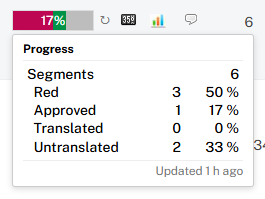
The Progress column shows how far a job has progressed without opening it. The bar splits the job's segments into four parts, with a % approved label:
|
Part |
Meaning |
|---|---|
|
Red |
Segments in error or flagged for fix or review |
|
Approved |
Approved segments |
|
Translated |
Segments with target text that is not yet approved |
|
Untranslated |
Segments with no target text yet |
To read and refresh a job's progress:
-
Hover the bar to see the total segment count, each part as a count and a percentage, and when the figures were last updated.
-
Click the bar to open the job's Counts & Activity view for the full breakdown.
-
Click the refresh icon next to the bar to recompute the figures on demand. The bar shows the last saved figures, so it can briefly differ from the live numbers until you refresh.
A job with no saved figures yet shows an empty bar with the refresh option; a job with no segments to track shows N/A. The column appears by default and can be hidden or reordered like any other column.
Segment status shown in the bar
A segment's status is grey (neutral), green (approved), or red (a problem). Each segment has a project-level global status, and, when per-job status is enabled, each job also keeps its own status so one workflow step's status does not overwrite another's. In a job you see and set that job's status; outside a job you see the global status. The Progress bar reflects the job's own statuses. A job turning a segment red while the global status is green drops the global status to grey; a job going all-green does not by itself approve segments at project level.
Per-job segment status is a platform option that is off by default. Contact Wordbee to enable it. While it is off, a segment has one shared status. For how this works and how to turn it on, see How linguists track their own progress per job.
Make a workflow step approve segments project-wide
To let a specific step set the project-level status, open the project's Workflow & Suppliers tab and turn on Save segment status to the global segment status for that step. Every status change in that step (by hand or by QA) is then saved directly to the segment's shared (global) status, and the step keeps no separate status of its own. Enable it deliberately: a change in such a step, including by an external worker, can overwrite a shared status set by project-level QA.
This option is available only when segment status per job is enabled for your platform (see the note above); until then, the control is not shown on the Workflow & Suppliers tab.
Assigning and translating jobs
-
Assign work: tick one or more rows, set the language and task in the filter, select Find, then assign to suppliers. Use Manage and Translate for per-row actions. To give jobs with different tasks and language pairs to one supplier in one action, use the Select supplier mode of the Assign jobs screen. Only the jobs that match the supplier's services for their task and language pair are listed.
-
Translate: select Translate on a row to open the document in the Editor; select Status to accept, decline, or change the job's status.
-
Act on the list: use Print, Export, Import, and Actions for bulk operations.
Learn More
-
Managing Standard Jobs: The equivalent workflow for Standard projects.
-
Check the Work Status: The Counts & Activity view opened from the Progress bar.
-
How linguists track their own progress per job: Turn on per-job segment status and see how job status relates to the shared global status.
-
The Segments: How segment statuses work in the Editor.