
Edit distance tells you how much a translation changed during a job: the share of the job's text that was inserted, deleted, or modified. It gives project managers a quick read on how much editing effort a job actually involved, without opening every segment.
-
Where to find it: read the percentage in the Edit effort row of a completed job's word-count popup.
-
How to read it: a low percentage means little of the job's text changed, a high percentage means heavy editing.
-
How it is measured: understand what the figure counts and what it leaves out.
Viewing edit distance for a job
Edit distance is available for completed Standard and Codyt jobs.
Follow these steps to view a job's edit distance:
-
Open the Jobs page of your project.
-
Select the word-count icon on the job to open its word-count popup.
-
Read the Edit effort row, shown as a percentage directly below the No match row.
A figure of 0% means the job's text was not changed. A dash (–) means the figure is not available: it appears within about an hour of the job being completed. The figure is recorded going forward: every edit is stored against the job it was made in, and earlier edits cannot be attributed afterwards. Jobs created before this way of recording edits was introduced therefore keep the value they already have, or the dash if they never had one; they are not recalculated. In Codyt projects, open the popup from the job, not from the document view, which does not show the figure.
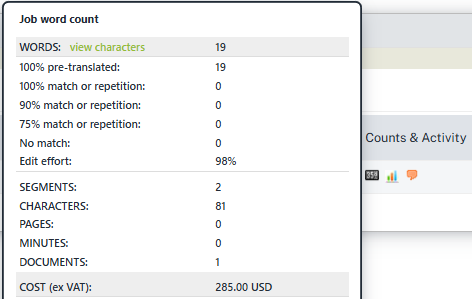
How edit distance is measured
Edit distance answers one question: how much did the linguist change the text, compared with what they started from?
For each segment, Wordbee compares the linguist's final translation against the version they began with: a machine-translation or memory match if the segment was pre-filled, or nothing if it was empty. It counts the characters inserted, deleted, or changed, adds these up across the whole job, and divides by the combined length of all the segments in the job (not only the ones that were changed). The result is shown as a percentage.
The figure belongs to the job, not to a person. It counts every edit made inside the job, whoever made it, and the same rule applies whether the job is assigned to a named person, to a supplier company, or to an AI agent supplier. If a job is reassigned part-way and two people edit, both sets of changes count towards the one figure. For a job assigned to an AI agent, the figure shows how much the AI flow changed the text, so read it as the supplier's effort, not a human's. It is not a measure of any individual's productivity. A separate job over the same segments has its own, independent figure, even when it covers the same document, workflow step and language, for example a redo or a second round. It measures how much the text changed, not the quality of the result. For example, a document is first translated in a translation job and then checked in a separate revision job: the translation job's figure shows how much the translator changed the starting text, while the revision job's figure shows only what the reviewer changed afterward. The two are independent and are never added together.
Text written outside any job is the starting point, not editing: pretranslation, machine translation, auto-propagation, and changes made through the API without a job are never counted as edits. That text still counts in the job's total length, so it lowers the percentage: it could have been edited in the job and was not. Edits made outside a job altogether (in a translation memory, a resource, or global search) carry no job and produce no figure.
Reading the percentage:
|
What the linguist did |
Typical figure |
|---|---|
|
Confirmed pretranslated segments without changing the text |
0% |
|
Lightly post-edited machine translation (a few words) |
Low, often under 20% |
|
Heavily revised the machine translation |
High, often 60% to 100% |
|
Translated empty segments from scratch |
Up to about 100% (all the text is new) |
A pure translation-from-scratch job reads close to 100%, because every character is new. That is expected: a high figure means a lot of editing, not a problem.
The figure covers the whole job. Heavily editing only a few segments in a large job still produces a low percentage, because it shows the share of the entire job's text that changed.
A worked example
A job contains two segments, both pretranslated by machine translation. The linguist post-edits them:
-
Segment 1: color becomes colour (one character added). Final length: 6 characters.
-
Segment 2: The meeting is at 3pm becomes The meeting is at 4pm (one character changed). Final length: 21 characters.
Two characters changed across 27 characters of text, so the job's edit distance is about 7%: a light post-editing pass.
What the figure counts
-
Text only: the measurement looks at the words. Moving or changing formatting tags without changing the text counts as no edit (0%).
-
Very long changes are skipped: changes to very long segments (roughly 500 characters or more on either side) are excluded by design, so the figure reflects typical segment editing.
-
One of several edit-distance figures: this is calculated independently from other edit-distance numbers you may see in Wordbee (such as the MT-evaluation edit distance from a quality-assessment integration), so the values are not directly comparable.
When the figure can go above 100%
For a standard job handled by one linguist, edit distance normally stays between 0% and about 100%. Two less common situations can push it higher, because the figure counts editing effort and divides by the final text length.
Large deletions
When a linguist removes most of a segment, the change is large but it is measured against the small amount of text that remains.
Example: a segment is pretranslated with a 200-character machine translation, and the linguist keeps only a 20-character sentence. About 180 characters are removed, but that change is divided by the 20 characters that remain, so this segment alone counts as roughly 900%. If much of a job is trimmed this way, the job's overall figure can rise above 100%.
A segment revised more than once
Edit distance counts the editing that was done, not the net before-and-after difference. If a segment is changed, then reverted or changed by someone else, and then changed again, each round of changes is added up, while the segment's length is counted only once.
Example: a linguist translates a segment, the job is reassigned and a second linguist changes it, and the first linguist then edits it again. All three rounds of changes are counted against the job, so the total can exceed the segment's length. This is uncommon in a job worked by a single linguist, where consecutive edits by the same person are treated as one change.
Edit distance in reports
Besides the word-count popup, edit distance is available in Wordbee's business reports, so you can export it alongside your other job and segment data:
-
S410 (Jobs, Counts & Costs): the figure at job level.
-
S710 and S711 (Document translations, revisions and comments): the figure per segment, and per revision.
Each of these reports can surface:
-
Edit distance, in characters and as a percentage: the same effort rate as the Edit effort row, so it can read above 100%.
-
MT edit distance, in characters and as a percentage (0% to 100%): how far the final translation sits from the raw machine translation it started from, counting all edits regardless of who made them.
-
MT engine: the id and name of the engine that produced the machine translation (it shows "(deleted)" if the engine no longer exists).
Note: These figures are optional. The default S410, S710, and S711 templates are unchanged, so add the fields to a custom report template to include them. The job-level figures in S410 follow the same rules as the popup: they cover every job whatever it is assigned to, appear about an hour after completion, and are recorded going forward, so jobs created before this way of recording edits was introduced keep the value they already have or stay blank. On revision rows in S710 and S711, only the character figures are available, not the percentage.
Learn More
-
Create and Assign Jobs: How jobs are created, assigned, and completed.
-
Edit Effort Analysis: A second word count for a job that sorts its words into match bands by how much each segment was edited, measuring the net change rather than every edit along the way.
-
Revision History Panel: View the revisions a segment went through in the Editor.
-
Report S410 - Jobs - Counts & Costs: Per-job counts and costs, including job-level edit distance.
-
Report S710 - Document translations, revisions and comments: Per-segment translations and revisions, including edit distance.
-
Report S711 - Document translations, revisions and comments for all language versions: The all-languages version of S710.