
A workflow step normally sends the whole document to the person who works on it. With a dynamic content selection, you can tell a step to include only the segments flagged a certain way (for example, only the segments with a red status), so reviewers focus on the content that actually needs attention. Wordbee waits until the previous step finishes, then builds the job from just the matching segments and counts the words at that moment.
Dynamic content selection is available for Standard projects only.
How Dynamic Content Selection Works
When a step is set to build its job from a dynamic content selection, the job becomes a conditional (dynamic) job. This changes two things compared to a normal job:
-
The content is chosen later. Instead of taking the whole document, the job is filled with only the segments whose status matches your criterion.
-
The word count is calculated later. Because the content is not known until the previous step finishes, the word count and progress figures are not available when the job is first created.
The criterion is based on the global segment status: the status flag stored on the segment at document level (not the per-job status). This is the same flag that an automatic QA step sets when it marks low-quality segments as red, which makes this option a natural way to route flagged content to a focused review step.
Here is the sequence:
-
You enable the option on a step and choose which segment statuses to include.
-
While the previous step is still running, the job shows a "not ready yet" message instead of a word count.
-
When the previous step completes, Wordbee determines the job's content as the segments matching your selected status(es) and runs the word count.
-
If no segment matches, the job is set to Cancelled.
Configuring a Dynamic Content Selection on a Workflow Step
You configure this option on a work step of a workflow. You can edit it on a project's own workflow (so it applies to that project only) or on a workflow template (so it applies to every project that uses the template).
Follow these steps to build a step's job from a dynamic content selection:
-
Open the workflow you want to edit.
-
For a single project: open the project, go to the Workflow & Suppliers tab, and locate the Work steps section.
-
For a reusable template: go to Settings > Workflow Templates and open the template.
-
-
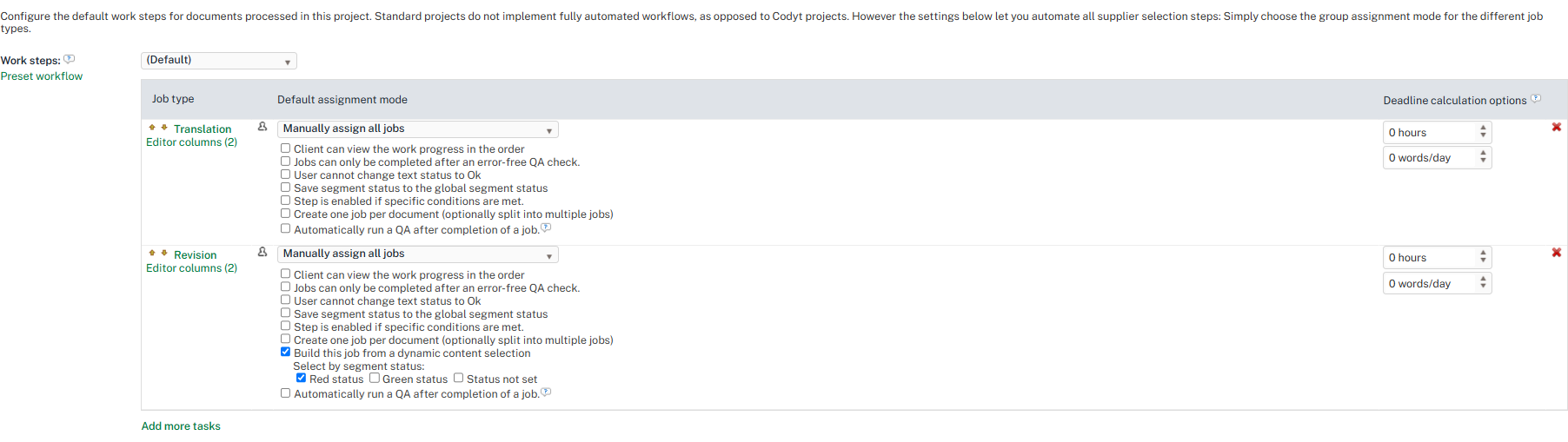
Open the work step you want to configure (for example, Revision). The option is available only on a step that has a predecessor, so it does not appear on the first step.
-
Enable Build this job from a dynamic content selection.
-
Under Select by segment status, select at least one of Red status, Green status, or Status not set. You can combine several: for example, selecting Red status and Status not set includes every segment that is flagged red or has no status set.
-
Save the workflow.
Note
You must select at least one segment status. Saving the step with the option enabled but no status selected is blocked with a message.
When the Job Is Built
A dynamic job does not have a fixed content or word count until its predecessor step is completed.
Before the predecessor completes, the project's Jobs > Counts & Activity word-count and progress indicators show the following message instead of figures:
This job isn't ready yet — its content is defined when the previous step is completed.
The Word count tab on the job details page shows the same message. The project-level Word count tab is document-based and is not affected.

Opening the job in the Editor before it is ready
Someone assigned to a dynamic job may well open it before the previous step has finished. Rather than an empty grid with no explanation, the Editor shows a read-only message stating that the job is not ready yet and that its content will be defined once the previous step is complete, with a button back to the Jobs page.
This makes the distinction clear between a job that is simply too early to work on and one that is broken. Once the job has been filled, it opens normally.
When the predecessor completes, Wordbee builds the job from the matching segments and runs the word count. From that point on, counts and progress display normally, exactly like any other job.
If no segment matches the selected status(es), there is nothing to work on, so the job is set to Cancelled.
Rules and Limitations
|
Rule |
Detail |
|---|---|
|
Standard projects only |
Dynamic content selection is not available in Codyt projects. |
|
Requires a predecessor |
The option appears only on steps that have a preceding step, never on the first step. |
|
Segment status criterion |
Segment status is the only selection criterion in this version. |
|
Not combinable with slicing |
The option is mutually exclusive with Create one job per document (optionally split into multiple jobs). |
|
Not combinable with conditional steps |
The option is mutually exclusive with Step is enabled if specific conditions are met. |
|
Works with automatic QA |
The option can be combined with Automatically run a QA after completion of a job, a common pairing: the QA step flags segments red, and the next step scopes to those red segments. |
Learn More
-
Automatic Job Slicing: the other per-step option for controlling how a step's jobs are built.
-
Create and Assign Jobs: how jobs are created and assigned to suppliers in Standard projects.
-
Workflow template Automation Options: related automation settings such as automatic job assignment, conditional steps, and QA after completion.