
When a Standard project includes a large document, Wordbee Translator can split it into several smaller jobs automatically. Each slice covers a different paragraph range of the same document, so different translators can work on different parts of the file in parallel — without any manual splitting on your side.
Automatic job slicing is available for Standard projects only. Codyt projects are not affected by these settings.
How Automatic Slicing Works
Automatic slicing applies to Standard projects only. When files are prepared for translation, the system reads the workflow step's slicing settings and decides whether each document should be split.
A document is split when all of the following are true:
-
The workflow step has Create one job per document (optionally split into multiple jobs) enabled.
-
Split documents exceeding the size limit is enabled and a Maximum size in paragraphs is set.
-
The document has a known paragraph count.
-
The document has more paragraphs than the Maximum size value.
If any of these conditions is not met, a single job is created for the whole document.
How paragraphs are distributed:
The system calculates how many slices the document needs to keep each job at or below the Maximum size, then distributes the paragraphs as evenly as possible across that number of jobs. Each slice receives roughly the same number of paragraphs, with any remainder added to the last slice.
For example, a document with 1,000 paragraphs and a Maximum size of 300 paragraphs is split into 4 jobs of 250 paragraphs each, not 3 jobs of 300 plus 1 job of 100. A document with 5,000 paragraphs and a Maximum size of 200 paragraphs is split into 20 jobs of 250 paragraphs each.
The system applies a minimum slice size of 50 paragraphs. If equal distribution would produce slices smaller than 50 paragraphs each, the system reduces the number of slices so every slice contains at least 50 paragraphs.
Configuring Slicing on a Workflow Step
Slicing settings live on each work step of a workflow, so you can configure different thresholds for translation, revision, and other steps. You can edit them on a project's workflow (so they apply to that project only) or on a workflow template (so they apply to every project that uses the template).
To configure automatic slicing on a workflow step:
-
Open the workflow you want to edit.
-
For a single project: open the project, go to the Workflow & Suppliers tab, and locate the Work steps section.
-
For a reusable template: go to Settings > Workflow Templates and open the template.
-
-
Open the work step you want to configure (for example, Translation).
-
Enable Create one job per document (optionally split into multiple jobs). This tells the system to create one job per uploaded document instead of grouping all documents into a single job.
-
Enable Split documents exceeding the size limit to turn on automatic slicing for this step.
-
Set Maximum size to the maximum number of paragraphs you want per slice. The default is 500. Valid range: 10 to 10,000 paragraphs. When a document has more paragraphs than this value, the system splits it.
-
Set Maximum slices to limit how many slices the system can create from a single document. The default is 5. Valid range: 2 to 50. If a document is so large that the Maximum size would produce more slices than the cap allows, the system creates exactly Maximum slices jobs and increases the paragraphs per slice accordingly.
-
Save the workflow.

Workflow Step Slicing Settings
|
Setting |
Description |
|---|---|
|
Create one job per document (optionally split into multiple jobs) |
When enabled, every uploaded document becomes its own job (or set of slices). When disabled, all documents are grouped into a single job and slicing does not apply. |
|
Split documents exceeding the size limit |
When enabled, large documents are automatically split into multiple jobs based on the Maximum size. |
|
Maximum size |
The paragraph threshold above which a document is split. Valid range: 10 to 10,000 paragraphs. |
|
Maximum slices |
The maximum number of slices the system can create from a single document. Defaults to 20. Valid range: 2 to 50. |
Overriding Slicing When Preparing Files for Translation
You can override the workflow's slicing threshold for a specific upload. This is useful when one document is much larger or smaller than usual and the workflow default is not a good fit.
To override slicing for a single upload:
-
From the project's Documents tab, select the files you want to translate and open the Prepare file(s) for translation wizard.
-
In the Documents and workflows section, find Create workflow and make sure the correct workflow is selected.
-
Enable Enforce document slicing and enter the Max size in paragraphs to use for this upload only.
-
Click Confirm to prepare the files with the override applied.
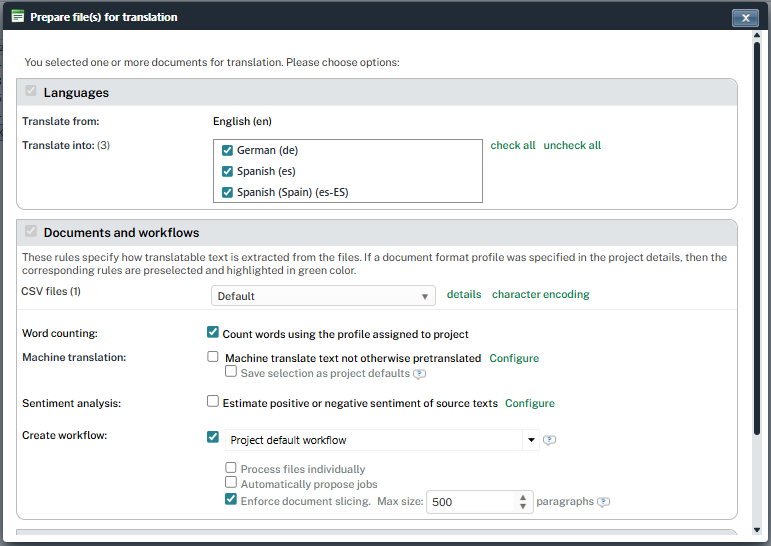
The override takes precedence over the workflow setting for this upload only. The next upload reverts to the workflow defaults. The Maximum slices value continues to come from the workflow setting; it is not overridden in the wizard.
Multi-Step Workflows
When a workflow has more than one step (for example, translation followed by revision), each step is sliced independently based on its own settings.
-
Matching slice counts: when both steps produce the same number of slices, the system links them one-to-one. Slice 1 of revision depends on slice 1 of translation, slice 2 on slice 2, and so on. Each reviser can start as soon as the matching translation slice is finished.
-
Different slice counts: when the two steps produce a different number of slices (for example, 3 translation slices and 1 revision job), the system links them all-to-all. Every revision slice depends on every translation slice, so revision starts only after the entire translation step is completed.
To keep parallel work flowing across steps, configure the same Maximum size and Maximum slices on every step that should run in parallel.
Learn More
-
Dynamic Content Selection Jobs: build a step's job from only the segments matching a chosen segment status, instead of the whole document.
-
Create and Assign Jobs: how jobs are created and assigned to suppliers in Standard projects.
-
Workflow template Work steps: full reference for the per-step settings of a workflow template.
-
Workflow template Automation Options: related automation settings such as automatic job assignment, conditional steps, and deadline calculation.