
Interface and Navigation
The Editor displays your content in a multi-column grid where source text, translations, and metadata appear side by side. You can scroll continuously through segments without pagination interruptions, and sort the grid by any column.
These are the features available today:
-
Fields: Choose which columns are visible in the grid and how they are ordered. Beyond languages and source text, you can add columns for metadata, comments, revision history, and other properties directly to the grid. Having this information inline alongside your translations means you can review context at a glance without opening a separate panel.
-
Panels: these modules surround the grid and give you additional context for the segment you are working on. Panels can be stacked, rearranged, or detached to a second screen. Open multiple modules as tabs in the same sidebar zone and drag them between the top and bottom zones to arrange your workspace. Available panels include: Properties, Comments, Revision History, Timeline, Fields, Memory Finder, Term Finder, QA, Filtering with AI, Batch Actions, Preview, and Assets.
-
Document Selector: Switch between documents within your project or job.
-
Column Statistics: View summary statistics for each language column in the grid.
-
Go To: Jump directly to a specific segment by its segment number or segment ID from a dedicated dialog.
-
Preferences: Configure your Editor settings, including display options, keyboard shortcuts, spellcheck behavior, and theme (light or dark mode). The Editor comes with sensible defaults, so you can start working right away and adjust as needed.
Editing Content
The Editor provides toolbars and controls for working with segment content directly in the grid.
-
Segment Toolbar: Access editing actions, status controls, bookmarks, and contextual information for the active segment. The toolbar appears next to the text you are editing and shows pretranslation details, recent edits, issues, comments, and the current segment character length at a glance. Lock or unlock segments inline with a dedicated keyboard shortcut. Trigger machine translation for the current segment. Confirm and move to the next segment with Ctrl+Enter, now the default shortcut.
-
Quick Toolbar: Use the toolbar above the grid for fast access to common formatting and editing actions.
-
Spellcheck: As you type, the Editor flags suspected typos and offers suggestions through an inline popover. From the popover, add words to your personal dictionary or ignore specific terms. Enable, disable, or fine-tune the behavior per language from Preferences.
-
Autocorrect: Automatic typing corrections as you write, including locale-aware smart quote replacement and the text shortcuts you define. Configure rules per language from Preferences.
-
Edit menu actions: Add, copy, or clear tags, format text, and run other editing commands from the Edit menu.
-
Find and Replace: Search and replace text across your open documents, one match at a time or all at once, with a confirmation before any bulk replace. Open it from the Edit menu, the Quick toolbar, or with Ctrl+Shift+F.
-
Customizable language toolbars: Choose which indicators appear on each language column header (pretranslation badges, edits, issues, comments) so each role sees only what they need.
-
Editing Metadata: Edit segment-level metadata fields such as labels, categories, and custom properties.
Searching and Filtering
Narrow down your content to focus on exactly the segments you need.
-
Filters: Refine the grid by status, comments, QA flags, labels, lock state, text, or any column. Text filters offer several match modes (Contains, Whole segment, Wildcards, Regex) with a case-sensitivity toggle. Combine as many as you need.
-
Quick views: Apply common filtered views in one click from the chevron next to the Filters button, instead of rebuilding a filter each time.
-
Filter by QA score: Narrow down segments by their QA score threshold to focus on the worst offenders first.
-
Search bar: Quick text or string-ID lookup.
-
Filtering With AI Panel: Describe the filter you want in plain language.
Translation Resources
Look up translations and terminology from your organization's memories and term bases while editing. Memory and terminology results appear in separate, dedicated panels so you can review each resource independently. Each finder remembers which resources you selected for the current job, project, or memory, and the resource name is shown inline on every hit so you always know where a match comes from. Press Alt+Shift+F to send the currently selected text to both finders for instant lookup.
-
Memory Finder Panel: Search your translation memories for matching or similar segments and apply them to your translations. Choose a search mode to refine your lookup: Similar, Contains, Whole segment, Wildcards, or Regex. Regex uses Lucene (Elasticsearch) regular-expression syntax, which is implicitly anchored, so a pattern matches the whole segment (wrap it with
.*to match only part). Filter and reorder hits by match type to focus on the matches that matter most. -
Term Finder Panel: Look up terms in your term bases and enforce consistent terminology across translations. Insert a term at the current cursor position without overwriting the rest of the segment. Open a hit's resource in Terminology Management directly from its name.
AI Assistance
AI is integrated throughout the Editor to help you work faster and with more confidence. Today it covers filtering, editing, and acting on QA issues, with more capabilities planned as we expand where AI adds the most value.
-
Filtering With AI Panel: Filter the segment grid using natural language. Instead of configuring filter fields one by one, describe what you want to see in your own words and the assistant builds the right filter for you. Follow up with additional prompts to refine your results.
-
AI Editing Assistant: Improve translations directly within segments. Choose from editing modes such as Rephrase, Correct errors, Fix fuzzy, Make formal, Shorten, and more. Pin the assistant to keep it visible as you work through multiple segments.
Quality Assurance
Catch issues before delivery. The Editor brings together rule-based checks, AI-assisted resolution, and permission-aware controls in a single workspace.
-
QA Panel: Run checks against configurable profiles to detect errors, inconsistencies, and formatting issues. QA can run across multiple documents in a project at once for coherent results before delivery. Run QA preferences (scope, profile) are saved between sessions, and admins can require QA before job completion.
-
QA score visibility: A dedicated QA column in the grid and a QA score field in the Properties panel show the score for each segment, so you can prioritize the worst offenders.
-
In-grid QA flags: Issues appear as visual indicators directly on affected segments, so you can spot problems while you work without opening the panel.
-
Clear issue messages: Each issue is shown with a descriptive message that explains what triggered the rule and how to address it. Messages have been reworked for clarity so reviewers can act without guesswork.
-
Acting on issues: Click any issue to jump straight to the affected segment. Mark it as fixed or ignore false positives one by one, or apply Clear / Mark resolved / Ignore in bulk. Hand recurring patterns to the AI Editing Assistant to resolve across many segments at once.
-
Filtering and tracking: Filter the grid by QA status, severity, or specific issue type. The count updates live as you work through the list.
-
Permissions: QA access rights configured for your role are enforced inside the Editor. If you cannot run checks or edit profiles elsewhere in Wordbee Translator, the same limits apply here.
-
QA reports: Generate an auditable QA report from the Export menu, covering issue types, severity, and affected segments. See the Maintenance section for the full list of report templates.
Review
Track changes, access metadata, and manage feedback for each segment through dedicated panels, or check how your translations look in the original document layout.
-
Properties: View language-level and segment-level metadata. Pretranslation badges show the fuzzy-match percentage of every leveraged hit so you can spot exact and near-exact matches at a glance.
-
Comments: Read and manage translation comments and discussion threads, and choose who to notify by email when a comment needs attention.
-
Revision History: Track changes to segment content over time, including who made each change and when.
-
Timeline: View a chronological log of all activity on the segment.
-
Preview Panel: Check how changes look in the original document layout without leaving your workspace. Dock the preview at the bottom of the grid, or detach it to a second screen to keep it visible while you edit.
Job Acceptance and Delivery
Manage your assigned job without leaving the Editor. A panel slides in from the right and brings job actions into your workspace, and a status chip in the top bar shows when a job needs your attention.
-
Job panel: Accept or start a job, track what is left on a checklist, mark it as completed, message the project manager, and open reference files.
-
Manager actions: Project managers get extra actions to reassign, drop, change the status of, or cancel a job, each shown only when it is available.
Working Offline or in Other Tools
Take content out of Wordbee Translator to work on it elsewhere, then bring the result back in. Useful when a job has to be handled in a third-party CAT tool, or when bulk edits to a memory or project are easier offline. See Working Offline: Export and Import for the full workflow.
-
Job export and reimport: Export a job as XLIFF or an Excel package so a translator can work in another CAT tool or offline. Reimport the file to apply the translations back to the job, with full traceability via transaction IDs and detailed logs.
-
Memory and project content: Export memory or project content for offline bulk edits, third-party processing, or external review. Reimport the result to apply your changes back to the resource.
Maintenance
Apply bulk changes, recover from mistakes, and audit what happened. Maintenance tools help project managers, reviewers, and admins keep a job, project, or memory clean and traceable over time.
-
Batch Actions Panel: Apply changes to multiple segments at once with a step-by-step configuration workflow. Update statuses, copy content, apply labels, and more in bulk.
-
Undo by date: From the File menu, roll back changes up to a chosen cutoff date for the current scope. For Flex containers, see Undo by Transaction ID. The transaction ID identifies the exact date to use.
-
Reports: Generate reports from preconfigured templates covering Revisions, QA results, and Labels. Available from the Export menu under Create Report, designed for teams with auditing and traceability needs.
String Management
The Editor supports string management workflows for teams working with Flex containers in integration and localization scenarios. From the Editor you can manage reference files, exchange data with external teams or tools, and create translation jobs for your content.
-
Assets Panel: Access reference files and assets attached to the Flex container.
-
Import: Bring external content into the Editor to create new segments or update existing ones. Supports Excel, CSV, JSON, XML, and other formats. Each import is traceable via transaction IDs and detailed logs.
-
Export: Download content as an Excel file or synchronize it into an external file format. Exported files can be shared with stakeholders, edited offline, and reimported to update your data.
-
Undo by Transaction ID: Roll back the changes introduced by a specific import or sync transaction, using its transaction ID and cutoff date. Useful when you need to reverse the effects of a particular operation (for example, after pushing content) while keeping all other work intact.
-
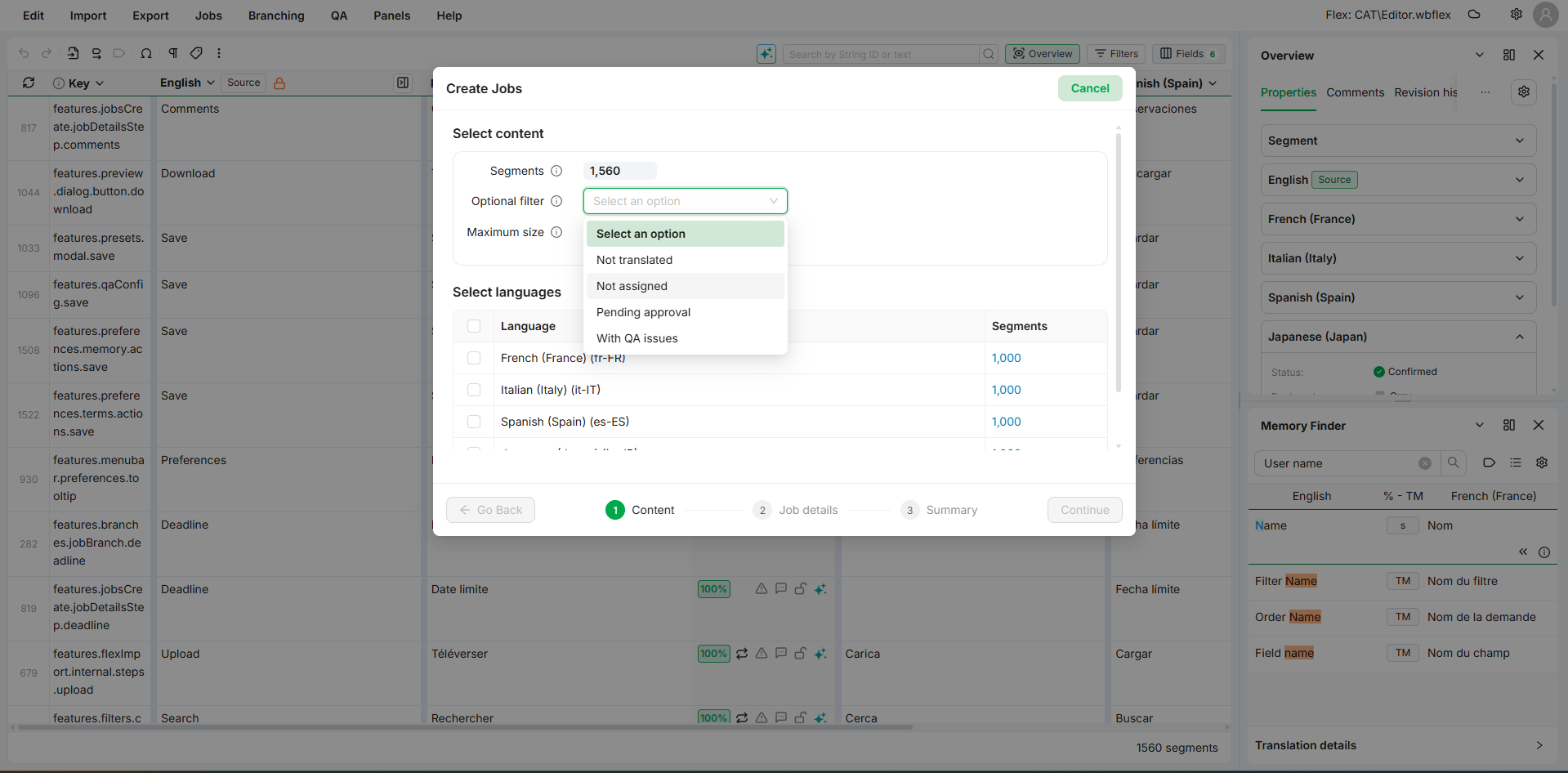
Job Creation Wizard: Create translation jobs directly from the Editor, including scope selection and language assignment.